
EDI & SPS Commerce Integration for Odoo (FTP/SFTP Connector / XML File Format) | SPS Commerce EDI Integration | Odoo and SPS Commerce Direct Integration for EDI | SPS Commerce Odoo Connector | Export Purchase Order (ORDERS) | Import PO Resposne (ORDRSP) | Import Advance Shipping Notice (DESADV) | Import invoices (INVOIC) | Odoo XML Integration | Odoo Custom XML Mapping
by Vraja Technologies https://www.vrajatechnologies.com$ 668.78
EDI & SPS Commerce Integration for Odoo (FTP/SFTP - Import/Export Records) |
Community Enterprise Odoo.sh |
Bridge the gap between Odoo and your trading partners with an all-in-one EDI solution supporting FTP and SFTP protocols. This module features a dynamic XML mapping engine that gives you the power to import, export, create, or update any Odoo record without a single line of code. Streamline your data exchange by syncing remote directory structures and automating workflows via Odoo’s scheduled actions, enabling automated, bidirectional data flow for any Odoo model.
Native SPS Commerce integration supports four core documents in SPS Commerce XML format: Purchase Orders (ORDERS/850), PO Acknowledgements (ORDRSP/855), Advance Ship Notices (DESADV/856), and Invoices (INVOIC/810).
The module supports both sides of the trading relationship, so you can run Odoo as the buyer, the seller, or both:
Customer side (Odoo as buyer): Export Purchase Orders (850) to your suppliers, then automatically import their PO Acknowledgements (855), Advance Ship Notices (856), and Invoices (810) from SPS Commerce back into Odoo, with all updates logged and tracked in the chatter.
Supplier side (Odoo as seller):Import Purchase Orders (850) from your customers as Sales Orders, then export PO Acknowledgements (855), Advance Ship Notices (856), and Invoices (810) back to them.
Connect any number of trading partners, whether they share one XML format or each use their own, with every file handled through a configurable mapping table and no custom code.
End-to-end Odoo solutions for growing companies.
Explore the key features, workflow, and value of this Odoo module.
|
|
FTP & SFTP IntegrationSecurely import and export EDI files through configured FTP/SFTP servers. |
|
|
Dynamic XML MappingConfigure import and export field mappings without hardcoding. |
|
|
Multiple Trading PartnersManage multiple trading partners with separate or shared EDI mapping tables. |
|
|
Supplier & Customer EDI WorkflowsSupport both supplier-side and customer-side EDI operations. |
|
|
Advanced Field Mapping OptionsSupport static values, required fields, date-only formatting, character limits, and record counts. |
|
|
Error Handling & Activity NotificationsFailed imports move to a "failed" state with a log; assign a responsible user to get an activity/notification automatically. |
|
|
Single & Multi-Record File SupportImport one record per file or multiple records from a single XML file. |
01 Applications on Dashboard

02 FTP/SFTP Configuration (From menu Sync FTP/SFTP Syncing)

03 FTP/SFTP Configuration (From menu Sync FTP/SFTP Syncing)

04 Fetch Directories from FTP/SFTP

01 Integration Steps
You need to mention the required details for the incoming/outgoing table.
Odoo Model: Which Odoo model would you like to perform the operation on?
Type: Incoming/Outgoing, this table will be used for which kind of operation.
Main table: You need to enable this option if your configuration is main. For example, to add a sale order record, create a configuration record with the main table option enabled for the sale order model. Additionally, create a separate configuration for the sale order line without enabling the main table option.
File Type If your XML file having single record then select single. - If your XML file having multiple records then select multiple.
XML Header: You need to specify the main header name in the XML.
Search record from this value: To check an existing record, Set the XML element name(s) here. Use the provided value(s) to check if existing records are available. You can specify multiple XML elements, separated by commas.
Default value: During the import/export process, if you want to include specific values along with the processed data, you should enter these values in dictionary format.
Auto Apply Shipping Method : Select the delivery carrier that should be automatically applied to the sale order during import.
Confirm Order? : Enable this option if you want the sale order to be automatically confirmed after it is successfully imported.
Create record if any value not found? : Enable this option if you want the system to create a new record automatically when one or more matching values are not found during the import process.
In Mapping XML Elements with Fields table
XML Element: You need to enter the exact XML element you want to map with the Odoo field.You can also access values from an XML tag or its attributes using special notation.
1. For an element like Lumber Inc, use CustomerName/#text to read the value Lumber Inc.
2. Use @ followed by the attribute name to read an attribute value. For an element like , use CustomerReference/@ref to read the value Customer123.
Selected Model fields: You need to select the field with which you want to map the XML data.
Field to search for M2O: This field is optional. If you choose a Many2one field for mapping, you have the option to set the inner field of that Many2one model. This helps you search records based on that field; otherwise, the search will use the name field of the Many2one model.
Is Address?: This field is optional. If you have selected any Address field in the "Selected Model Fields" and you want to check that if that address exists in Odoo or not. If address exists then use that address and if it is not then create that address in the Odoo and use it. If you select this field, you have to enter the subtable as well. Sub table should be of Contact model and configuration will be same as any sub table.
Sub Table:For a One2Many field, you need to select a subtable where a separate configuration is available for the One2Many fields. (In the subtable, follow the same concept, but you do not need to enable the Main table option. If the "Search record from this value" field is left empty, it will create duplicate One2Many records from the CSV. If you select this option, it will update existing records.)
Main Table

Sub Table

Contact Sub Table for Is Address Field

02 2. Import Records Process (From FTP/SFTP to Odoo)
Fetch Inner files/attachments from directories through button "Sync Inner Files"
We have also provided a scheduled action option for automation. A scheduled action will be created for each FTP/SFTP configuration, and you can review it using the smart button within the form view. You can configure the execution time according to your requirements.
Before pressing the button or executing the scheduled action, certain configurations must be completed. The details are provided below.
First, in the directory list view, specify which directory will be used for the Download operation, so from those directory we will fetch inner files.
In the directory configuration, there's an option stating, "Daily new file coming in this directory". If a directory receives new files with the same name every day, and you need to fetch and process them in Odoo daily, you should enable this checkbox.

Second, in the directory itself you need to select Mapping Model/Table if you don't want to search using XML header.

We’ve added a feature that allows automatic mapping table search using an XML file’s header. Enable the "Search mapping table using XML header" option in the directory form view to support multiple file formats in one directory. Ensure the mapping table is configured for different XML headers.

After making these selections of download option & mapping Model/table you need to press 'Sync Inner Files' button, that process fetch inner files/attachments from the directories chosen for downloading will be fetched into Odoo, creating Odoo attachments.
Along with FTP/SFTP attachments, EDI transaction records will also be created. (Those records will be processed when the scheduled action executes.)

03 Sample XML files

04 To process EDI Transactions through Scheduled Action (Cron)
From the scheduled action, all EDI transactions in the draft state are processed based on the type.
Incoming type: Records will be created in Odoo.
On successful EDI transaction processed that record will move to the done state, if any issue arises then it will move into the failed state & log will generated to check issue.
Scheduled Action

Once the scheduled action executes, an EDI transaction record is created in draft state.

After Clicked the Process button creates the sale order in Odoo and shifts the transaction to Done state.

Incoming record created of Sale Order

05 Log management
A log is created for reference in case of any faults during the import/export process.

06 We also set a scheduled action to delete log records older than 13 days

01 1. Export Records Process (From Odoo to FTP/SFTP)
Firstly you need to do some configuration.
Inside FTP/SFTP Syncing form view you need to enable Upload option beside those directory in which you want to export files from Odoo to FTP/SFTP.

In Configuration table of type outgoing, you need to select partner whom records you need to export.
Fields for Export only
- Add additional search domain: If you want to get the specific records for selected partner to export then you can add the filter here in the form of list of tuples.
- Server Type: Which Server you would like to use for export purpose: FTP/SFTP.
- Trading Partner: When the type is outgoing, you need to select the trading partner/contact from which records of the particular model will be fetched and then exported to FTP/SFTP.
- Export file to FTP/SFTP Directory: When the type is outgoing, and server is FTP or SFTP you need to select the FTP/SFTP directory where you want to export files.
Mapping XML elements level Fields
- Is Static: Enable this option to assign a fixed value to the XML element instead of retrieving it dynamically from an Odoo field.
- Static Value: Enter the predefined value to be used for the XML element when the Is Static option is enabled.
- Is Count/Length?: Enable this option to export the total number of records in a selected One2many or Many2many field.
- Is Address?: Enable this option when the XML element contains address-related information, allowing the mapping to retrieve the relevant address details from Odoo.
- Date Only: Enable this option to export only the date portion of a Date/Datetime field, excluding the time.
- Required: If enabled, the XML element becomes mandatory, and an error will occur if its value is missing.
- Character Length Max: Set the maximum number of characters allowed for the XML element. Values exceeding the configured limit will be restricted to the specified length.

02 2. To process EDI Transactions through Scheduled Action (Cron)
Outgoing type: Records will be exported/uploaded to FTP/SFTP from Odoo. Based on the configuration table, the zxnk file will be uploaded to the directory specified in the configuration.
On successful EDI transaction processed that record will move to the done state, if any issue arises then it will move into the failed state & log will generated to check issue.
Scheduled Action


03 If something goes wrong or required field values are missing, those EDI transaction records will be set to a failed state, and a log will be generated for them. After rectifying the issue, you can recompute the XML content by clicking the 'Re-compute' button. Upon successful recomputation, the XML content will be available, and the state will change to draft.

04 Outoging EDI Transcations
After the scheduled action runs, it creates transactions of the Outgoing type.


05 We also set a scheduled action to delete log records older than 13 days.

01 You can configure multiple vendors with their desired delivery locations.

02 You can configure separate paths for all documents such as ORDRSP, DESADV, and INVOIC.

03 Dedicated Schedule Actions for all the import processes that reduce manual imports in Odoo.

04 Mapping table for the PO Export to SPS Commerce.

Sub table of Purchase Order Line

05 Once the PO mapping table is configured, you can export the confirmed PO directly from the PO itself. (You can also send the PO cancellation to SPS Commerce.)

06 You can choose the mapping configuration of the PO in case you have multiple mappings for the Purchase Order.

07 Once the PO is sent to SPS Commerce, you can also check the PO file in the chatter. We also support PO REPLACE in SPS Commerce. Once a PO is submitted to SPS, if you send the PO again, it will automatically send a PO REPLACE instead of a PO Original.

08 Example of the exported PO file sent to SPS.

09 This is a dedicated schedule action for importing the ORDRSP (Order Response) from SPS.

10 Below is the mapping table used for importing the Order Response (ORDRSP) from SPS.

sub table

Here is a sample Purchase Order Response (ORDRSP/855) XML file used to import Purchase Order acknowledgments into Odoo.

Once the PO is sent to SPS Commerce, you can also check the PO file in the chatter. We also support PO REPLACE in SPS Commerce. Once a PO is submitted to SPS, if you send the PO again, it will automatically send a PO REPLACE instead of a PO Original.

11 This is a dedicated schedule action to import the DESADV (Despatch Advice) from SPS.

Below is the mapping table used for importing the DESADV(Despatc Advice) from SPS.
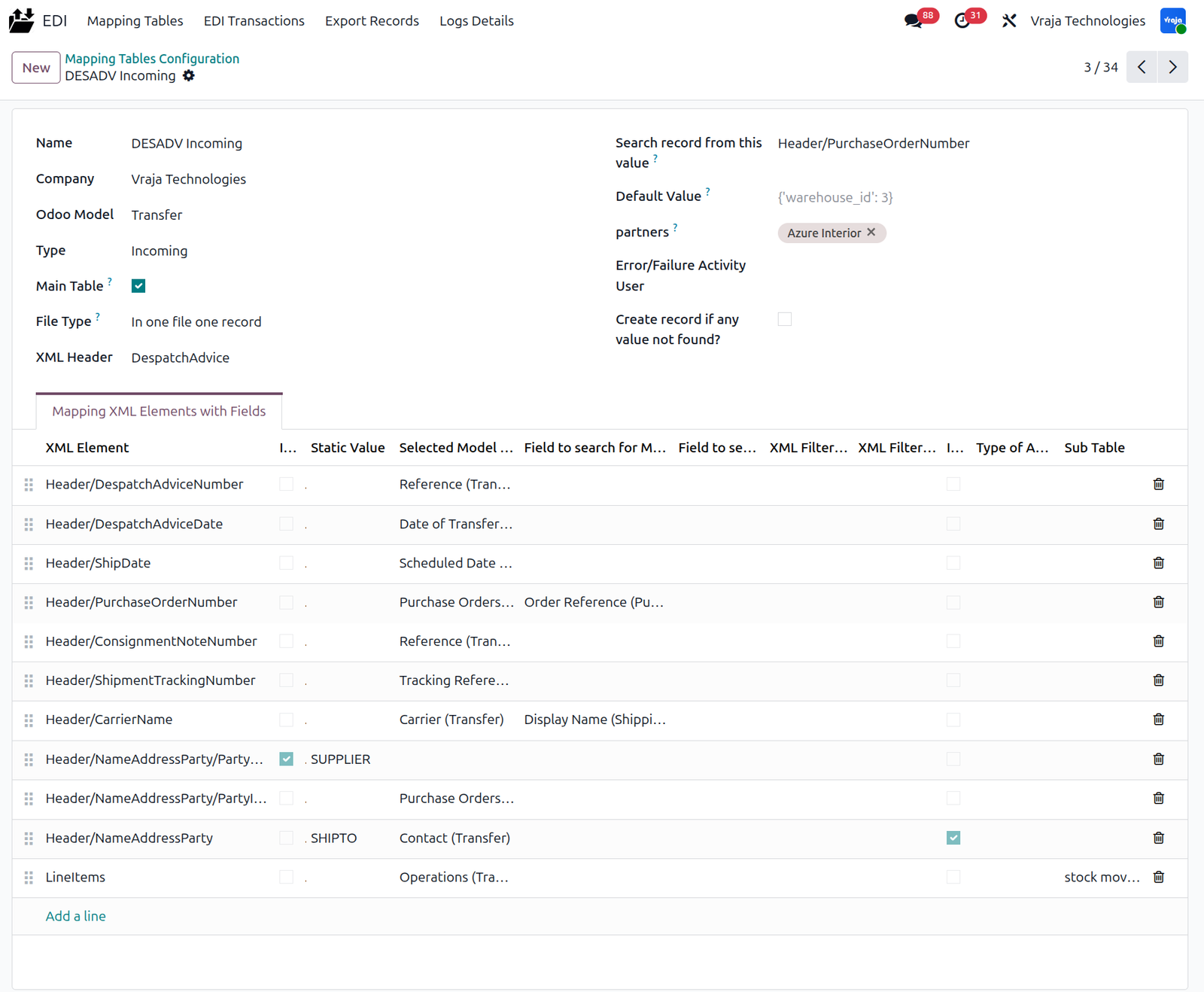
sub table

The following is an example of a DESADV (Despatch Advice / Advance Shipping Notice – 856) XML file used to import shipment details into Odoo.

12 From the DESADV file, the shipped quantity is updated along with the carrier name, consignment note, and tracking number in Odoo.
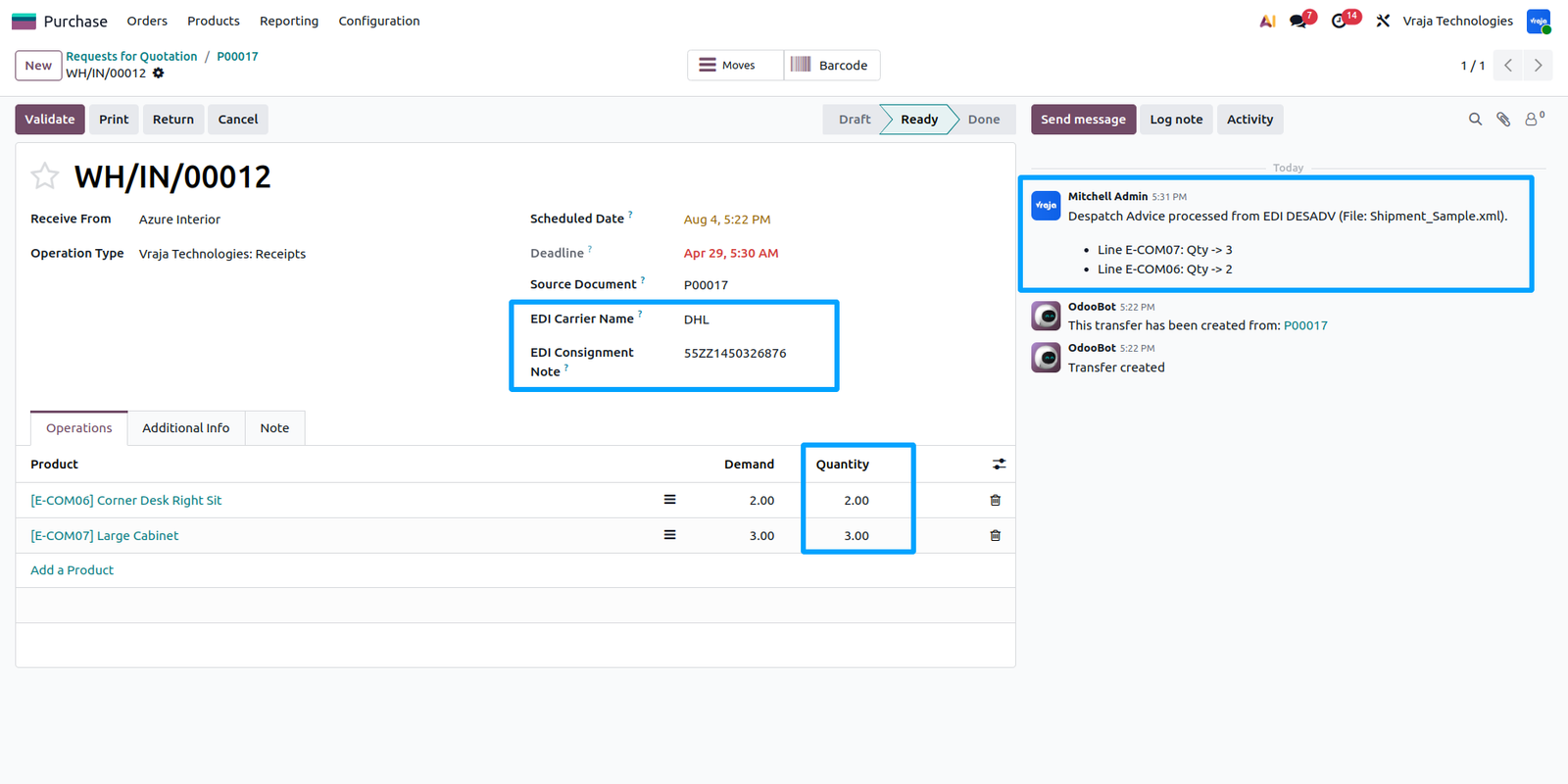
13 This is a dedicated schedule action to import the INVOIC (Invoice) from SPS.

Below is the mapping table used for importing the INVOICE from SPS.

Sub table

The following is an example of a INVOICE (856) XML file used to import vendor bill into Odoo.

14 Upon successful import of the INVOIC file in Odoo, a vendor bill is created for the related purchase order.

01 For the supplier-side EDI workflow, please set the EDI Role to Supplier and configure the Purchase Order (850) Import Path with the appropriate FTP/SFTP directory. Once configured, you can import incoming 850 Purchase Order files into Odoo and proceed with the supplier-side EDI workflow.

02 Dedicated Schedule Actions for all the import processes that reduce manual imports in Odoo.

03 Configure the mapping table to import Purchase Orders from SPS Commerce and automatically create Sales Orders in Odoo.

sub table

Once the Sales Order mapping table is configured, you can import Purchase Orders (850) through the scheduled action, which automatically creates the corresponding Sales Orders in Odoo. Upon successful import, the EDI transaction is marked as Done the imported XML file is attached to the Sales Order chatter, and the related FTP/SFTP connection and Purchase Order reference are recorded on the Sales Order.


This is a sample Purchase Order (850) XML file imported into Odoo using the configured EDI mapping table.

04 Purchase Order Response (855) Export :- here is mapping table for export purchase order response.

Sub table

When you click the Confirm button on a Sales Order, a wizard opens where you can select the appropriate EDI mapping table for exporting the Purchase Order Acknowledgment (855). Click Send to export the file to the selected FTP/SFTP directory. Upon successful export, an EDI transaction is automatically created in Odoo with a Done status.

Upon successful export, the generated EDI file is attached to the Sales Order chatter, along with the corresponding export log for tracking and reference.

This is the exported Purchase Order Response (855 – Purchase Order Acknowledgment) XML file, generated from the Sales Order in Odoo using the configured EDI mapping table.

05 DESADV (856) Export:- When you click the Validate button on a Delivery Order, a wizard opens where you can select the appropriate DESADV (856) EDI mapping table. Click Validate in the wizard to export the file to the configured FTP/SFTP directory.

Here is the Outgoing DESADV (856) EDI Mapping Table, configured with the selected FTP/SFTP directory path for exporting the Despatch Advice XML file.

Sub tables


You can view the associated FTP/SFTP connection details in the EDI XML tab of the Delivery Order. The exported XML file is also attached to the chatter, along with the corresponding export log for tracking and reference.

This is the exported DESADV (856 – Despatch Advice) XML file, generated from the Delivery Order in Odoo using the configured EDI mapping table.

06 Invoice (810) Export:- Here is the Outgoing Invoice (810) EDI Mapping Table, configured to export customer invoices from Odoo in the required XML format to the selected FTP/SFTP directory.

Sub Table

When you click the Confirm button on an Invoice, a wizard opens where you can select the appropriate Invoice (810) EDI mapping table. Click "Confirm Export" in the wizard to export the invoice XML file to the FTP/SFTP directory configured in the selected mapping table.

You can view the FTP/SFTP connection details and Purchase Order reference in the EDI XML tab of the Invoice. The exported XML file and corresponding export log are also attached to the Invoice chatter for tracking and reference.

This is the exported Invoice (810) XML file, generated from the Customer Invoice in Odoo using the configured EDI mapping table.

07 Here you can view all Incoming and Outgoing EDI Transactions in Odoo, including their processing status (Done or Failed), transaction details, and related import/export records for tracking and verification.

|
|
Is the application compatible with Odoo Enterprise and Community?Yes, this application module is supported by both. It is also compatible with test and production environments. |
|
|
Do I get free upgrades and support if I purchase this application?If there is a bug or any issues, our team will be there to help you out. If you need to add any new features, you will need to upgrade the application. |
|
|
Is technical knowledge required to set up the integration?While some technical understanding may be helpful, the integration is designed to be user-friendly. Detailed documentation and support may be provided to aid in the setup process. |
|
|
Is this free customization and implementation?Our team has produced a support video that guides you through the implementation process step by step. If you encounter any issues, please feel free to contact us for assistance. |
|
|
Which protocol you have used to transfer file?We have used FTP protocol to transfer files. |
|
|
Does this support all type of import records?Yes, mostly all types of records will supported, for import inventory we have given separate configuration that mentioned in documentation. |
|
|
Which file format supported?XML file format supported. |
|
|
From one directory currently 5 files are there & those imported in Odoo, next time when there are total 10 files(5 old and 5 new) that time if I fetch inner files from same directory is it create old records again in Odoo?No, we have managed that thing. Only new files will import in Odoo & from those files records will create. |
|
|
Once records exported from Odoo to FTP, is that export again?No, we have managed that thing. Those records which exported that not export again, system only pick fresh records next time. |
|
|
Does module support any EDI documents?Yes, module supports four EDI documents: ORDERS, ORDRSP, DESADV, INVOIC. |
|
|
Does module support specific platform EDI documents?Yes, module supports SPS Commerce XML format for documents mentioned above. |
|
|
For SPS PO export process, does module support PO Original and other PO states?Yes, module support 3 type of POs: ORIGINAL, REPLACE, CANCEL. |
|
|
Do we have to manually import the EDI files received from the SPS?No, module can import and process the files automatically. Moreover, it can also update and create records based on the file received from SPS. |
|
|
For SPS INVOIC file, does module support extra charges and allowances mentioned in the file?Yes, module automatically adds the extra fees and charges on the invoice based on the received file. |
|
|
For SPS DESADV file, does module get the tracking information from the file?Yes, module automatically update the tracking information frot he file in the Odoo. |
|
|
Does this module support multiple trading partners using the same EDI mapping table for import and export?Yes, the module supports multiple trading partners using a single EDI mapping table for both import and export operations. You can assign multiple partners to the same mapping table, allowing them to share the same XML structure and field mappings without creating separate configurations for each partner. |
|
|
Does this module support both supplier-side and customer-side EDI workflows for different trading partners?Yes, the module supports both supplier-side and customer-side EDI workflows for different trading partners. You can configure separate FTP/SFTP connections, assign the appropriate EDI Role (Supplier or Customer), and set up the required mapping tables for each partner. This allows you to manage both incoming and outgoing EDI transactions based on each trading partner's requirements within the same Odoo system. |
|
|
Included App Support90 Days Complimentary Support for Supported Versions If you encounter issues caused by the app itself, our team provides complimentary support for 90 days from the date of purchase for supported Odoo versions. |
Included App Support
90 Days Complimentary Support for Supported Versions
If you encounter issues caused by the app itself, our team provides complimentary support for 90 days from the date of purchase for supported Odoo versions.

Customer SupportNeed help with installation, configuration, technical issues, or general questions about the module? Submit a support ticket through our dedicated support portal. |
||
|
Support Portal
vrajatechnologies.com/helpdesk
|
Support PolicyReview our support policy for complete information about support coverage, issue eligibility, exclusions, version compatibility, and other support conditions. |
||
|
Support Policy
vrajatechnologies.com/support-policy
|
Scan for Support
|
||
|
Support Portal
vrajatechnologies.com/helpdesk
|
EDI Odoo Integration (FTP/SFTP/AS2 - Import/Export Records)
This all-in-one Odoo EDI solution connects Odoo with trading partners using FTP, SFTP, and AS2 protocols, with a dynamic XML mapping engine to import, export, create, or update any Odoo record without coding. It supports secure AS2 file transfer, MDN acknowledgments, scheduled automation, remote folder synchronization, and reliable bidirectional data exchange across any Odoo model.
Dynamic Import XML Records
The Dynamic XML Import for Odoo module allows businesses to import XML files of any structure into Odoo without hardcoding. Whether your XML comes from suppliers, marketplaces, logistics partners, payment gateways, legacy ERPs, or government systems, this module maps XML nodes dynamically to Odoo models like Products, Sales Orders, Customers, Invoices, Stock, and custom records. Ideal for companies working with EDI, B2B integrations, and XML-based data exchange. With the newly added Dynamic Translation feature, users can automatically translate imported data into selected languages. The module allows you to enable translation during import and choose the target language, ensuring that your data is localized and ready for multilingual environments without additional manual effort.
All-in-One Dynamic Import & Export Records
A powerful Odoo import/export solution supporting CSV, TSV, XLSX, TXT, FTP/SFTP, and manual file upload for seamless data transfer. It offers dynamic mapping, default values, validations, filters, relational data handling, error tracking, and complete logging for reliable operations.
Odoo FTP/SFTP File Manager
FTP/SFTP File Manager is a module that automates the process of uploading attachments from Odoo records to external FTP or SFTP servers. It allows users to configure server connections, select Odoo models, and define server directories with ease. Attachments are uploaded automatically based on the configuration, reducing manual effort. The module also provides detailed logs to track and monitor all file transfer activities.
FTP/SFTP IMPORT CSV/XLS FILE
A comprehensive solution called ALL IN ONE Import Records makes it easy to import any type of data into your Odoo database. This is a ONE-STOP IMPORT SOLUTION designed to simplify and streamline data management processes. With its flexibility and efficiency, this robust module enables users to import data through configurable mappings, multiple file formats, and automated workflows. Additionally, it supports dynamic translation during import, allowing users to configure translation fields at the table level and seamlessly import multilingual data within a single operation.This powerful capability makes it an essential tool for businesses operating in multi-language environments, ensuring accuracy, consistency, and efficiency across all data import processes.
Dynamic Import Records From Email
Automates record creation in Odoo from email attachments (Excel/CSV) with dynamic model mapping. This module automates the processing of incoming emails with Excel or CSV attachments. It searches for unread emails from specific partner email addresses, parses and extracts attachments from emails (it supports .xlsx and .csv files), and dynamically creates records in the configured Odoo model.
Explore Before Purchase |
Start with a free trial
Test the connector with your real workflows using our 15-day free trial. If you need help, our product experts will guide you throughout the trial.
|
|
Test the connector with your real workflows.Our product experts will guide you during the trial to help you evaluate, configure, and use the connector with confidence.
15-Day
Trial
Expert
Guidance
Real
Workflow Testing
|
| Availability |
Odoo Online
Odoo.sh
On Premise
|
| Odoo Apps Dependencies |
•
Discuss (mail)
• Invoicing (account) • Purchase (purchase) • Inventory (stock) |
| Lines of code | 6776 |
| Technical Name |
odoo_edi_sps_commerce_integration |
| License | OPL-1 |
| Website | https://www.vrajatechnologies.com |
Odoo Proprietary License v1.0

This software and associated files (the "Software") may only be used (executed,
modified, executed after modifications) if you have purchased a valid license
from the authors, typically via Odoo Apps, or if you have received a written
agreement from the authors of the Software (see the COPYRIGHT file).

You may develop Odoo modules that use the Software as a library (typically
by depending on it, importing it and using its resources), but without copying
any source code or material from the Software. You may distribute those
modules under the license of your choice, provided that this license is
compatible with the terms of the Odoo Proprietary License (For example:
LGPL, MIT, or proprietary licenses similar to this one).

It is forbidden to publish, distribute, sublicense, or sell copies of the Software
or modified copies of the Software.

The above copyright notice and this permission notice must be included in all
copies or substantial portions of the Software.

THE SOFTWARE IS PROVIDED "AS IS", WITHOUT WARRANTY OF ANY KIND, EXPRESS OR
IMPLIED, INCLUDING BUT NOT LIMITED TO THE WARRANTIES OF MERCHANTABILITY,
FITNESS FOR A PARTICULAR PURPOSE AND NONINFRINGEMENT.
IN NO EVENT SHALL THE AUTHORS OR COPYRIGHT HOLDERS BE LIABLE FOR ANY CLAIM,
DAMAGES OR OTHER LIABILITY, WHETHER IN AN ACTION OF CONTRACT, TORT OR OTHERWISE,
ARISING FROM, OUT OF OR IN CONNECTION WITH THE SOFTWARE OR THE USE OR OTHER
DEALINGS IN THE SOFTWARE.
Please log in to comment on this module