
Odoo POS Access Control | GPS Geofencing & IP Whitelist for Point of Sale
by TechUltra Solutions Private Limited https://www.techultrasolution.com$ 59.00


Odoo POS Access Control | GPS Geofencing & IP Whitelist
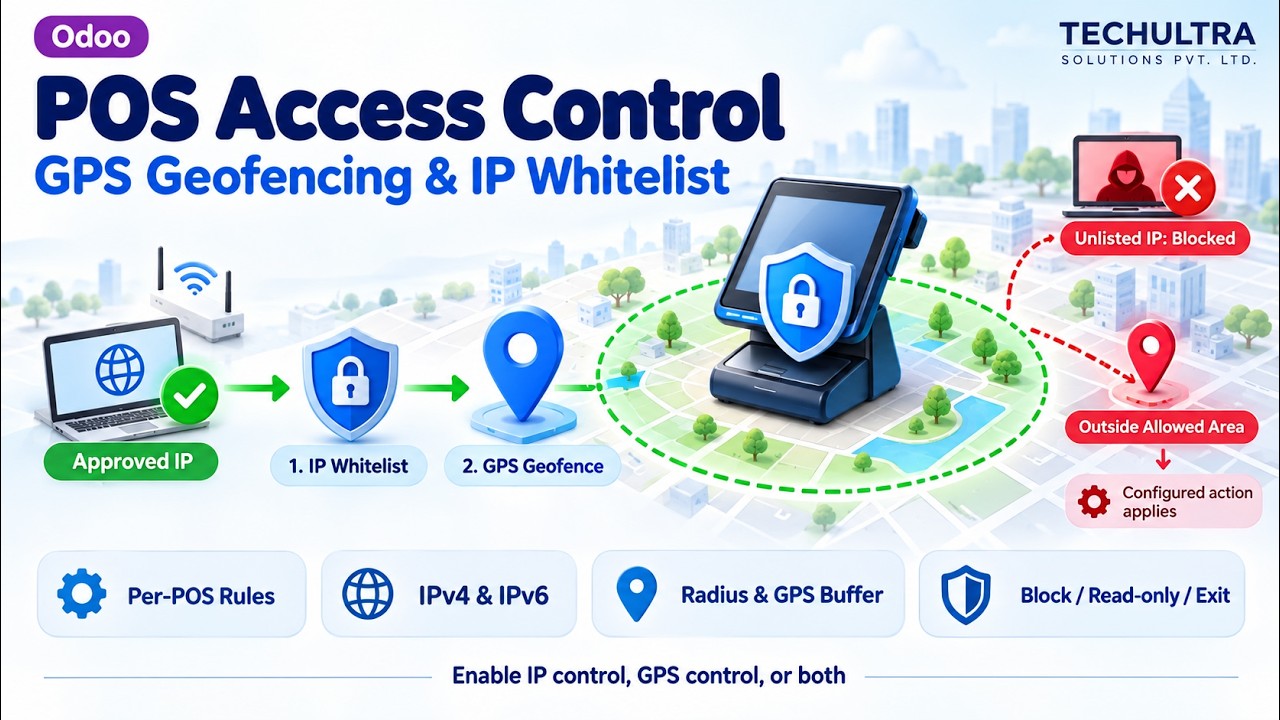
Odoo POS Access Control combines GPS geofencing and IP whitelisting in one Odoo 19 Point of Sale addon. Control where registers can operate and which client IP addresses can open them. Configure independent rules for retail stores, restaurants, franchise outlets and branches, with the flexibility to enable either control or both for each POS.
Set your store latitude, longitude, allowed radius and GPS accuracy buffer to define the permitted operating area. Choose Block Access to prevent POS startup outside the geofence, Read-only Mode to restrict adding products, creating new orders and starting payment outside the area, or Force Exit to exit POS when GPS monitoring detects that the device has left the permitted location.
Create a POS IP whitelist with multiple individual IPv4 and IPv6 addresses. Add descriptions, activate or deactivate entries, and use the current IP displayed by Odoo to authorize the correct connection. Invalid IP formats and duplicate entries within the same register are rejected. When whitelisting is enabled, unlisted IPs and lists without active addresses deny access.
Manage both controls from the POS configuration. Separate Geofencing and IP Whitelist user groups show their respective settings tabs, while existing POS permissions govern editing. IP validation applies when opening the register, including direct POS links, and loading session data. GPS monitoring supports Read-only and Force Exit actions.
Both enabled? IP Whitelist checks first, then GPS Geofencing. An unlisted IP blocks access before the GPS check; an approved IP must still follow the configured location rule.

Odoo POS Access Control | IP Whitelist & GPS Geofencing
Product Overview
▶ Watch Module Demo
See how Odoo POS Access Control | IP Whitelist & GPS Geofencing works.
Features

Enable IP restrictions independently for each register and maintain its own allowed IP list. Set different approved connections for different shops or counters.

Odoo checks the detected IP when opening the register, including through a direct POS link. Unlisted IPs and lists with no active addresses are denied with a message showing the detected IP.

Add several approved addresses to one POS whitelist, including both IPv4 and IPv6. Access is allowed when the detected IP matches any active entry.

Untick Active to temporarily disable an IP. Its saved line remains visible for later reactivation, while the inactive entry no longer authorizes POS access.

Use Your Current IP (as seen by Odoo) to choose the correct address. Direct LAN access normally shows the device IP; Cloudflare Tunnel usually shows the public internet IP.

POS Managers can add descriptions and manage allowed entries; POS Users can read the list. Invalid IP formats and duplicate entries within the same POS are rejected.
Restrict POS register access based on physical device GPS location & store coordinates.
Prevent POS shop registers from opening when the cashier is outside the designated radius.
Allow view-only access outside fence while restricting new orders and payment processing.
Continuously monitor live location & automatically close POS sessions if user leaves the area.
Smart buffer configuration handles mobile phone and laptop GPS accuracy variances.
Configure store-specific coordinates, allowed radius in meters, and accuracy buffer per POS shop.
 Configuration
 Support
 FAQs
Configure User Access for Geofencing
Open Settings > Users & Companies > Users, select the user, and open Access Rights. Under Sales, set POS Geofencing to Geofencing and save. The highlighted setting makes the Geofencing tab visible in the POS configuration.

Configure Geofencing with Block Access Mode
In POS Settings > Geofencing tab, enable Geofencing, configure Latitude & Longitude store coordinates, Radius (meters), GPS Accuracy Buffer (meters), and select 'Block Access (Do not open POS)' as the Outside Area Action.

Access Blocked Outside Allowed Area
When a cashier attempts to open the Point of Sale shop outside the configured geofence radius, access is blocked immediately with a notification dialog and redirected back to the backend.

Configure Read-Only Violation Action
Set Outside Area Action to 'Read-only Mode' to allow sales managers or reps to open POS and review orders or products while restricting new cart additions and payments.

POS Interface in Read-Only Mode
A sticky warning banner displays distance metrics and notifies cashiers that POS is read-only. Action buttons like Add Product, Numpad modifications, and Payment processing are safely disabled.

Configure Force Exit POS Action
Select 'Force Exit POS' for strict location compliance. If cashiers start or move their session outside the allowed store area, the active session is terminated automatically.

Real-Time Live Session Auto-Exit Alert
Continuous GPS position monitoring tracks user movement. If a cashier leaves the allowed fence radius during an active session, a Force Exit warning pops up and closes the POS session instantly.

Live Location & Geofence Coordinates Setup
Set your store's exact live location coordinates (Latitude & Longitude), allowed radius in meters, and custom GPS accuracy buffer (e.g. 75 meters) in POS configuration to establish the valid physical store boundary.

Full Access Allowed Inside Geofence Area
When device location is verified within the configured store radius, Point of Sale loads seamlessly with full product selection, cart management, and payment processing features.

Configure User Access for IP Whitelisting
Open Settings > Users & Companies > Users, select the user, and open Access Rights. Under Sales, set POS IP Whitelist to IP Whitelist and save. The highlighted setting makes the IP Whitelisting tab visible in the POS configuration.

Open the POS Configuration
From the Point of Sale dashboard, open the three-dot menu on the register you want to secure and click Configure. IP access restrictions are configured separately for each POS.

Enable IP Whitelisting
Select the IP Whitelisting tab and tick Enable IP Whitelisting to restrict this register to approved client IP addresses.

Enabled Whitelist with No Allowed IPs
After enabling the feature, Odoo displays Your Current IP (as seen by Odoo) and the Allowed IP Addresses list. Leaving this list empty blocks access to the POS add an active allowed IP before opening the register.

POS Access Denied for an Empty Whitelist
If you try to open the register without any active allowed IP addresses, Odoo blocks access. The error displays the detected client IP so you can add the correct address to the whitelist.

Add the Current IP to the Allowed List
Copy the address shown in Your Current IP (as seen by Odoo) into Allowed IP Addresses. Add an optional description, keep the entry active, and save the configuration.

POS Opens from an Authorized IP
When the detected client IP matches an active whitelist entry, the POS register opens normally. Cashiers can access the standard product selection and sales workflow according to their Odoo permissions.

Detected IP Does Not Match the Whitelist
This example shows a detected IPv6 address while the whitelist contains a different IPv4 address. Access requires an exact match with an active allowed entry add the correct detected IP to authorize this connection.

Block POS Access from an Unlisted IP
Opening the register from an IP that is not in the active whitelist triggers an Access denied message. Odoo displays the detected IPv6 address to help the manager identify the connection that needs authorization.

Allow Multiple IPv4 and IPv6 Addresses
Add multiple approved IP addresses to the same POS whitelist. This example includes both an IPv4 address and the current IPv6 address as active entries. Access is allowed when the detected client IP matches any active entry.

Open POS with Multiple Allowed IPs
After saving the allowed addresses, open the register from an authorized connection. The matching active IP allows the standard Odoo POS interface to load, with product selection and sales actions subject to existing user permissions.
Prevent Duplicate IP Entries per POS
Adding the same IP address twice to one POS configuration triggers a Validation Error. Keep one entry per IP and reactivate the existing entry when needed. The same address can still be allowed for a different POS register.

- We provide 90 days bug-free support related to our module.
- We provide 5 hours of free configuration support. Additional configuration or customization is billable.
- The support team is available from Monday to Friday 10:00 AM to 07:00 PM (IST).
- To create a ticket, send an email to support@techultra.in.
It utilizes HTML5 Geolocation API with distance calculation (Haversine formula) and a configurable GPS accuracy buffer to verify physical device position against configured store coordinates.
When 'Force Exit POS' is enabled, background GPS tracking continuously monitors cashier location during active POS sessions. If a user moves outside the allowed store radius, a warning popup displays and automatically terminates the session.
'Block Access' prevents cashiers from opening the Point of Sale register if they are outside the configured geofence radius. An alert notifies the user and redirects them back to the backend.
Read-Only Mode allows staff to view products and orders outside the fence, but restricts adding items to cart, modifying quantities/discounts, and proceeding to checkout.
Hardware devices (smartphones, tablets, and laptops) have varying GPS accuracy. The accuracy buffer adds custom tolerance (e.g. 75 meters) to prevent accidental blocking inside store premises.
The module implements a smart 2-streak hysteresis filter. It requires consecutive outside position readings before enforcing restrictions, preventing false triggers from momentary GPS drops.
Yes, every Point of Sale shop configuration has its own distinct Latitude, Longitude, Radius in meters, GPS Accuracy Buffer, and Outside Area Action settings.
Yes, the module is fully compatible with Odoo Community and Enterprise editions.
It reads the HTTP request remote address received by Odoo. For an effective loopback address, it checks CF-Connecting-IP, True-Client-IP, X-Real-IP, then the first X-Forwarded-For address. The configuration displays the detected IP.
Open the POS configuration, select IP Whitelisting, enable the feature, and add active allowed IP addresses. Use Your Current IP (as seen by Odoo). Each entry supports an optional description.
With the whitelist enabled, unlisted, inactive, invalid, or unavailable client IPs are denied. An empty active list also denies access. The error shows the detected IP and a warning is written to the server log.
Multiple individual IPv4 and IPv6 addresses are supported. Addresses are validated and normalized, and duplicates within the same POS are rejected. CIDR networks, ranges, and wildcards are not supported.
Use the current IP displayed while accessing Odoo through the tunnel URL. This is usually the public internet IP rather than the private LAN address. Devices sharing Wi-Fi may share it. Update the list if your public IP changes.
Checks run when the POS interface opens, the POS open action is called, and session data is loaded. GPS geofencing continuously monitors browser location when enabled. The module does not continuously monitor IP changes or automatically close an already loaded POS. Normal authentication and permissions still apply.


| Availability |
Odoo Online
Odoo.sh
On Premise
|
| Odoo Apps Dependencies |
•
Point of Sale (point_of_sale)
• Invoicing (account) • Discuss (mail) |
| Lines of code | 1099 |
| Technical Name |
tus_pos_geofencing |
| License | OPL-1 |
| Website | https://www.techultrasolution.com |
Odoo Proprietary License v1.0

This software and associated files (the "Software") may only be used (executed,
modified, executed after modifications) if you have purchased a valid license
from the authors, typically via Odoo Apps, or if you have received a written
agreement from the authors of the Software (see the COPYRIGHT file).

You may develop Odoo modules that use the Software as a library (typically
by depending on it, importing it and using its resources), but without copying
any source code or material from the Software. You may distribute those
modules under the license of your choice, provided that this license is
compatible with the terms of the Odoo Proprietary License (For example:
LGPL, MIT, or proprietary licenses similar to this one).

It is forbidden to publish, distribute, sublicense, or sell copies of the Software
or modified copies of the Software.

The above copyright notice and this permission notice must be included in all
copies or substantial portions of the Software.

THE SOFTWARE IS PROVIDED "AS IS", WITHOUT WARRANTY OF ANY KIND, EXPRESS OR
IMPLIED, INCLUDING BUT NOT LIMITED TO THE WARRANTIES OF MERCHANTABILITY,
FITNESS FOR A PARTICULAR PURPOSE AND NONINFRINGEMENT.
IN NO EVENT SHALL THE AUTHORS OR COPYRIGHT HOLDERS BE LIABLE FOR ANY CLAIM,
DAMAGES OR OTHER LIABILITY, WHETHER IN AN ACTION OF CONTRACT, TORT OR OTHERWISE,
ARISING FROM, OUT OF OR IN CONNECTION WITH THE SOFTWARE OR THE USE OR OTHER
DEALINGS IN THE SOFTWARE.
Please log in to comment on this module