

Sale Price Compliance
by Moduon https://github.com/OCA/sale-workflow , Odoo Community Association (OCA) https://github.com/OCA/sale-workflowSale Price Compliance





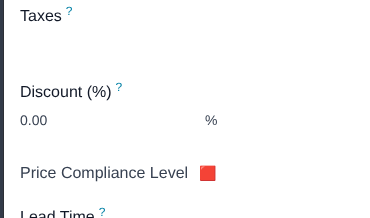
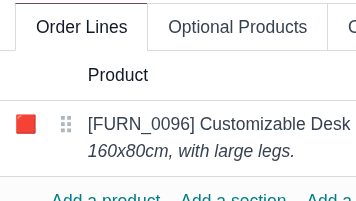
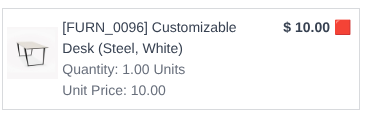
This module extends the sales pricing functionality to display a color code based on the price at which products are being sold.
Managing Price Compliance Thresholds can be done by adding Manage Price Compliance group to any user. Compliance Tiers can be filtered on sale reports.
You can use up to 3 different price compliance tiers for products, categories or for all company.
You can customize the texts and icons of the tiers via the System Parameters.
Labels of the tier fields will change according to sale_price_compliance.price_compliance_selection_tiers_text System Parameter in views.
This functionality only applies to Sales.
A sale with a line with Non Compliant price (doesn’t fit in any defined tiers) can’t be confirmed. Only Sale Administrators can validate this sales and a message will be posted.
Price Compliance thresholds are selected in this order: Product > Product Category > Company
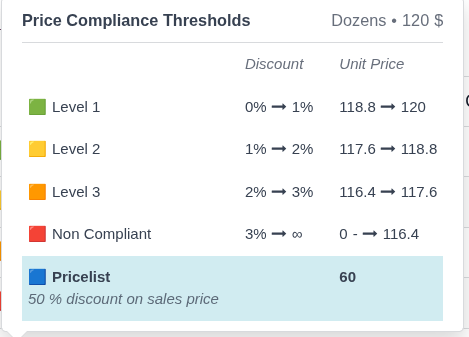
Each Tier represents the maximun discount applied to the Price of the Product to achieve the target tier.
Color Compliance Tiers
- Tier 1 🟩: High-yield (Fully compliant)
- Tier 2 🟨: Medium-yield (Moderately compliant)
- Tier 3 🟧: Low-yield (Low compliant)
- Non Compliant 🟥: Non Compliant price (blocked)
- Pricelist 🟦: Pricelist has been used and it’s price is between pricelist and last compliant tier.
Information Display on Price Compliant Tiers Includes a popup to display detailed information about the price ranges within each price compliance tiers.
Also displays Product Base UoM and Product List Price in Sale Currency in the Top Right corner of the Popup.
Important
This is an alpha version, the data model and design can change at any time without warning. Only for development or testing purpose, do not use in production. More details on development status
Table of contents
Use Cases / Context
This module was developed because sometimes commercial users are incentivized to sell at prices that are more beneficial to the company.
It will be useful if you want to visually show your commercial users whether the price they are selling at is in line with the company’s pricing policy.
Usage
To use this module, you need to:
Configure Parameter Text: Change the default price compliance tiers texts
- Go to System Parameters.
- Create a new parameter with key sale_price_compliance.price_compliance_selection_tiers_text.
- Write a dictionary with the values for tiers that you want to change it’s default text.
- Save the parameter.
- Create a new parameter with key sale_price_compliance.price_compliance_selection_tiers_icon.
- Write a dictionary with the values for tiers that you want to change it’s default icon.
- Save the parameter.
Example:
Param sale_price_compliance.price_compliance_selection_tiers_text:
{‘t1’: ‘Gold’, ‘t2’: ‘Silver’, ‘t3’: ‘Bronze’, ‘pricelist’: ‘Draw’}
Param sale_price_compliance.price_compliance_selection_tiers_icon:
{‘t1’: ‘🥇’, ‘t2’: ‘🥈’, ‘t3’: ‘🥉’, ‘non_compliant’: ‘⛔️’, ‘pricelist’: ‘🤝’}
Resulting texts and icons will be:
- Gold: 🥇
- Silver: 🥈
- Bronze: 🥉
- Non Compliant: ⛔️
- Draw: 🤝
Available keys to be used in the dictionary are:
- t1: Tier 1
- t2: Tier 2
- t3: Tier 3
- non_compliant: Non Compliant
- pricelist: Pricelist
Configure: Product Price Compliance Thresholds configuration
- Go to Sales > Products > Products > Select one > Sales tab
- Enable Use Price Compliance Thresholds under Sale Price Compliance Thresholds
- Fill from 1 to 3 tiers that you want to use in this product.
Example: Tier 1: 10%, Tier 2: 20%, Tier 3: 30%. (Use all tiers)
Configure: Product Category Price Compliance Thresholds configuration
- Go to Sales > Configuration > Products > Product Categories > Select one
- Enable Use Price Compliance Thresholds under Sale Price Compliance Thresholds
- Fill from 1 to 3 tiers that you want to use in this category.
Example: Tier 1: 15%, Tier 2: 25%, Tier 3: 0%. (Don’t use tier 3)
Configure: Company Price Compliance Thresholds configuration
- Go to Sales > Configuration > Settings
- Enable Use Price Compliance Thresholds under Pricing section
- Fill from 1 to 3 tiers that you want to use for the company.
Example: Tier 1: 30%, Tier 2: 0%, Tier 3: 0%. (Don’t use tier 2 and 3)
Sale: As a Salesman user
- Create a new sale and fill contact field
- Add a new line with a product that has been configured to use Price Compliance
- Click on the 🟩, 🟨, 🟧, 🟥 or 🟦 icon at the start of the line.
- You will see a popup with useful information about the Tier ranges.
- Play with it and then set a Non Compliant price (change price or discount to achieve this).
- Try to confirm the Sale and see the error.
Sale: As a Sales Administrator
- Confirm the previous Sale.
- See the message on the chatter.
Reporting: Sales report
- Go to Sales > Reporting > Sales
- Select bar chart or Pivot view
- Group by Price Compliance Level
Reporting: Salesperson report
- Go to Sales > Reporting > Salesperson
- Select Bar chart + stacked or Pivot view
- Group by Price Compliance Level
Reporting: Product report
- Go to Sales > Reporting > Product
- Select Pie chart + stacked or Pivot view
- Group by Price Compliance Level
Reporting: Customers report
- Go to Sales > Reporting > Customers
- Select Bar chart + stacked or Pivot view
- Group by Price Compliance Level
Known issues / Roadmap
- Widget is not shown properly if the order is not saved and refreshed.
Bug Tracker
Bugs are tracked on GitHub Issues. In case of trouble, please check there if your issue has already been reported. If you spotted it first, help us to smash it by providing a detailed and welcomed feedback.
Do not contact contributors directly about support or help with technical issues.
Credits
Authors
- Moduon
Contributors
- Eduardo de Miguel (Moduon)
Maintainers
This module is maintained by the OCA.

OCA, or the Odoo Community Association, is a nonprofit organization whose mission is to support the collaborative development of Odoo features and promote its widespread use.
Current maintainers:


This module is part of the OCA/sale-workflow project on GitHub.
You are welcome to contribute. To learn how please visit https://odoo-community.org/page/Contribute.
| Availability |
Odoo Online
Odoo.sh
On Premise
|
| Odoo Apps Dependencies |
•
Invoicing (account)
• Discuss (mail) |
| Lines of code | 930 |
| Technical Name |
sale_price_compliance |
| License | LGPL-3 |
| Website | https://github.com/OCA/sale-workflow |
Please log in to comment on this module