

ODOO DIRECT PRINT
Print any Odoo document directly to your printer. No IoT Box. No subscriptions. No hassle.
💰 One-Time Payment
No monthly fees. Own it forever.

📥 Copy the URL and paste it in your browser
v18-19
Odoo versions supported
0
Monthly subscription fees
100%
Compatible printers
5 min
Setup time
See it in Action
Instant printing right from your browser. Click print and your receipt is ready in milliseconds. No dialogs, no waiting.

What's New in Version 2?
Upgrade to Agent V2 to unlock Multi-Session and Hybrid Printing capabilities.

Multi-Session Support (IP per POS)
Now each Point of Sale (POS) can have its own independent Print Agent configuration.
- ✅ No Conflicts: Define a unique Agent URL/IP for each POS.
- ✅ Flexible: Perfect for stores with multiple checkout counters using different computers.
- ✅ Easy Setup: Just enter the specific IP in the "Connected Devices" section of your POS settings.

Dual Printing Modes: Image vs Text
We now support two types of printing for thermal printers, giving you full control over speed and quality.
-
🅰️ Text Mode (Raw/ESC-POS):
Uses generic text drivers. Lightning fast and compatible with almost any thermal printer (even old ones). -
🖼️ Image Mode (HTML Canvas):
Prints the receipt as a high-quality image. Perfect for logos and complex layouts.
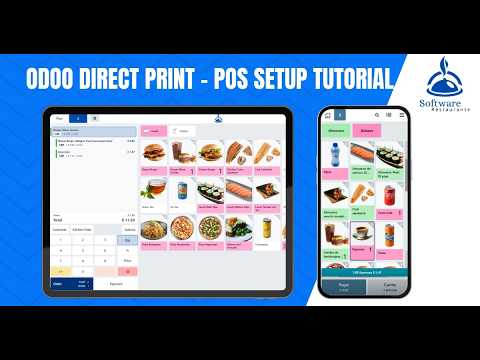
Video Tutorials
Watch our step-by-step guides to set up Odoo Direct Print perfectly

Key Features
Everything you need to print directly from Odoo without complications
Universal Compatibility
Works with any printer: USB, Wi-Fi, Bluetooth, or Ethernet. No special hardware required.
No Subscriptions
One-time payment. No hidden costs or recurring fees. Own it forever with free updates.
Mobile Ready
Print from mobile or tablet when agent runs on your PC. Perfect for on-the-go printing.
Zero Setup Hassle
Simple configuration. Start printing in minutes. No technical knowledge required.
Perfect for POS
Multiple kitchen printers by category for restaurants. Automatic order routing.
Multi-Printer Support
Assign specific printers to different reports and modules. Full control over printing.
💡 Built for Odoo v18-19
Odoo Direct Print is designed specifically for Odoo versions 18 and 19, ensuring seamless integration with Community and Enterprise editions.
Compatibility
| Feature | Supported |
|---|---|
| Odoo Versions | 18.0, 19.0 |
| Editions | Community & Enterprise |
| Operating Systems | Windows, Linux |
Installation Guide
Follow these simple steps to set up Odoo Direct Print
Download & Install
Visit mateusc7.github.io and download the new Odoo Direct Print - Agent V2. This version is required for Multi-POS and Dual Printing features.

Authorize Your PC
Click "Step 1: Authorize PC" in the agent. Accept the security warning to authorize communication with Odoo.

Confirm Activation
After authorization, you'll see "Printing service is active and authorized". The agent is now ready.

Configure in Odoo
In Odoo, go to Settings → Odoo Direct Print. Copy the IP from the agent and paste it in Print Agent Configuration.

Assign Printers
Navigate to Report Management. Select a report and enter the printer name from the agent's list.

Configure POS (Optional)
For POS, go to settings → Connected Devices → Local Printing. Configure kitchen printers in Preparation → Manage Printers.

Configuration Scenarios
🏷️ How to Print ZPL Labels in Stock
Step 1: Configure the Report
Go to the "Report Management" menu and search for "zpl". Select the label report you want to use and assign your ZPL printer (e.g., Zebra, TSC) from the dropdown list.

Step 2: Print from Stock
Once configured, go to the Inventory/Stock module. Select products, click "Print Labels", and choose the layout (with price or without price). It will print directly to your label printer.

📄 How to Print PDF Invoices
Configuration
To enable direct PDF printing for invoices:
- Go to Report Management.
- Search for the report named "Invoice PDF".
- Select your standard A4/Letter printer.
Now, every time you click "Print Invoice", it will be sent directly to the printer.

Perfect For Every Business
Restaurants & Cafes
- ✓ Kitchen printers by category
- ✓ Automatic receipt printing
- ✓ Multiple station support
Retail Stores
- ✓ Instant invoice printing
- ✓ Label printing (ZPL)
- ✓ Packing list automation
Warehouses
- ✓ Picking lists printing
- ✓ Barcode labels
- ✓ Shipping documentation
Support & Resources
Website
Download Print Agent
GitHub
Open Source Code
Videos
English & Spanish tutorials
Documentation
Complete setup guides
Direct Contact
Need help? Chat with us directly
WhatsApp / Telegram
+593 99 883 6250Ready to Print Without Limits?
Download Odoo Direct Print today and transform your printing workflow
🚀 Download Now - Windows & Linux✓ One-time payment • ✓ No subscriptions • ✓ 5-minute setup
| Availability |
Odoo Online
Odoo.sh
On Premise
|
| Odoo Apps Dependencies |
•
Point of Sale (point_of_sale)
• Restaurant (pos_restaurant) • Discuss (mail) • Inventory (stock) • Invoicing (account) |
| Lines of code | 1160 |
| Technical Name |
print_direct_odoo |
| License | OPL-1 |
| Website | https://mateusc7.github.io/ |
Odoo Proprietary License v1.0

This software and associated files (the "Software") may only be used (executed,
modified, executed after modifications) if you have purchased a valid license
from the authors, typically via Odoo Apps, or if you have received a written
agreement from the authors of the Software (see the COPYRIGHT file).

You may develop Odoo modules that use the Software as a library (typically
by depending on it, importing it and using its resources), but without copying
any source code or material from the Software. You may distribute those
modules under the license of your choice, provided that this license is
compatible with the terms of the Odoo Proprietary License (For example:
LGPL, MIT, or proprietary licenses similar to this one).

It is forbidden to publish, distribute, sublicense, or sell copies of the Software
or modified copies of the Software.

The above copyright notice and this permission notice must be included in all
copies or substantial portions of the Software.

THE SOFTWARE IS PROVIDED "AS IS", WITHOUT WARRANTY OF ANY KIND, EXPRESS OR
IMPLIED, INCLUDING BUT NOT LIMITED TO THE WARRANTIES OF MERCHANTABILITY,
FITNESS FOR A PARTICULAR PURPOSE AND NONINFRINGEMENT.
IN NO EVENT SHALL THE AUTHORS OR COPYRIGHT HOLDERS BE LIABLE FOR ANY CLAIM,
DAMAGES OR OTHER LIABILITY, WHETHER IN AN ACTION OF CONTRACT, TORT OR OTHERWISE,
ARISING FROM, OUT OF OR IN CONNECTION WITH THE SOFTWARE OR THE USE OR OTHER
DEALINGS IN THE SOFTWARE.
Please log in to comment on this module
There are no ratings yet!
Error
Good Morning ,
i wanted to buy the app but before , i wanted to try your app for linux ...if understand if is compatible your directPrint for linux...
./OdooDirectPrint
[PYI-38985:ERROR] Failed to execute script 'print_agent_gui' due to unhandled exception!
Error
Good morning,
Thank you for your message.
Honestly, I was not aware that it was not working on Linux. I really appreciate you letting me know and sharing the exact error message.
We are going to review this issue and work on a solution as soon as possible so that DirectPrint can run correctly on Linux. It seems to be related to the PIL/Tkinter dependency, and we will check the compatibility and packaging.
Please accept my sincere apologies for the inconvenience. I understand you wanted to test it before purchasing, and I truly value that.
I will get back to you once we have an update or a fixed version ready. Thank you for your patience.