

Sale Order Barcode Scanner
by Mohamed Helmy https://github.com/mohamed-helmy/sale_barcode_scanner
Odoo
Sale Order Barcode Scanner
Scan products by Barcode/QRCode in sales orders using mobile camera or webcam.
Preview
Desktop Interface
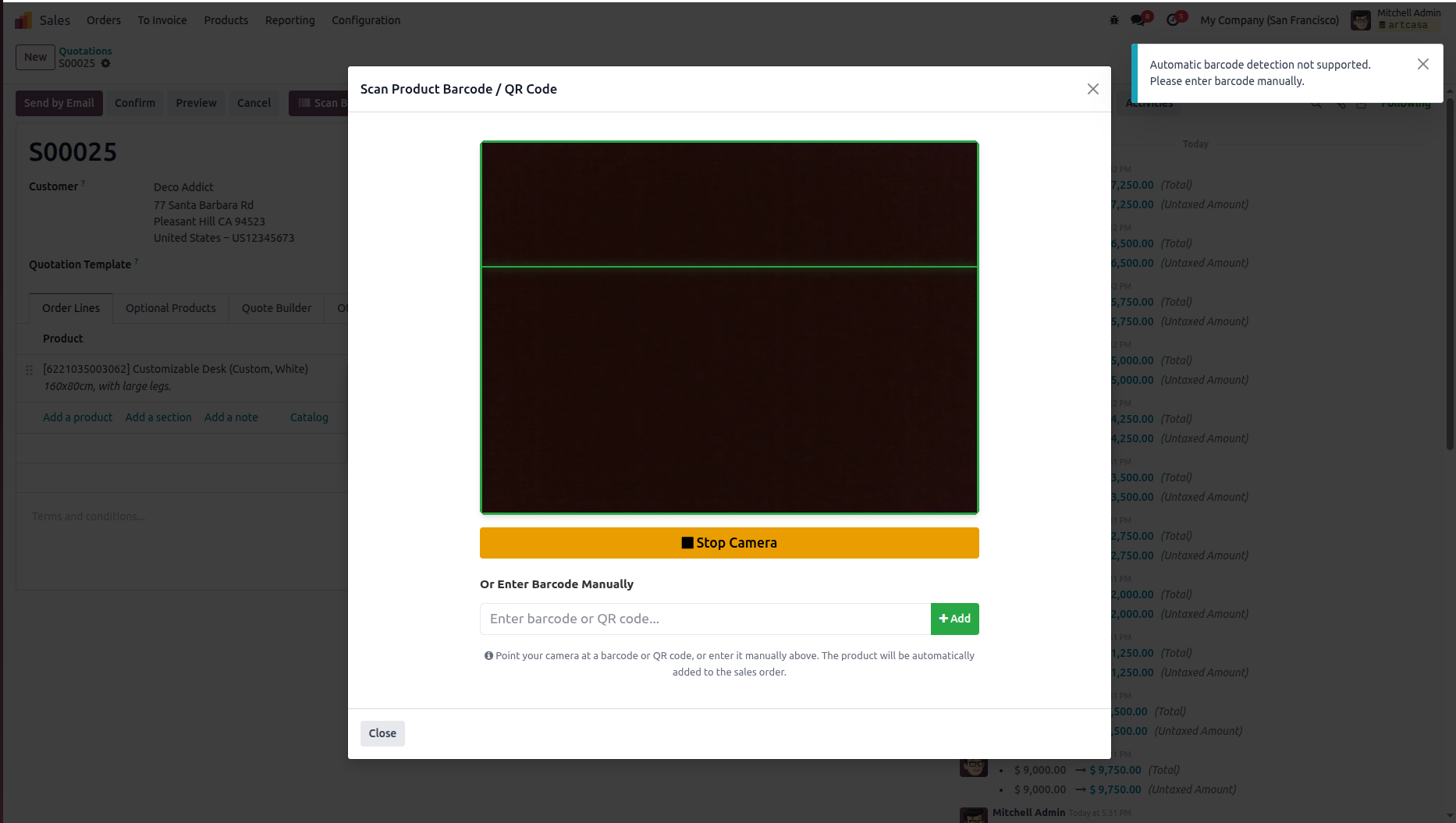
The scanner interface on desktop showing camera preview and manual barcode entry option.
Mobile Interface
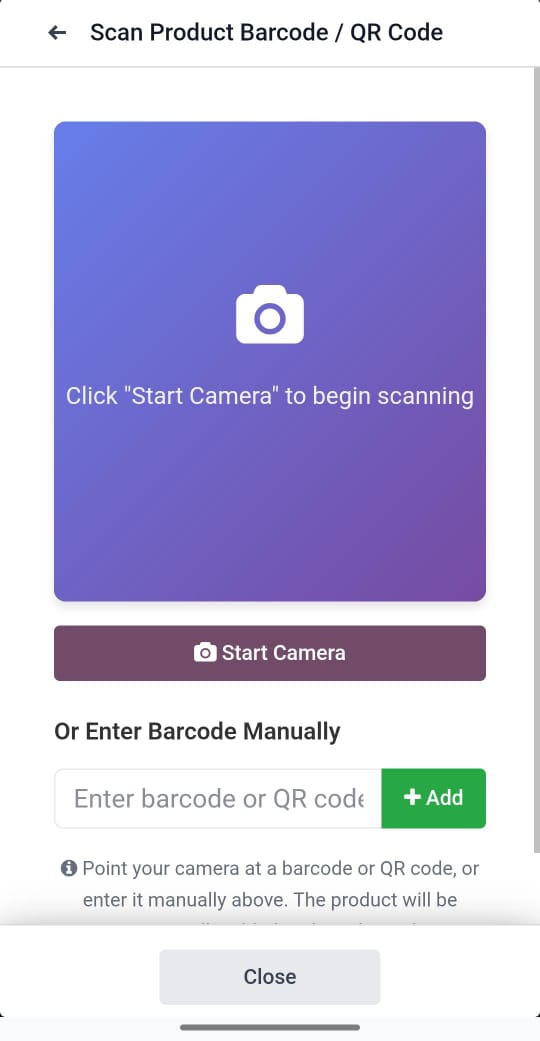
The scanner interface on mobile devices with responsive design and touch-friendly controls.
Features
Easy Product Scanning: Scan products directly from sales order lines using barcode or QR code
Mobile & Webcam Support: Works with mobile device cameras and desktop webcams
Multiple Barcode Formats: Supports QR codes, EAN-13, EAN-8, Code-128, Code-39, UPC-A, and UPC-E
Manual Entry: Fallback option to enter barcodes manually
Smart Quantity Management: Automatically increments quantity if product already exists in order
Real-time Feedback: Visual and notification feedback for scanned products
User-Friendly Interface: Clean, intuitive scanning interface with camera preview
Installation
- Copy this module to your Odoo addons directory
- Update the app list: Go to Apps → Update Apps List
- Search for "Sale Order Barcode Scanner"
- Click Install
Configuration
No additional configuration needed. The module works out of the box.
Note: For camera access, ensure your browser has camera permissions enabled.
Usage
- Open a Sales Order (in draft state)
- Click the "Scan Barcode" button in the header
- Grant camera access when prompted
- Click "Start Camera" to activate scanning
- Point your camera at a product barcode or QR code
- The product will be automatically added to the order lines
- If the product already exists, quantity will be incremented by 1
Alternative Method: Enter barcode manually in the text field and click "Add"
Supported Barcode Types
- QR Code
- EAN-13
- EAN-8
- Code-128
- Code-39
- UPC-A
- UPC-E
Requirements
- Odoo 18.0 (Community and Enterprise editions)
- sale_management module
- product module
- barcodes module
- Modern browser with camera access and BarcodeDetector API support (Chrome 83+, Edge 83+, or browsers with polyfill)
Compatibility
- Odoo Community Edition: Fully compatible ✓
- Odoo Enterprise Edition: Fully compatible ✓
- Version: 18.0
This module works seamlessly with both Odoo Community and Enterprise editions without any additional configuration.
Browser Compatibility
Full Support (Native BarcodeDetector API)
- Google Chrome 83+
- Microsoft Edge 83+
- Opera 69+
Partial Support (Manual entry only)
- Firefox (requires manual barcode entry)
- Safari (requires manual barcode entry)
Tips
- Ensure adequate lighting for better barcode recognition
- Hold the barcode steady and at a reasonable distance from camera
- Use the back camera on mobile devices for better scanning
- If automatic detection doesn't work, use manual entry as fallback
- Products must have barcodes set in Product form for scanning to work
Troubleshooting
Camera not working?
- Check browser permissions for camera access
- Ensure you're using HTTPS (required for camera access)
- Try a different browser (Chrome/Edge recommended)
Barcode not detected?
- Ensure the barcode is clear and well-lit
- Try adjusting the distance from camera
- Use manual entry as alternative
Product not found?
- Verify the product has the barcode set in Odoo
- Check barcode format matches product's barcode field
- Product default_code can also be used as barcode
Credits
Author: Mohamed Helmy
Website: https://helmy.info
Version: 18.0.1.0.0
License: LGPL-3
Maintainer
This module is maintained by Mohamed Helmy.
For support, please visit: https://helmy.info
| Availability |
Odoo Online
Odoo.sh
On Premise
|
| Odoo Apps Dependencies |
•
Sales (sale_management)
• Discuss (mail) • Invoicing (account) |
| Lines of code | 475 |
| Technical Name |
sale_barcode_scanner |
| License | LGPL-3 |
| Website | https://github.com/mohamed-helmy/sale_barcode_scanner |
Please log in to comment on this module
There are no comments yet!