

ODOO 18 • POINT OF SALE MODULE
POS Customer Display
Transform your customer-facing screen into a dynamic promotional display —
auto-rotating slides with live order updates in real-time, no extra hardware needed.
| Promotional Slideshow | Live Order Sync | Visual Color Picker | No extra hardware |
| Image & Text Slides | Ken Burns Animation | Clock & Date Display | Drag & Drop Ordering |
|
10
NEW FEATURES
|
2
DISPLAY MODES
|
1.5s
SYNC INTERVAL
|
0
EXTRA HARDWARE
|
∞
SLIDES SUPPORTED
|
6
LIVE SCREENSHOTS
|
DEMO VIDEO
See it in Action
Watch the full walkthrough — live slideshow, order sync, and backend configuration.
▶
CORE FEATURES
Everything for a Professional Customer Screen
A complete customer-facing display system built natively inside Odoo 18 POS.
|
1
Promotional Slideshow
Create unlimited slides with images, text overlays, custom background colors, and duration per slide. Displays automatically when the POS session is idle between orders.
|
2
Live Order Display
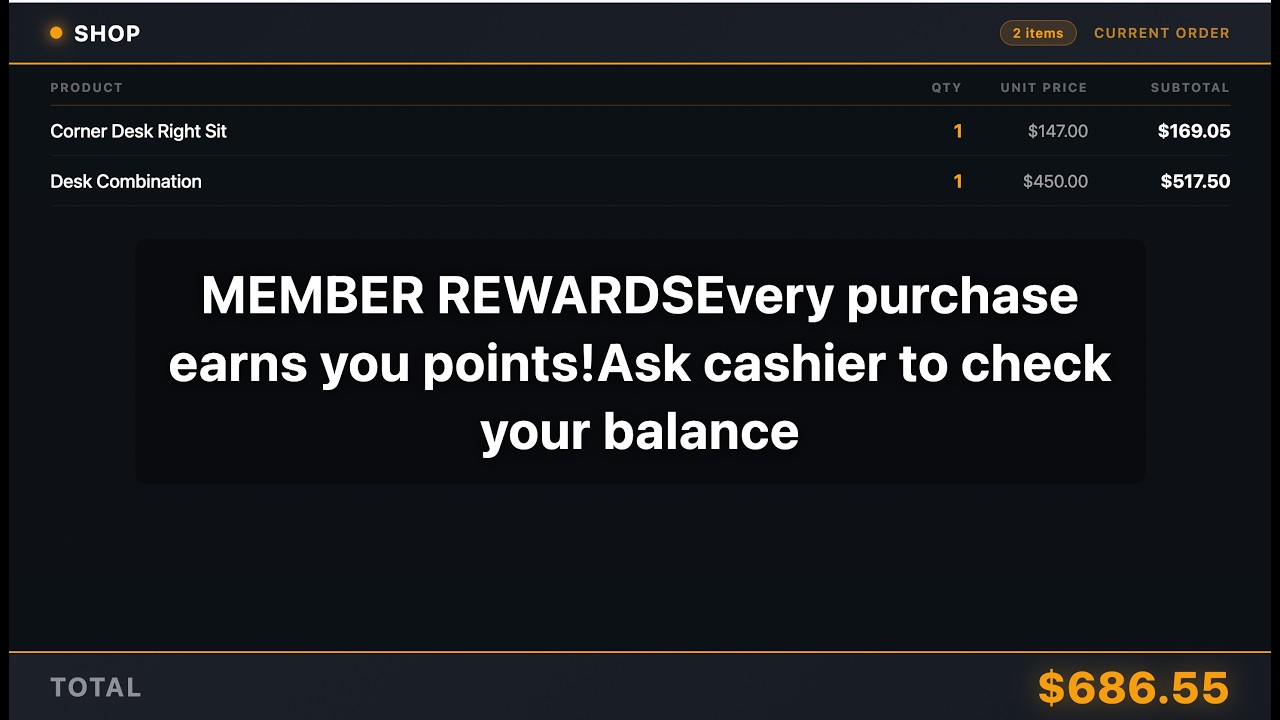
As soon as the cashier adds items to the order, the customer screen switches from slideshow to a dark-themed order table showing product name, quantity, unit price, and subtotal — synced every 1.5 seconds.
|
3
Visual Color Picker
Both Background Color and Text Color fields use a native visual color picker widget — click a swatch to open the full palette. No hex code knowledge required from your staff.
|
|
4
Ken Burns Image Animation
Slides with images automatically use the Ken Burns effect — a smooth zoom-and-pan motion that makes static images feel alive and professional on large customer-facing screens.
|
5
Live Clock & Date
A live clock (HH:MM) and full date are always visible in the bottom-left corner of the customer display during the slideshow — giving customers a professional, informative screen.
|
6
Drag & Drop Slide Order
Slides are ordered by a sequence handle in the list view. Drag to reorder your promotional content instantly — no typing sequence numbers manually.
|
|
7
Slide Dot Navigation
Dot indicators at the bottom of the screen show the customer which slide is currently active and how many total slides exist — a polished detail that elevates the display quality.
|
8
Shop Name Header
The POS shop name appears in the top-left corner of the display with a live orange dot indicator, confirming the connection is active and reinforcing your brand name to customers.
|
9
Open on Any Screen
The customer display runs at /pos/display/<id> — open it in any browser on any device. Put it full-screen on a tablet, TV, or second monitor. No app install required.
|
|
10
Auto Idle Return
When a payment is completed or the order is cleared, the display automatically returns to the promotional slideshow mode. No manual interaction needed from the cashier.
|
✓
Native Odoo Integration
Fully built inside Odoo 18 POS framework. No third-party APIs, no subscriptions, no cloud dependency. Slides are managed from Configuration → Customer Display Slides in the POS backend.
|
DISPLAY MODES
IDLE —
Promotional slideshow with clock
ACTIVE —
Dark order table with live total
Switches automatically based on order state. Zero cashier interaction required.
|
HOW IT WORKS
Simple 3-Screen Setup
Set up in minutes — open two browser tabs and you're live.
|
STEP 1
Create Slides
Go to Configuration → Customer Display Slides in POS. Add name, image (optional), text overlay, background color, and duration per slide.
|
→ |
STEP 2
Open Customer Display
Open /pos/display/1 on your second screen or tablet. Go full-screen (F11). The slideshow starts immediately.
|
→ |
STEP 3
Start Selling
Open POS normally on the cashier's screen. As soon as you add a product, the customer display switches to the live order view automatically.
|
LIVE SYSTEM
6 Real Screenshots from a Live Odoo 18 Instance
Every image taken from an actual running system — no mockups.
|
1
|
Slide Manager — List View
All promotional slides at a glance. Drag the handle to reorder. Toggle active/inactive per slide. Duration shown in seconds.
|

Access path: Point of Sale → Configuration → Customer Display Slides. Manage all slides from a single list view with drag-and-drop ordering.
|
2
|
Slide Form — Color Picker
Configure every aspect of a slide — image upload, sequence, duration, background color picker, text overlay, text position, and text color picker. No hex codes needed.
|

Color Picker: Background Color and Text Color both use a native visual swatch — click to open the full color palette. No technical knowledge required from staff.
|
3
|
Customer Display — Idle Slideshow (Dark Green)
Idle mode: promotional slide with centered text overlay, slide dot indicators, live clock & date in bottom-left, shop name in top-left with live indicator dot.
|

WE ACCEPT slide: Payment method information displayed full-screen with text centered and readable from a distance. Background color and text are fully customisable.
|
4
|
Customer Display — Idle Slideshow (Blue)
Each slide has its own background color. This "Return Policy" slide uses a deep blue background with white bold text. Auto-rotates every N seconds as configured.
|

HASSLE-FREE RETURNS slide: Policy information that builds customer confidence. Slides rotate automatically — duration per slide is fully configurable (in seconds).
|
5
|
Customer Display — Live Order Mode
When the cashier has active order items, the display switches to a dark-themed order table. Shows product, QTY, unit price, and subtotal for every line — updated every 1.5 seconds.
|

Order header: Item count badge + "CURRENT ORDER" label.
Footer: TOTAL in large gold text. Columns: PRODUCT • QTY (gold) • UNIT PRICE • SUBTOTAL (bold). Slideshow overlay fades in behind for engaged customers.
|
6
|
POS Cashier — Standard Interface (Unchanged)
The cashier's POS interface is completely unaffected. The module runs silently in the background, pushing order data to the customer display every 1.5 seconds via a lightweight background service.
|

Zero disruption: The cashier uses POS exactly as before. The customer display syncs in the background — no new buttons, no new steps, no change to cashier workflow.
DISPLAY LOGIC
Automatic Mode Switching
The display knows what to show — completely hands-free for the cashier.
|
⬤ IDLE MODE
Promotional Slideshow
✓ Auto-rotating slides (configurable duration)
✓ Image with Ken Burns zoom animation
✓ Text overlay with position (top / center / bottom)
✓ Live clock and date (bottom-left)
✓ Dot indicators (bottom-center)
✓ Shop name with live status dot (top-left)
Triggered when: no active order lines in the POS session
|
⬤ ACTIVE ORDER MODE
Live Order Table
✓ Dark theme table (PRODUCT / QTY / UNIT PRICE / SUBTOTAL)
✓ Real-time sync every 1.5 seconds
✓ Item count badge (e.g. "4 items")
✓ Gold TOTAL amount in large font (footer)
✓ Slideshow overlay in background (branded)
✓ Shop name always visible (top-left)
Triggered when: cashier adds one or more items to the current order
|
SLIDE CONFIGURATION
Every Slide is Fully Customisable
Configure each slide independently from the backend form view.
| FIELD | TYPE | DESCRIPTION |
| Slide Name | Text | Internal label for staff reference — not shown on the customer display |
| Image | Image | Optional promotional image (JPG/PNG). Displays with Ken Burns animation when present |
| Sequence | Integer | Display order — drag the handle in list view to reorder without editing numbers |
| Duration (seconds) | Integer | How long this slide shows before advancing to the next. Default: 5 seconds |
| Background Color | Color Picker | Fallback background when no image is set. Click the swatch to open the color palette |
| Text Overlay | Text | Promotional text shown over the slide. Use line breaks to create multi-line messages |
| Text Position | Select | Where text appears: Top / Center / Bottom |
| Text Color | Color Picker | Color of the text overlay. Default white (#ffffff). Visual picker — no hex code needed |
Get Started in 3 Steps
Works with any Odoo 18 Community or Enterprise instance that has Point of Sale active.
|
1
Copy the sc_pos_customer_display folder into your Odoo addons directory
|
2
Update the Apps list and search for "SC POS Customer Display", then click Install
|
3
Go to POS → Configuration → Customer Display Slides, create slides, then open /pos/display/1
|
Required dependency (auto-installed by Odoo):
point_of_sale
Need Help or Customisation?
We respond quickly to support requests, feature ideas, and custom development enquiries.
sales@odoovansalesolution.com
miachelscofield060@gmail.com
SC POS Customer Display
Version 18.0.1.0.0 | License OPL-1 | Odoo 18 Community and Enterprise
Built by Nevermore — professional POS displays, simplified.
Version 18.0.1.0.0 | License OPL-1 | Odoo 18 Community and Enterprise
Built by Nevermore — professional POS displays, simplified.
| Availability |
Odoo Online
Odoo.sh
On Premise
|
| Odoo Apps Dependencies |
•
Point of Sale (point_of_sale)
• Discuss (mail) • Inventory (stock) • Invoicing (account) |
| Lines of code | 845 |
| Technical Name |
sc_pos_customer_display |
| License | OPL-1 |
| Website | https://vansalesolution.odoo.com |
Odoo Proprietary License v1.0

This software and associated files (the "Software") may only be used (executed,
modified, executed after modifications) if you have purchased a valid license
from the authors, typically via Odoo Apps, or if you have received a written
agreement from the authors of the Software (see the COPYRIGHT file).

You may develop Odoo modules that use the Software as a library (typically
by depending on it, importing it and using its resources), but without copying
any source code or material from the Software. You may distribute those
modules under the license of your choice, provided that this license is
compatible with the terms of the Odoo Proprietary License (For example:
LGPL, MIT, or proprietary licenses similar to this one).

It is forbidden to publish, distribute, sublicense, or sell copies of the Software
or modified copies of the Software.

The above copyright notice and this permission notice must be included in all
copies or substantial portions of the Software.

THE SOFTWARE IS PROVIDED "AS IS", WITHOUT WARRANTY OF ANY KIND, EXPRESS OR
IMPLIED, INCLUDING BUT NOT LIMITED TO THE WARRANTIES OF MERCHANTABILITY,
FITNESS FOR A PARTICULAR PURPOSE AND NONINFRINGEMENT.
IN NO EVENT SHALL THE AUTHORS OR COPYRIGHT HOLDERS BE LIABLE FOR ANY CLAIM,
DAMAGES OR OTHER LIABILITY, WHETHER IN AN ACTION OF CONTRACT, TORT OR OTHERWISE,
ARISING FROM, OUT OF OR IN CONNECTION WITH THE SOFTWARE OR THE USE OR OTHER
DEALINGS IN THE SOFTWARE.
Please log in to comment on this module