

POS Access Rights Employee | Point of Sale Access Rights for Employees | Point of Sale Employee Access Management | POS Cashier Access Control | Point of Sale Cashier Permissions
by Sensible Consulting Services https://sensiblecs.comRestaurant Module Now Available!
Great news! We are pleased to announce that our Smart POS Restaurant Access Rights module is now published and available on the Odoo Apps Store.
If you are using Odoo's Restaurant functionality, we invite you to explore our dedicated module designed specifically for restaurant operations with comprehensive employee access control features.
Feature Highlight
Access Control Features for Complete POS Management
Hide New Order Button
Hide Delete Order Button
Hide Actions Button
Hide Product Info
Hide Financials from Product Info
Hide Customer Selection Button
Hide Create Customer Button
Hide Edit Customer Button
Hide Payment Button
Hide Customer Button (Payment)
Hide Invoice Checkbox
Hide Ship Later Button
Hide Tip Button
Hide Open Cashbox Button
Hide Validate Button
Disable Payment Methods
Hide General Note
Hide Customer Note
Hide Pricelist
Hide Refund
Hide Fiscal Position
Hide Cancel Order
Hide Entire Numpad
Disable Change Price
Disable Quantity (QTY) Button
Disable +/- Buttons
Disable Discount Button
Hide Install App Option
Hide Orders Menu
Hide Backend Menu
Hide Cash In/Out Menu
Hide Close Register
Hide Clear Cache (Debug)
Hide Debug Window (Debug)
Configuration
Employee Access Rights Configuration
Navigate to HR > Employees > Select Employee > POS Access Rights Tab to configure access restrictions for each cashier.

Order Management
Control order creation and customer interaction.
Hide New Order Button
Prevent employees from creating new orders on product and ticket screens (Desktop & Mobile)
Before - New Order Button Visible

After - New Order Button Hidden

Hide Delete Order Button
Prevent employees from deleting orders from the ticket screen
Before - Delete Option Visible

After - Delete Option Hidden

Hide Actions Button
Hide the actions button to prevent access to action popup menu
Before - Hide the actions button

After - Hide the actions button

Hide Product Info Button
Prevent employees from viewing product information popup
Before - Product Info Visible

After - Product Info Hidden

Hide Financials from Product Info
Hide cost and pricing details from product information popup
Before - Financials Visible

After - Financials Hidden

Hide Customer Selection Button
Hide customer selection button from POS interface
Before - Hide Customer Selection

After - Hide Customer Selection

Hide Create Customer Button
Prevent employees from creating new customers
Before - Create Button Visible

After - Create Button Hidden

Hide Edit Customer Button
Prevent employees from modifying customer information
Before - Edit Option Visible

After - Edit Option Hidden

Hide Payment Button
Prevent employees from processing payments
Before - Payment Button Visible

After - Payment Button Hidden

Payment Screen Controls
Control payment processing and options.
Hide Customer Button
Prevent changing customers during checkout
Before - Customer Button Visible

After - Customer Button Hidden

Hide Invoice Checkbox
Prevent employees from generating invoices
Before - Invoice Option Visible

After - Invoice Option Hidden

Hide Ship Later Button
Prevent employees from using ship later option
Before - Ship Later Button Visible

After - Ship Later Button Hidden

Hide Tip Button
Prevent employees from adding tips to orders
Before - Tip Button Visible

After - Tip Button Hidden

Hide Open Cashbox Button
Prevent employees from opening cash drawer via payment screen
Before - Open Cashbox Button Visible

After - Open Cashbox Button Hidden

Hide Validate Button
Prevent employees from validating payments
Before - Validate Button Visible

After - Validate Button Hidden

Disable Specific Payment Methods
Disable specific payment methods (Cash, Card, etc.) for individual employees
Configuration - Select Payment Methods

Result - Payment Methods Disabled

Actions Popup
Control popup action buttons and operations.
Hide General Note Button
Prevent employees from adding general notes to orders
Before - General Note Visible

After - General Note Hidden

Hide Customer Note Button
Prevent employees from adding customer-specific notes to orders
Before - Customer Note Visible

After - Customer Note Hidden

Hide Pricelist Button
Prevent employees from changing pricelists for orders
Before - Pricelist Visible

After - Pricelist Hidden

Hide Refund Button
Prevent employees from processing refunds
Before - Refund Visible

After - Refund Hidden

Hide Fiscal Position Button
Prevent employees from changing fiscal positions for orders
Before - Fiscal Position Visible

After - Fiscal Position Hidden

Hide Cancel Order Button
Prevent employees from cancelling orders via popup actions
Before - Cancel Order Visible

After - Cancel Order Hidden

Numpad Controls
Control price, quantity, and discount modifications.
Hide Entire Numpad
Hide the complete numpad to prevent all price, quantity, and discount modifications
Before - Numpad Visible

After - Numpad Hidden

Disable Change Price
Prevent employees from changing product prices
Before - Price Button Enabled
After - Price Button Disabled

Disable Quantity (QTY) Button
Prevent employees from changing product quantities
Before - QTY Button Enabled
After - QTY Button Disabled

Disable +/- Buttons
Prevent employees from using plus/minus quantity adjustment buttons
Before - plus/minus quantity Enabled
After - plus/minus quantity Disabled

Disable Discount Button
Prevent employees from applying discounts
Before - Discount Enabled
After - Discount Disabled

Navigation Menu Controls
Control access to POS menu options.
Hide Install App Option
Prevent employees from installing POS applications
Before - Install App Menu Visible

After - Install App Menu Hidden

Hide Orders Menu
Prevent employees from accessing orders menu
Before - Orders Menu Visible

After - Orders Menu Hidden

Hide Backend Menu
Prevent employees from accessing Odoo backend
Before - Backend Menu Visible

After - Backend Menu Hidden

Hide Cash In/Out Menu
Prevent cash drawer adjustments via menu
Before - Cash In/Out Visible

After - Cash In/Out Hidden

Hide Close Register
Prevent employees from closing the POS session
Before - Close Register Visible

After - Close Register Hidden

Hide Clear Cache (Debug)
Prevent employees from clearing POS cache
Before - Clear Cache Visible

After - Clear Cache Hidden

Hide Debug Window (Debug)
Prevent employees from accessing debug window
Before - Debug Window Visible

After - Debug Window Hidden

Need Support
Bug reporting
If you encounter any issues or inconsistencies with our product, don't hesitate to contact us at info@sensiblecs.com. we remain dedicated to continuously enhancing our tools to provide you with the best possible experience.
Share Your Feature Requests and Module Ideas (Complimentary Development)
At Sensible Consulting Services, we're deeply committed to continuously improving our product and ensuring they meet your needs. We value your input and would greatly appreciate any feedback or suggestions you may have, don't hesitate to contact us at info@sensiblecs.com. If your requirements align with public use cases and can be efficiently integrated, we will prioritize them on our development roadmap.
This to-do list is processed regularly at no additional cost. While we cannot guarantee specific deadlines or the final design, it's a great opportunity to request desired features without any financial commitment or risks. It's an excellent way to influence the development of our product, helping us better meet your needs over time.
General Inquiries and Miscellaneous Issues
Don't hesitate to reach out with any questions, concerns, or uncertainties
If you have any additional questions or concerns, don't hesitate to contact us at info@sensiblecs.com. Feel free to contact us anytime, and we'll provide the support you need to resolve any doubts.
Our Services
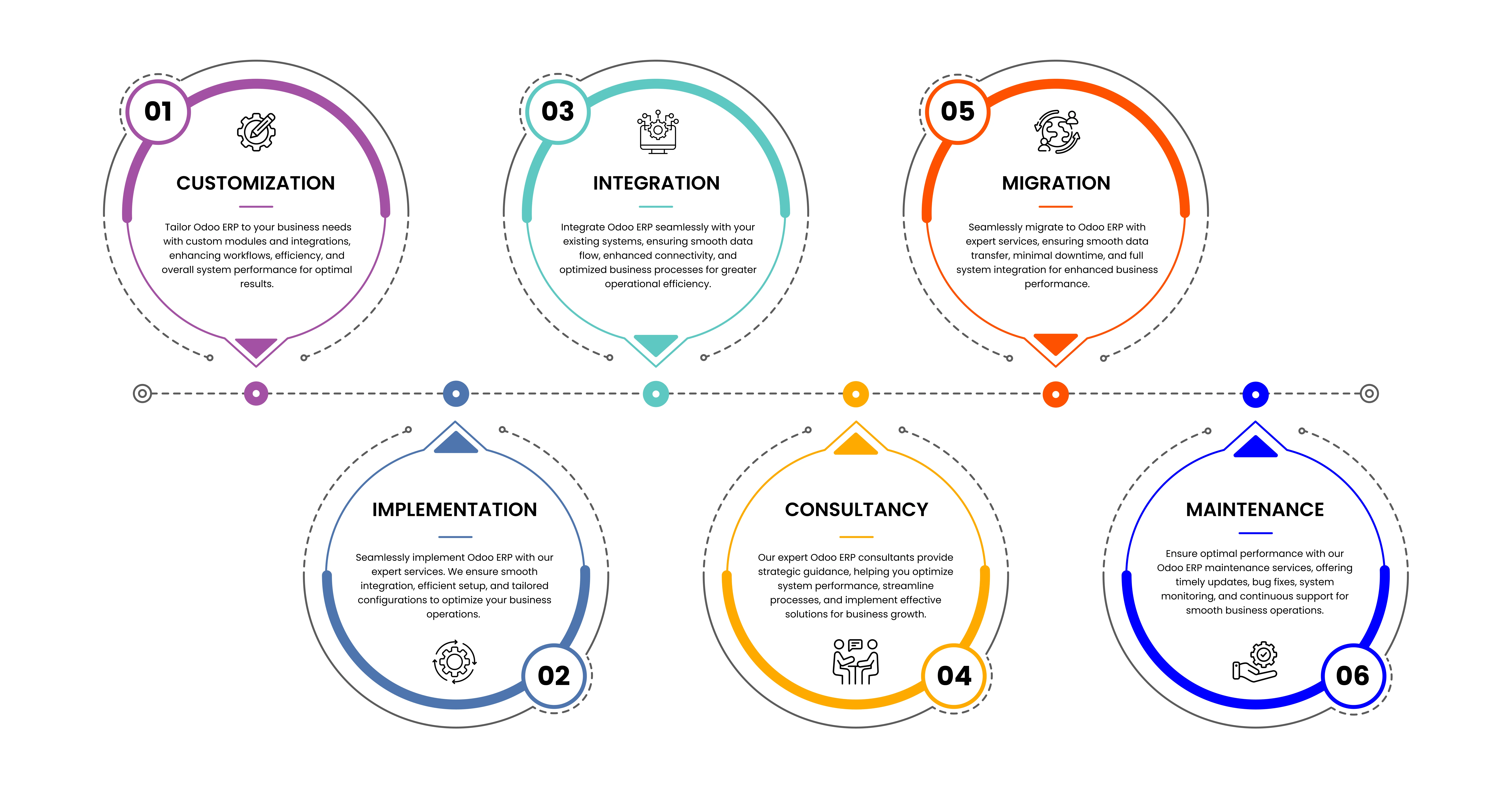
Version History
Version 18.0.1.3 - January 2026
- Fixed 'New Order' button missing on receipt screen when enable Hide New Order Button
Version 18.0.1.2 - January 2026
- Fixed POS orders not visible in Orders section during current session
- Removed custom order filtering to use default Odoo order visibility behavior
Version 18.0.1.1 - December 2025
Payment Screen Enhancements
- Hide Customer Button on payment screen
- Hide Invoice Checkbox
- Hide Ship Later Button
- Hide Tip Button
- Hide Open Cashbox Button
- Hide Validate Button
- Disable specific payment methods per employee
Actions Popup Controls
- Hide General Note button
- Hide Customer Note button
- Hide Pricelist button
- Hide Refund button
- Hide Fiscal Position button
- Hide Cancel Order button
- Hide Product Info button
Navigation Menu Controls
- Hide Install App option
- Hide Orders menu
- Hide Backend menu
- Hide Cash In/Out menu
- Hide Close Register option
- Hide Clear Cache (Debug mode)
- Hide Debug Window (Debug mode)
Additional Controls
- Hide Edit Customer button
- Hide Financials from Product Info popup
Version 18.0.1.0.0 - July 2025
Core Features
- Hide New Order button
- Hide Delete Order button
- Hide Actions button
- Hide Customer Selection button
- Hide Create Customer button
- Hide Payment button
Numpad Controls
- Hide entire numpad
- Disable Change Price button
- Disable Quantity (QTY) button
- Disable +/- quantity buttons
- Disable Discount button
| Availability |
Odoo Online
Odoo.sh
On Premise
|
| Odoo Apps Dependencies |
•
Employees (hr)
• Point of Sale (point_of_sale) • Discuss (mail) • Inventory (stock) • Invoicing (account) |
| Lines of code | 614 |
| Technical Name |
sensible_pos_access_rights_employee |
| License | AGPL-3 |
| Website | https://sensiblecs.com |
Please log in to comment on this module
Hello, greetings to everyone.
I installed this module on Odoo 18 CE and everything works correctly, but it doesn't disable the "Pay" button. I need the waitress (user with basic permissions) to be prevented from making payments.
Many thanks to the entire team.
Re:
Hi Alain Ferret Rodriguez,
Thank you for your feedback.
Could you please provide more information to help us understand the issue better? Specifically:
To assist you further, we kindly ask you to:
We appreciate your cooperation and look forward to helping you resolve this.
This app is good but It doesn't work for restaurant
Thanks first, the app is good retail pos but when activated restaurant option of the pos it doesn't work
Re: This app is good but It doesn't work for restaurant
Hi Abdinasir Sadik Muktar,
Thank you for your feedback. Yes, this app is currently designed specifically for retail POS systems. We do plan to develop a dedicated solution for restaurants in the near future, although we don’t have a specific timeline at this stage.
When I installed this module, Employee A can't access Employee B order, even in the same POS Register. For example:
POS 01
Multi Employee (Employee A, and B)
Employee B does some orders (001, 002, 003, 004)
Then customers from 002 came back and want to refund but Employee B is not in the POS Register, and the Employee A is taking care while B is not there. But because Employee A use his ID in the POS, when he search the order, it will not appear because the order is from Employee B
Hi mike chen,
Thank you for your feedback.
Could you please provide more information to help us understand the issue better? Specifically:
We appreciate your cooperation and look forward to helping you resolve this.
Re: Displaying the "POS Access Rights" tab.
Thanks for your feedback.
Okay, I found it.
Displaying the "POS Access Rights" tab.
Hello,
I downloaded and installed the module, but the "POS Access Rights" tab doesn't appear anywhere on the employee's "employee" form, as shown in your screenshot. I've enabled all rights both in the "Users" and in the "POS" settings.
Re: Displaying the "POS Access Rights" tab.
You need to grant the Human Resources user access to the Employees section
Your User > Access Rights > Human Resources > Employees