

Intercompany & Interbranch Payment/Payment Batch Synchronization
by CLuedoo https://www.cluedoo.com/shop/lic-clu-set-wfm-0009-intercompany-interbranch-payment-payment-batch-synchronization-7274$ 150.12
ODOO'S FUNCTION
In standard Odoo, intercompany or interbranch transactions do not automatically sync customer and vendor payments or payment batches. Users often need to create these payments manually in the related company or branch.
CLUEDOO'S FUNCTION
CONFIGURATION |
|
|
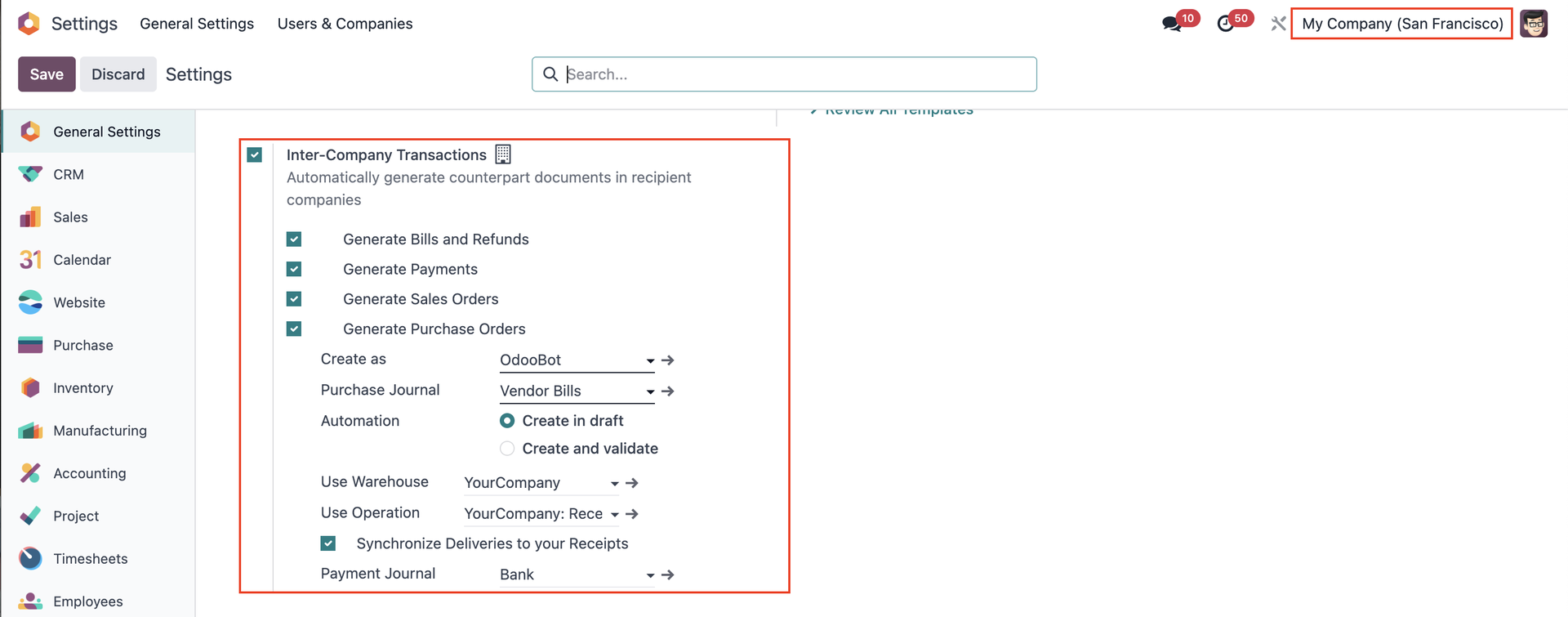
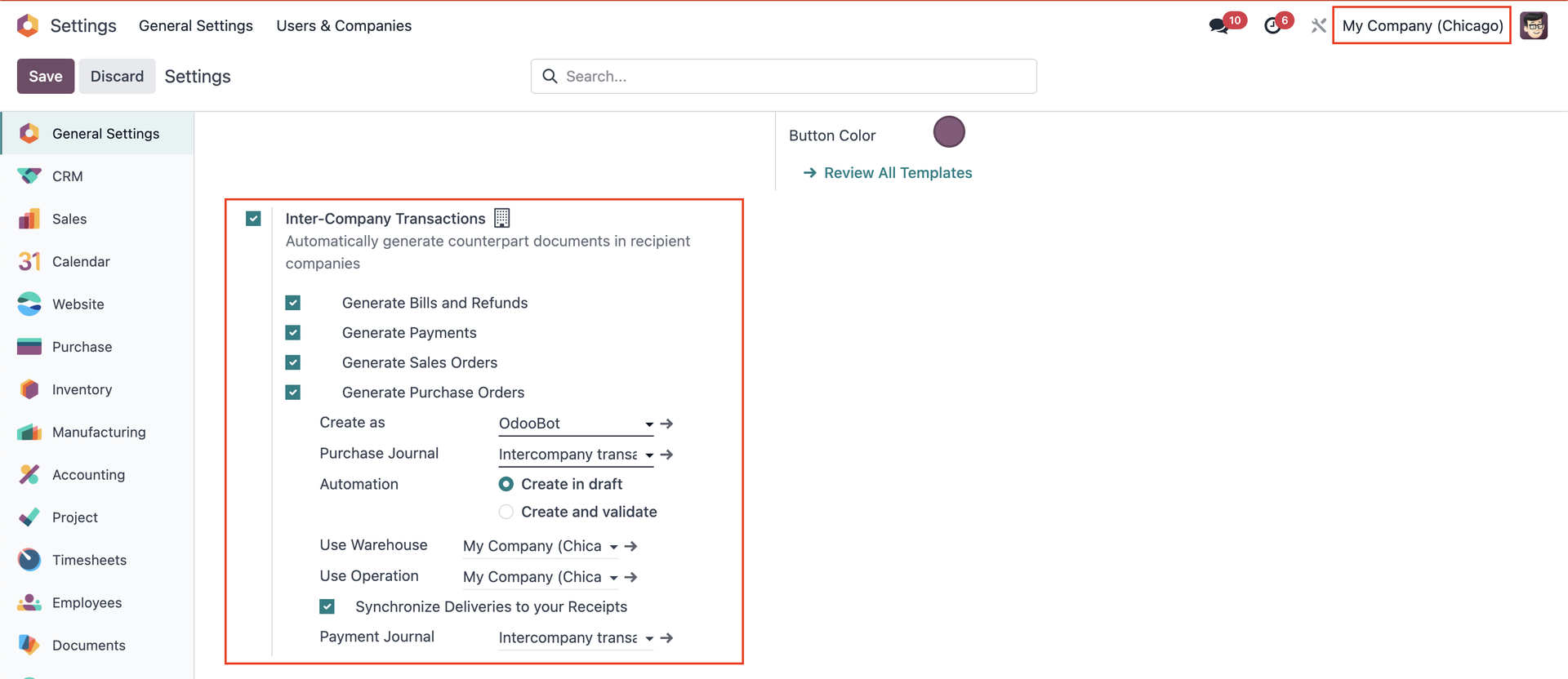
1. Go to Settings and check Inter-Company Transactions in both companies e.g., My Company (San Francisco) and My Company (Chicago)
|
|
|
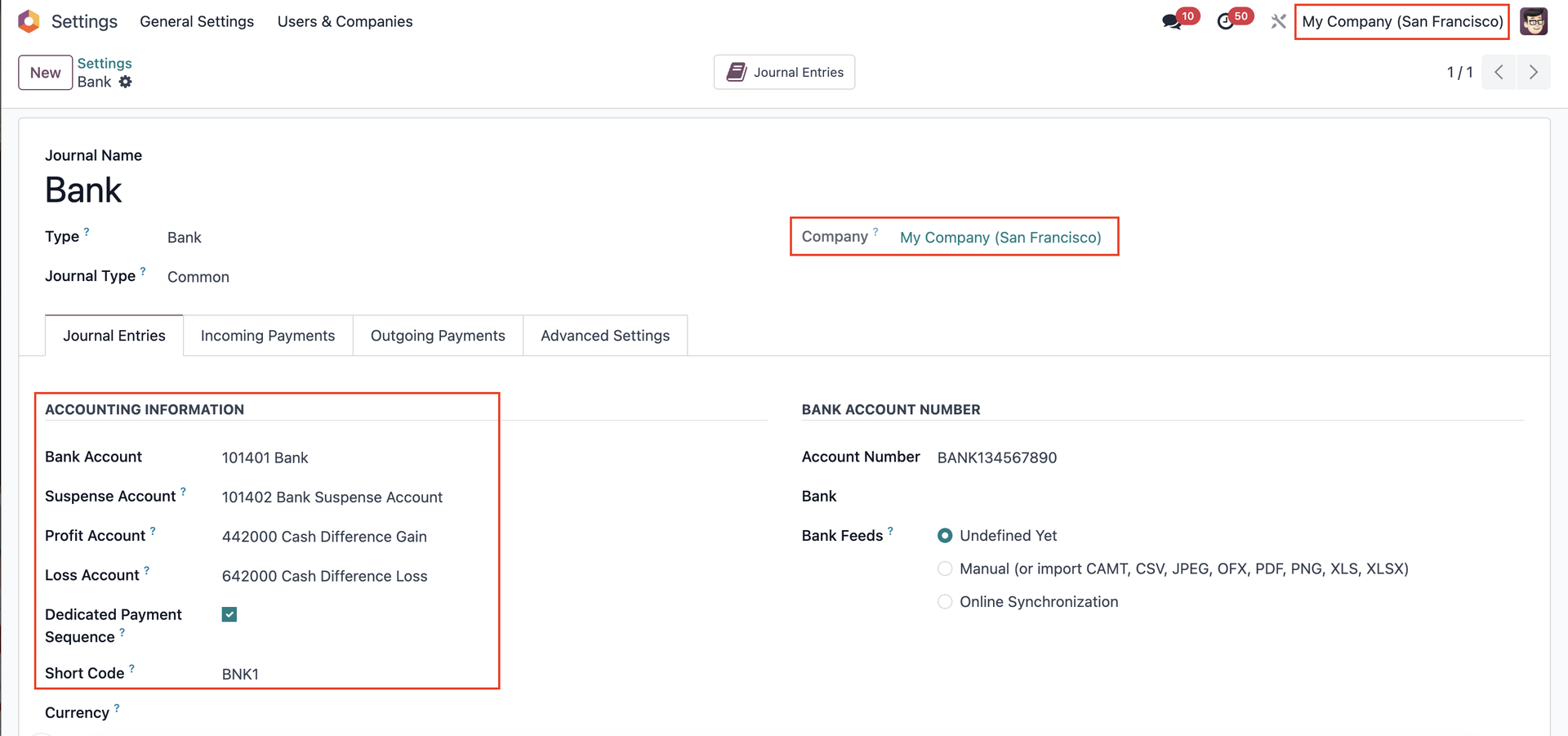
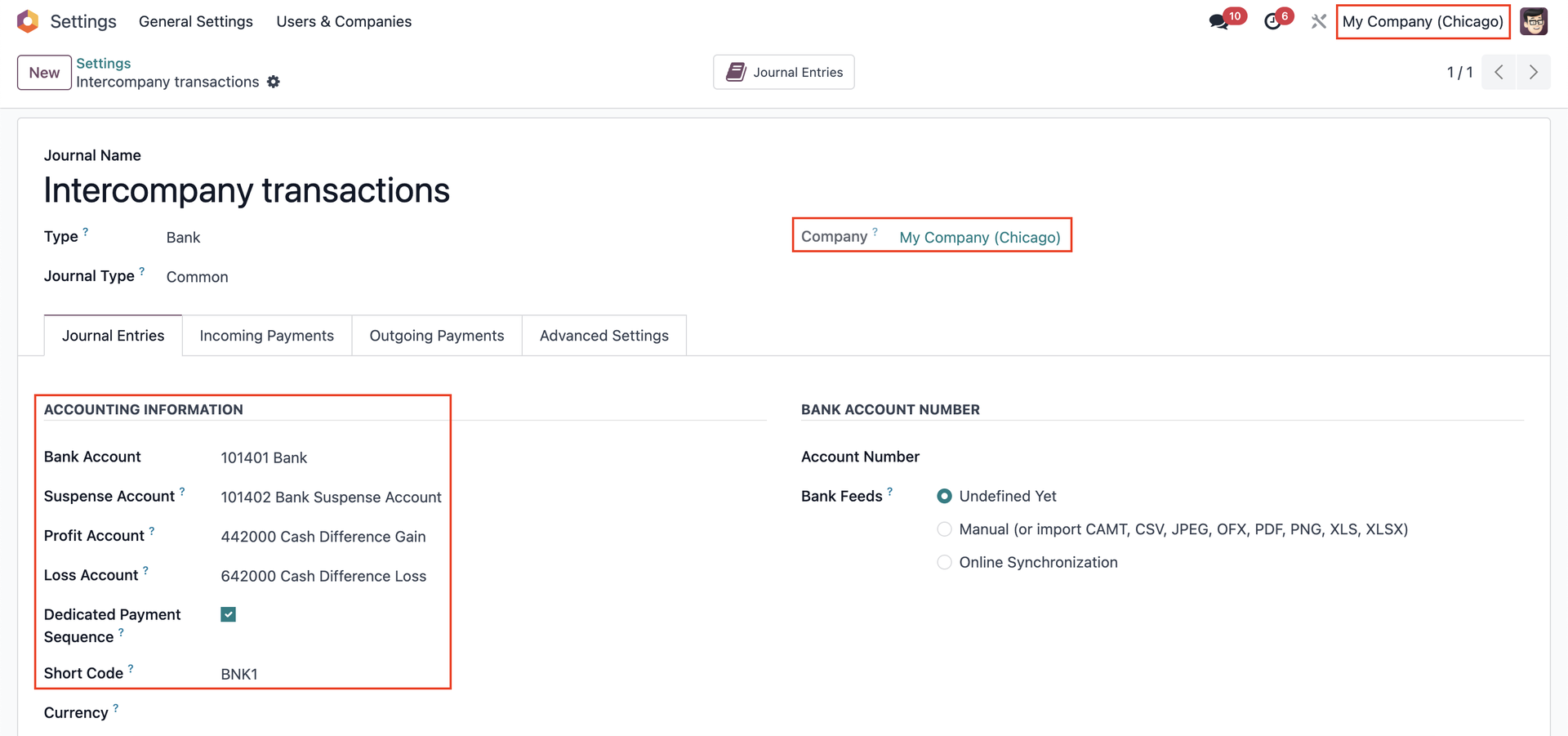
2. Set up payment journal for each company |
|
|
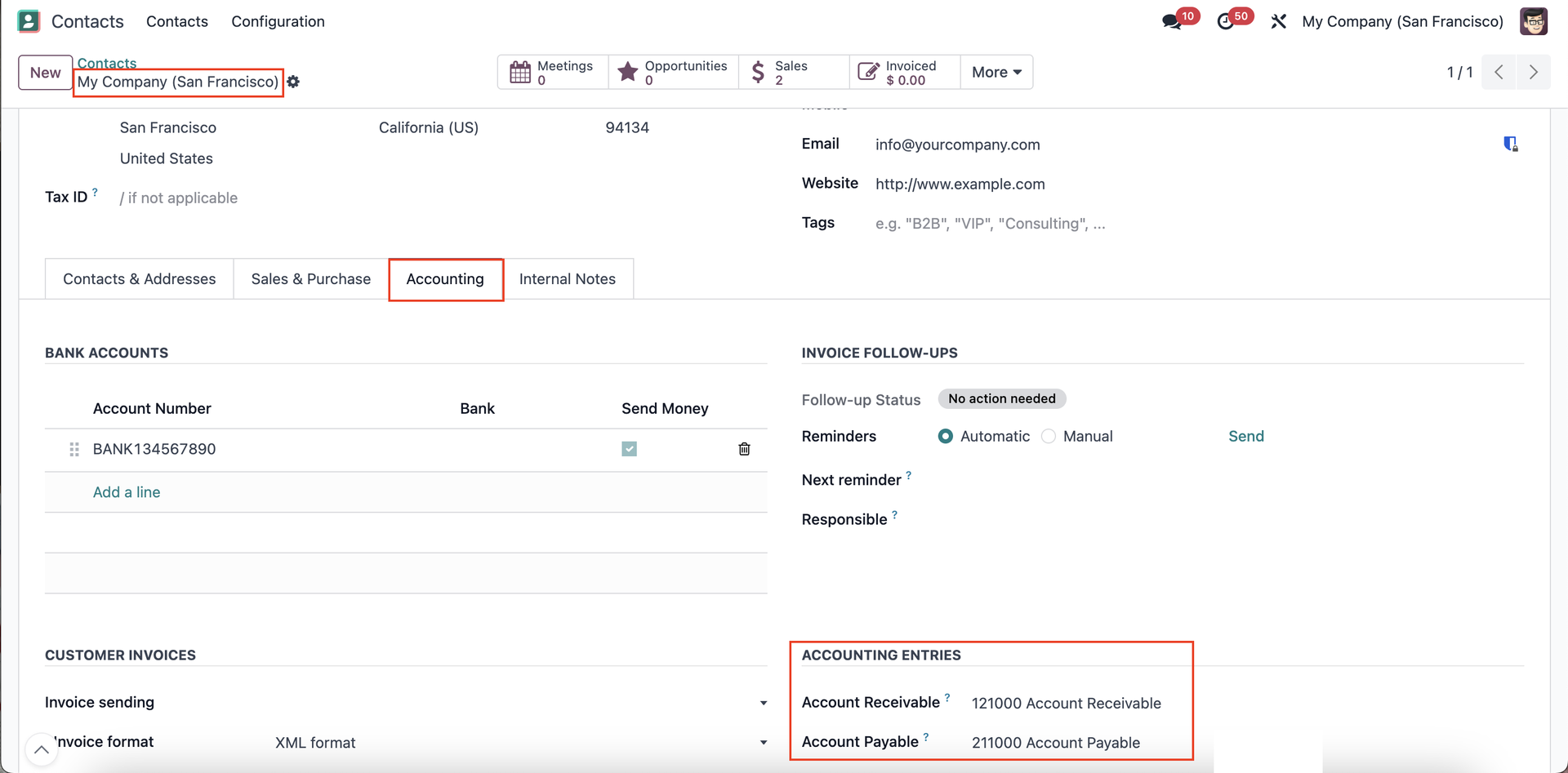
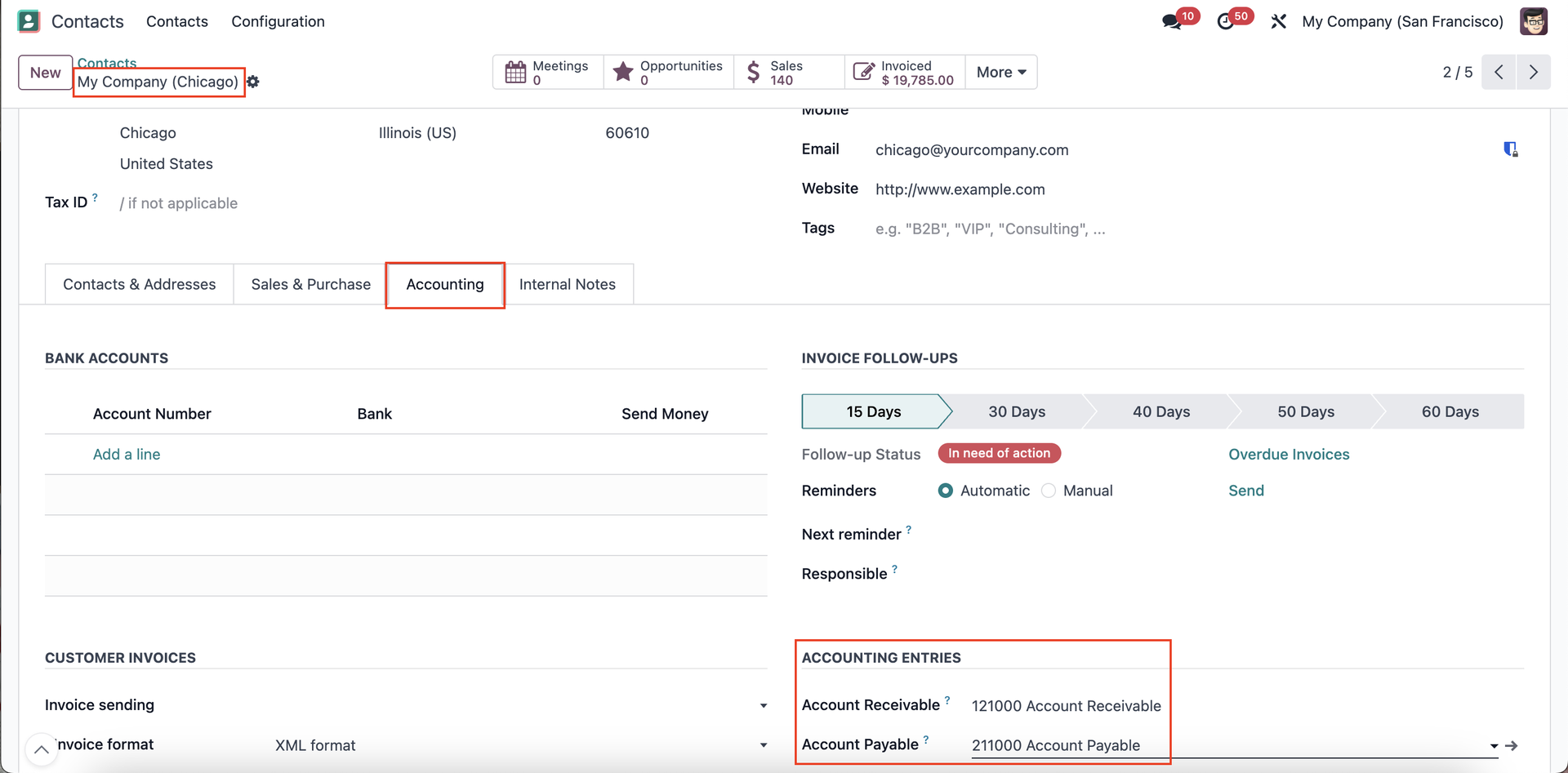
3. Go to Contacts > Set up accounting entries for each company |
|
USAGE |
|
|
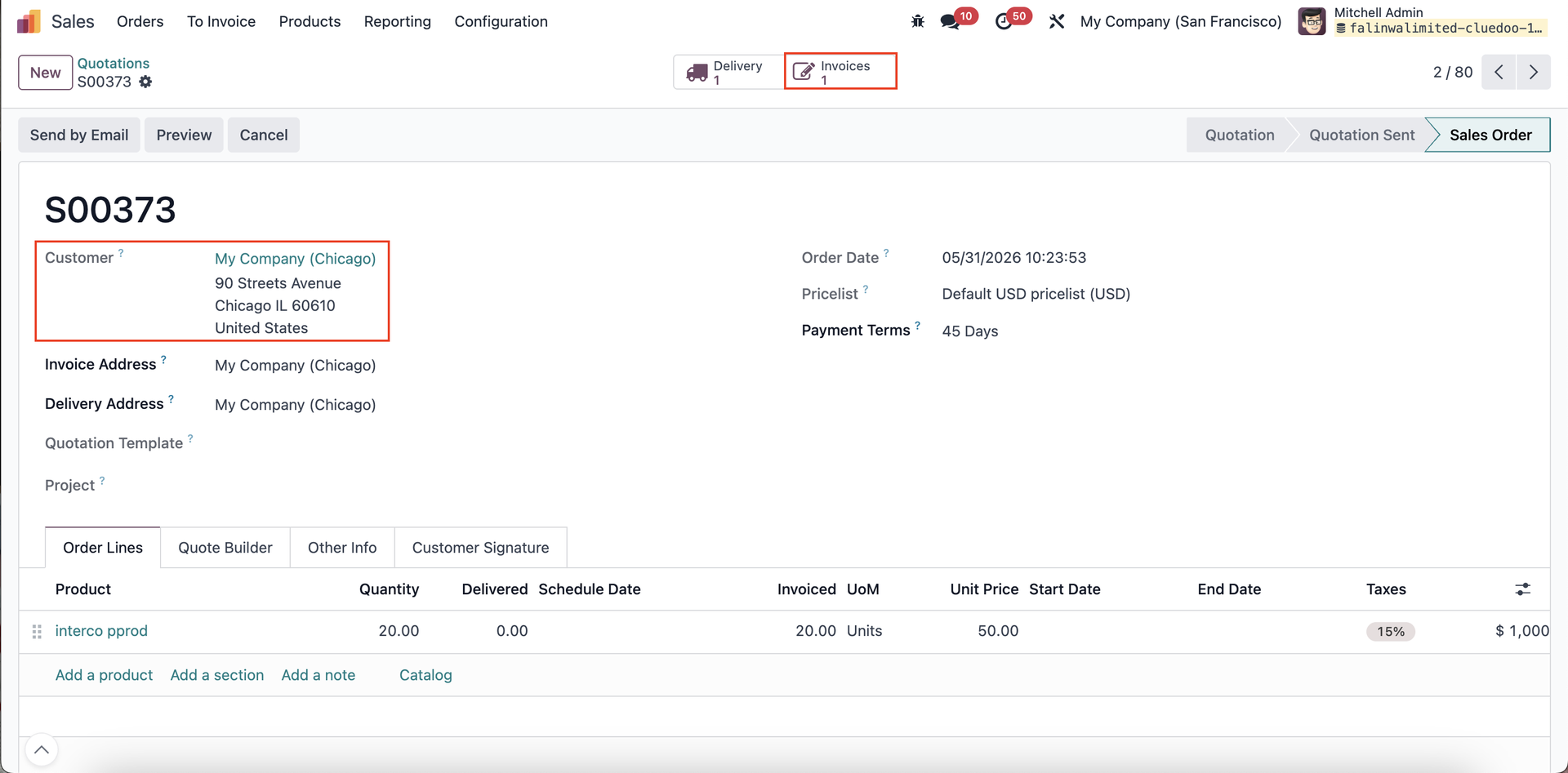
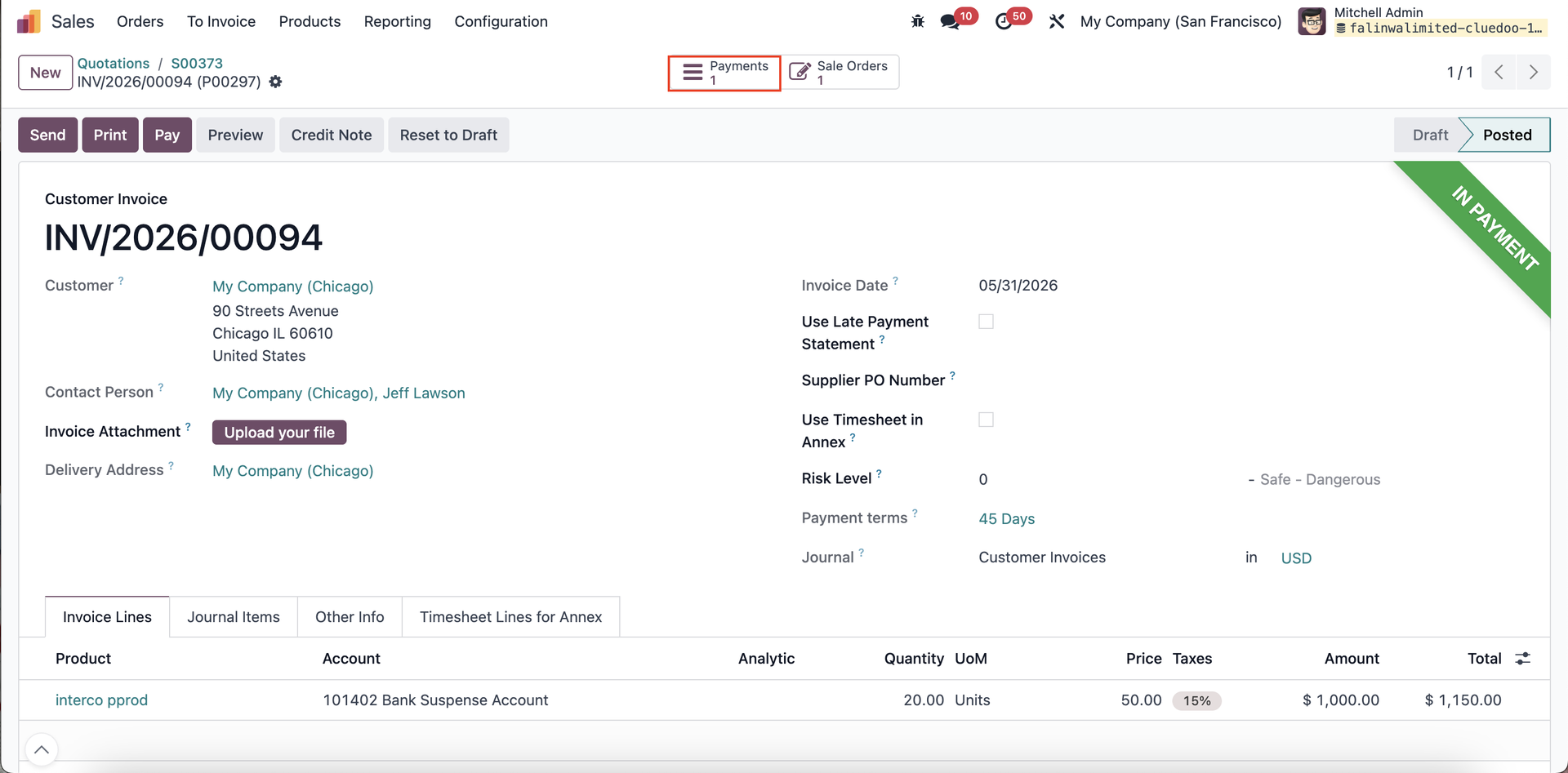
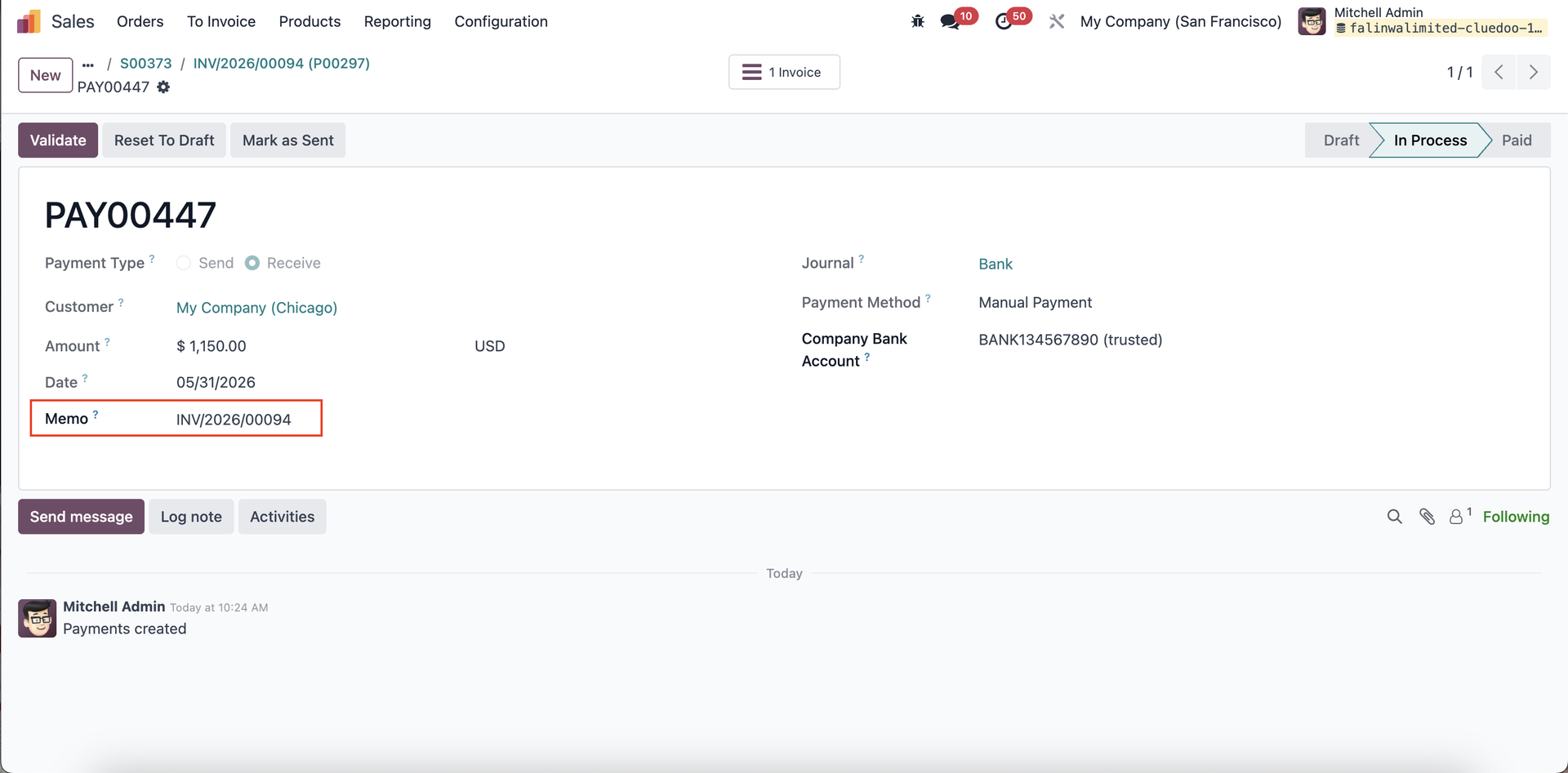
INTERCOMPANY 1. Create a Sales Order from My Company (SF) to My Company (Chicago) > Confirm > Create Invoice > Confirm invoice > Create Payment . |
|
|
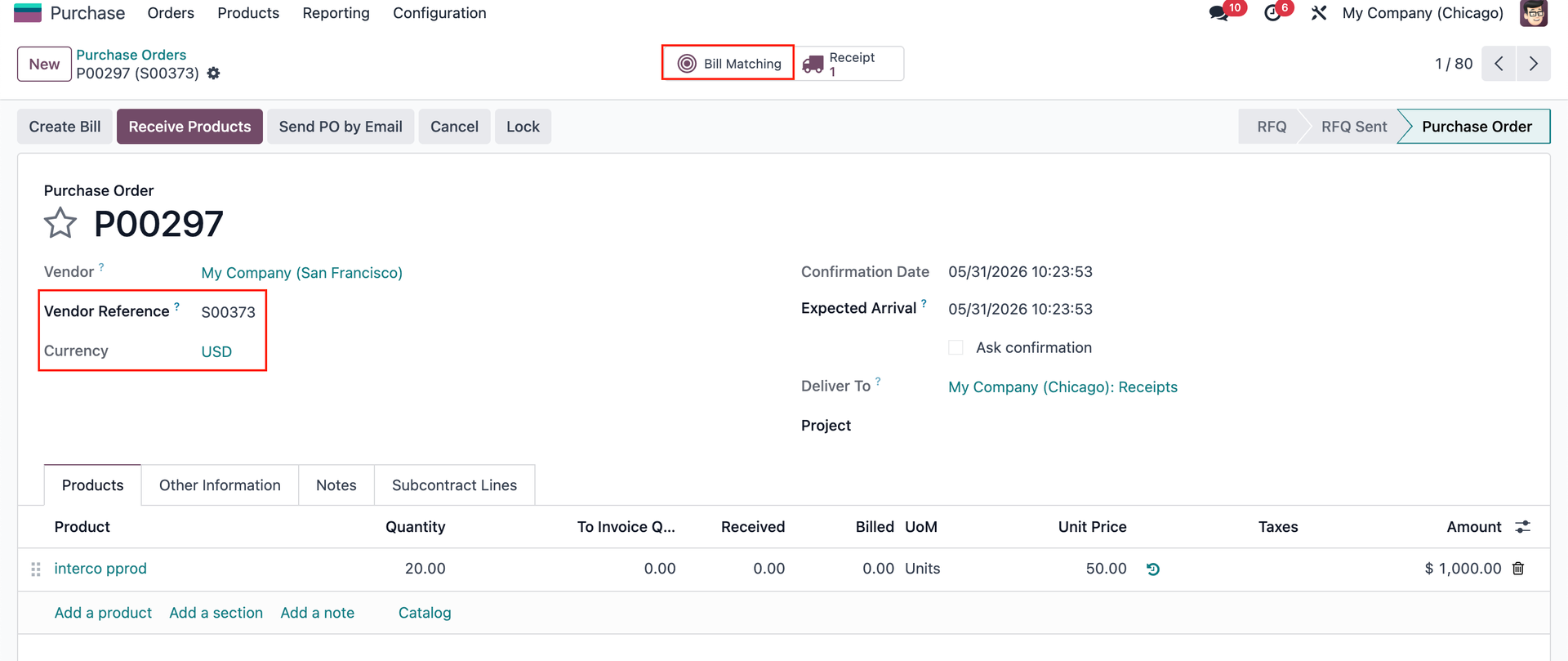
2. A Purchase Order and vendor bill will be automatically created and validated in My Company (Chicago). |
|
|
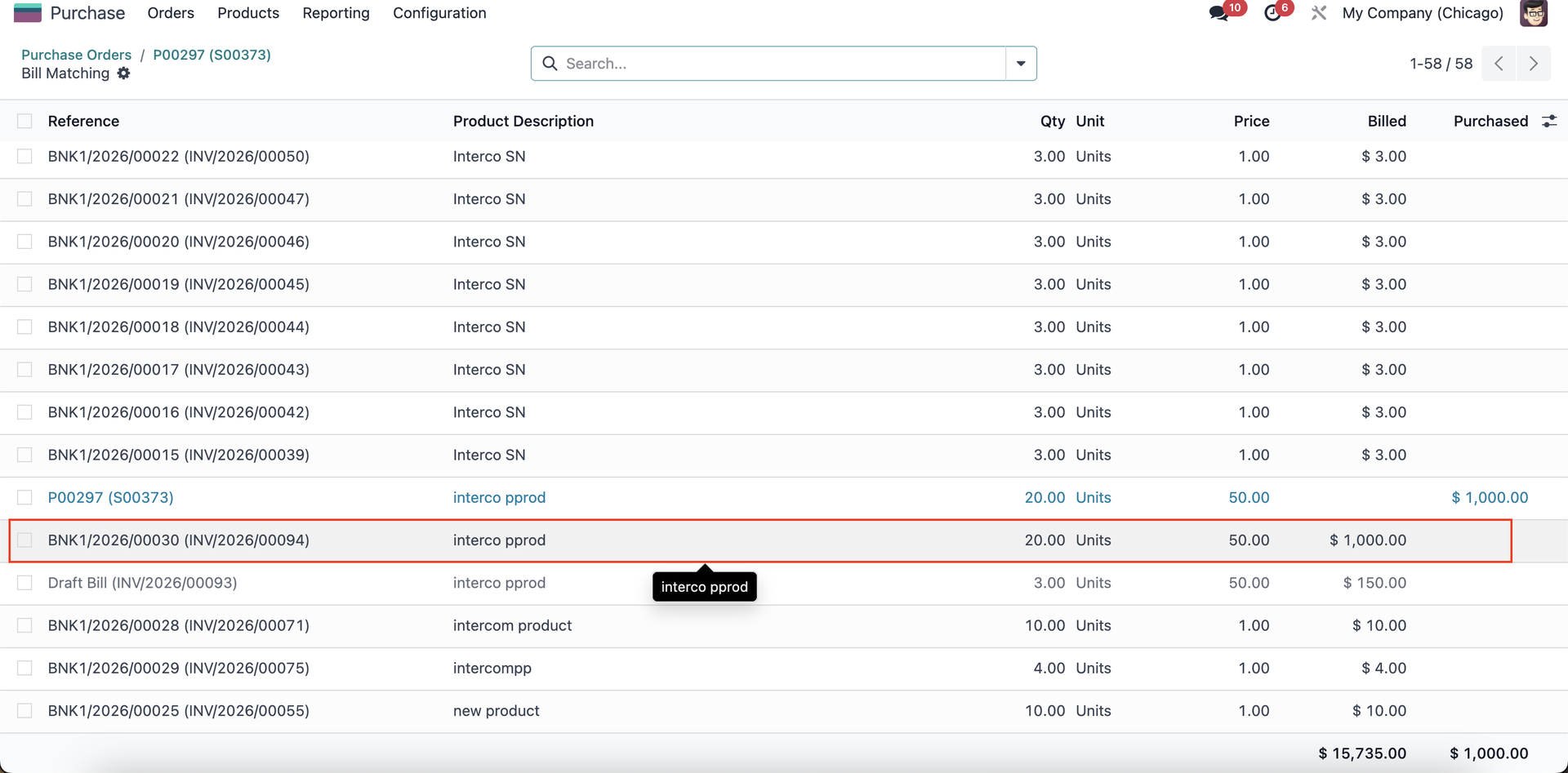
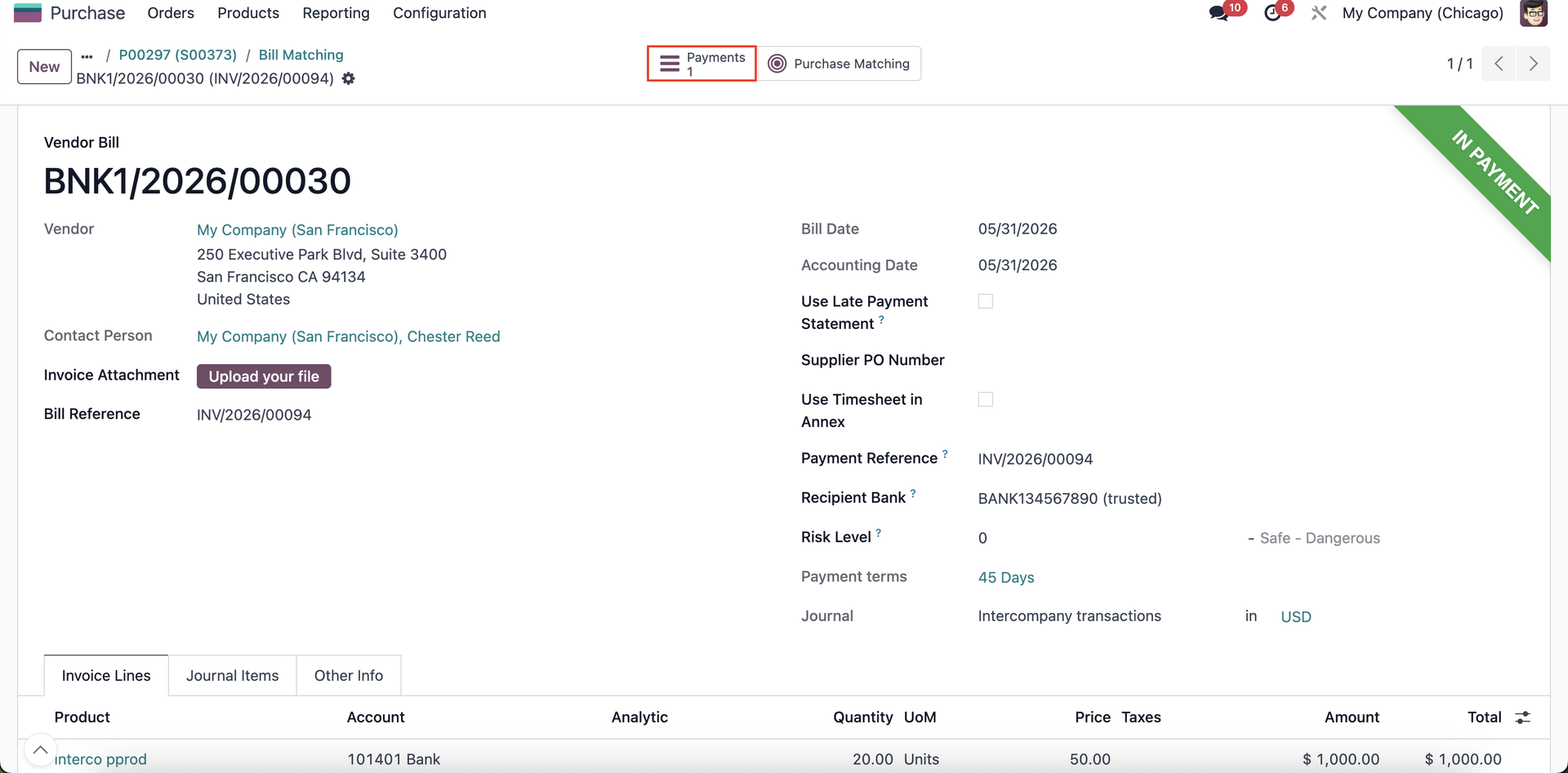
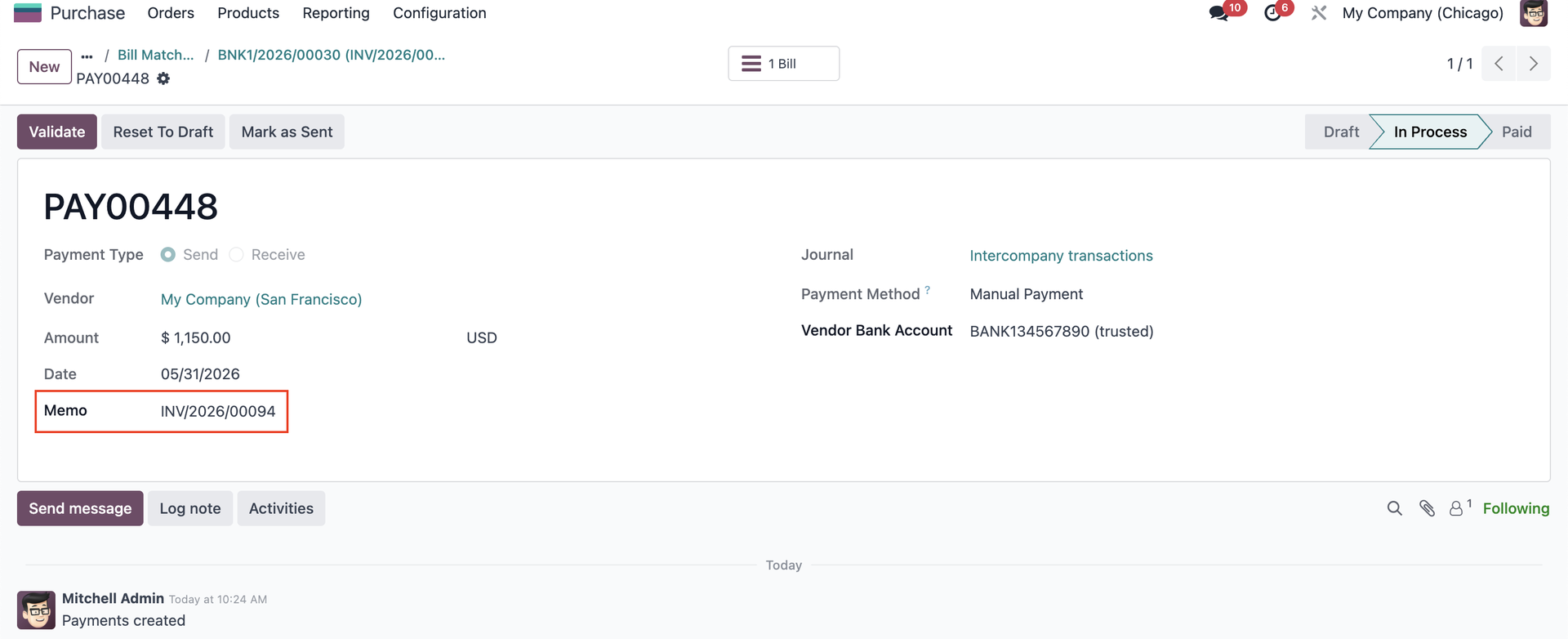
3. Go to Bill Matching > Access Vendor Bill > Payment is synced. |
|
|
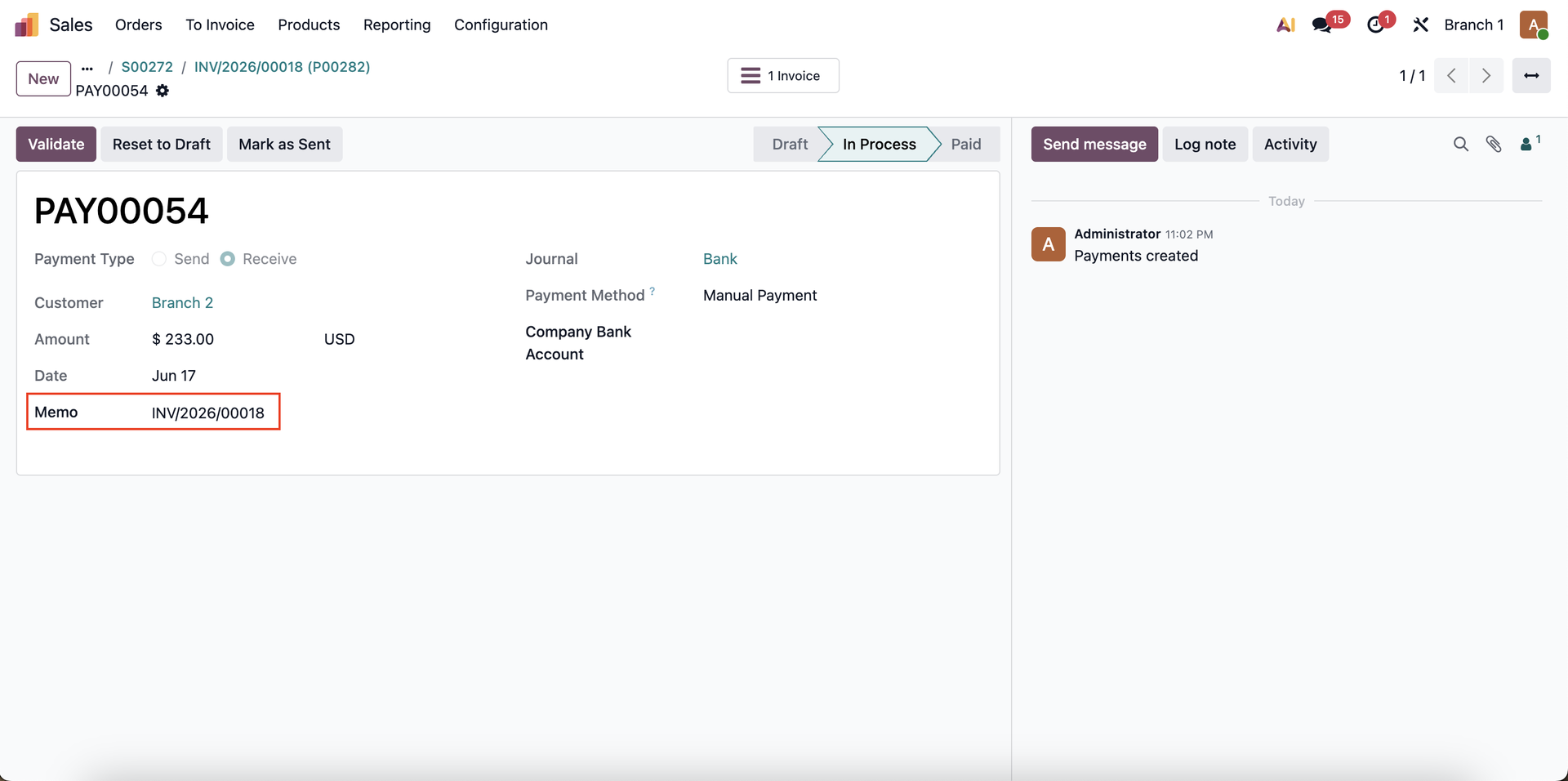
INTERBRANCH
|
|
|
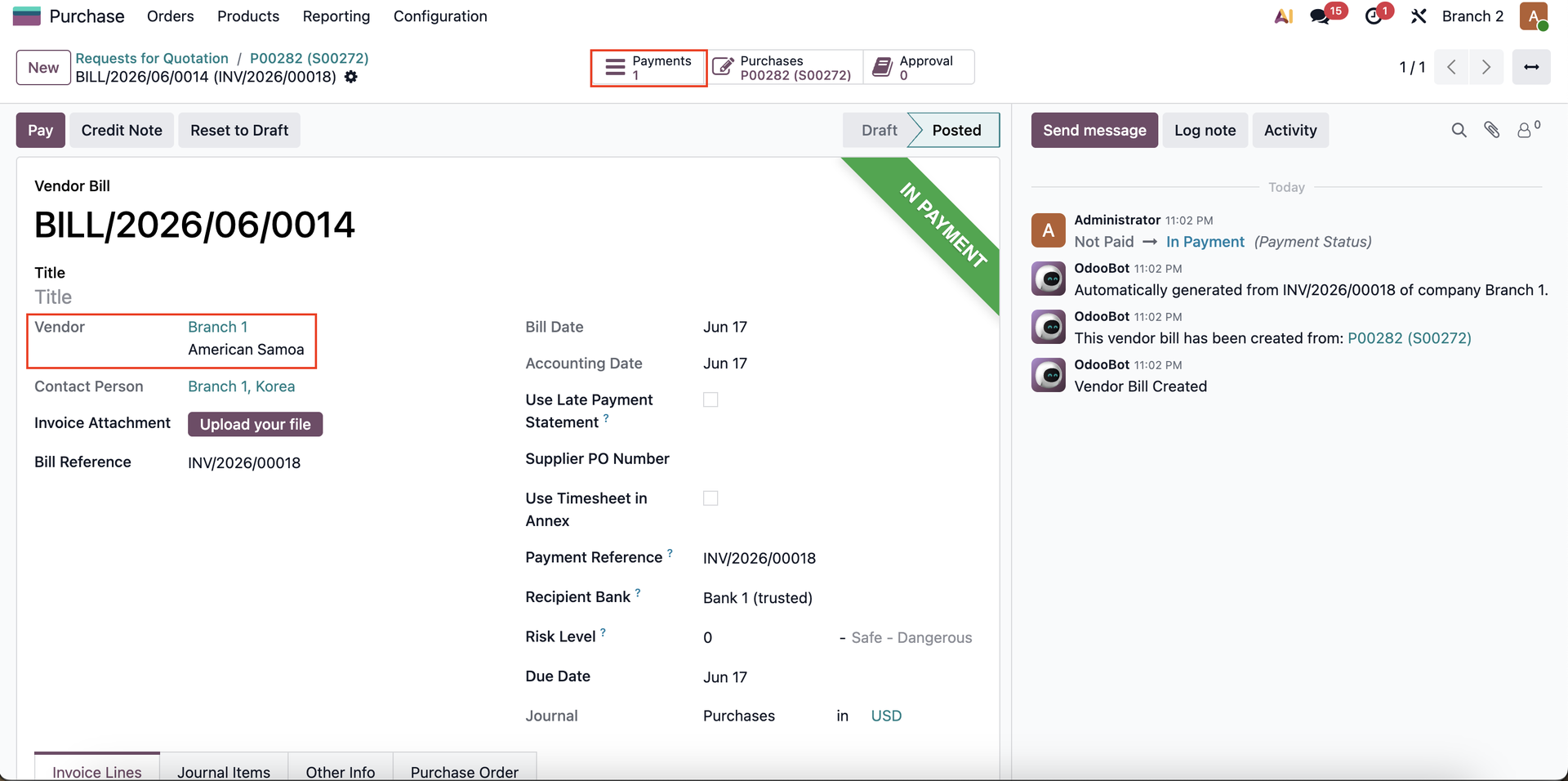
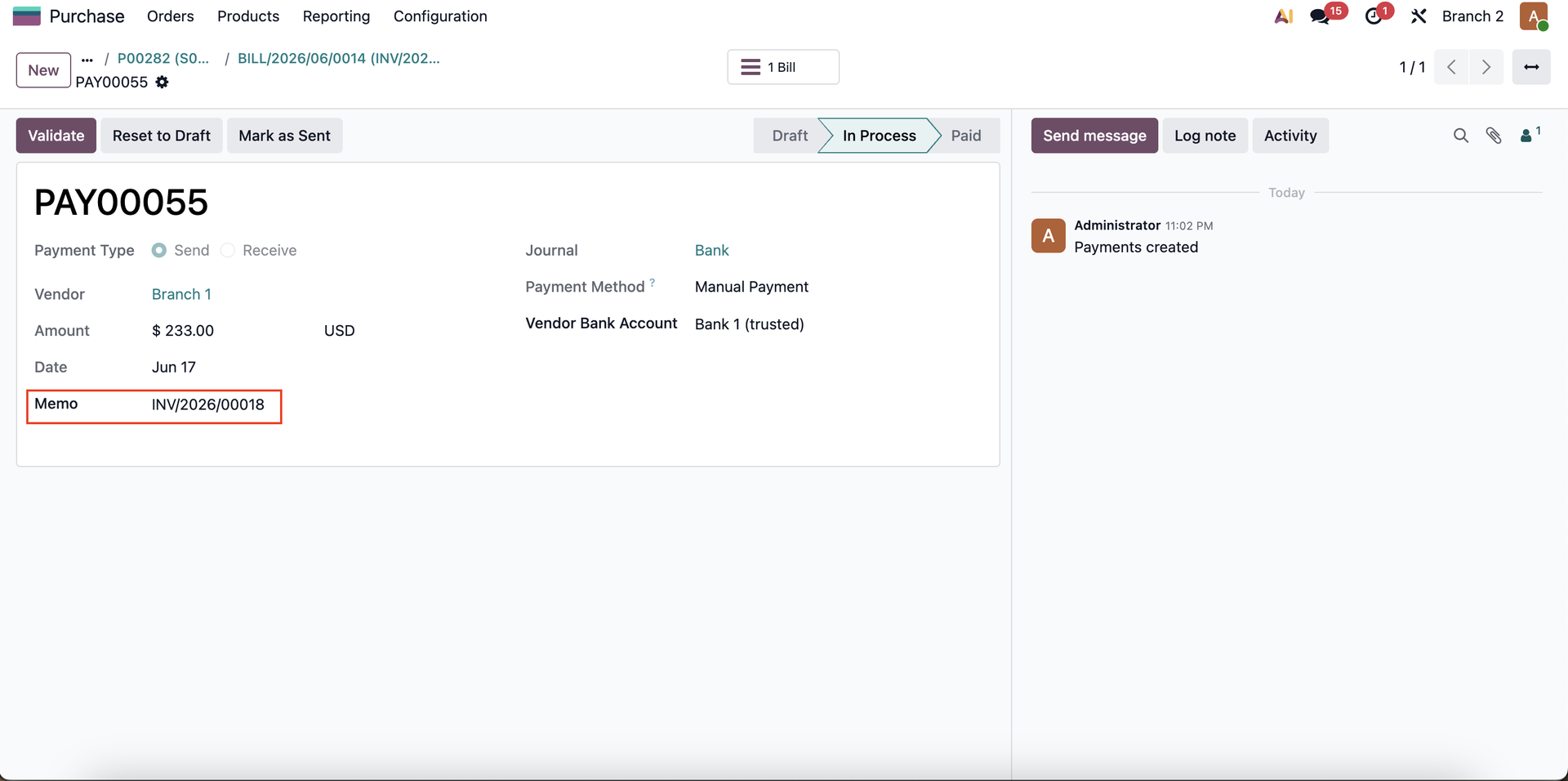
2. Go to Vendor Bill on Branch 2's Purchase Order created from interbranch transaction > Payment is synced. |
|
|
BATCH PAYMENTS
|
|
|
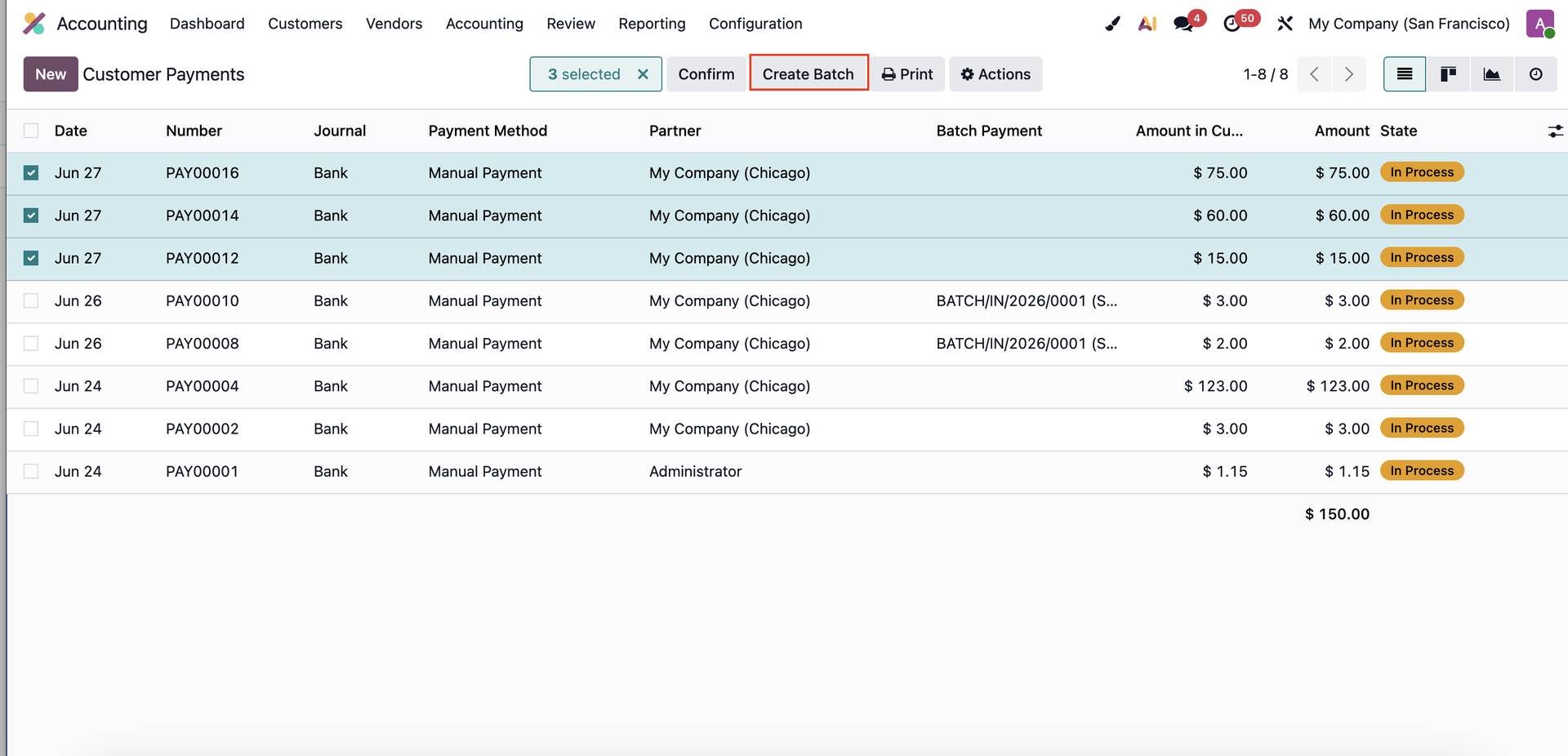
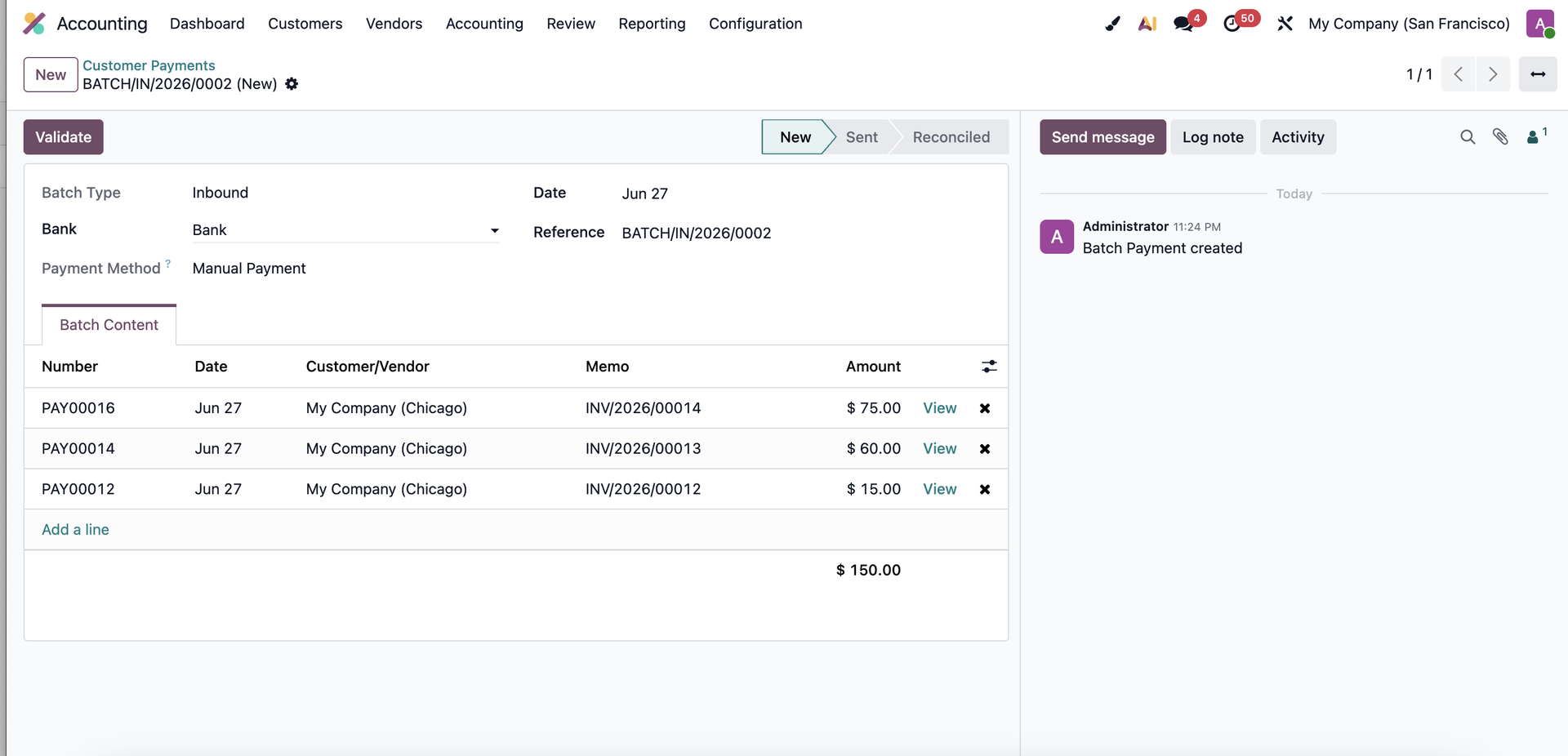
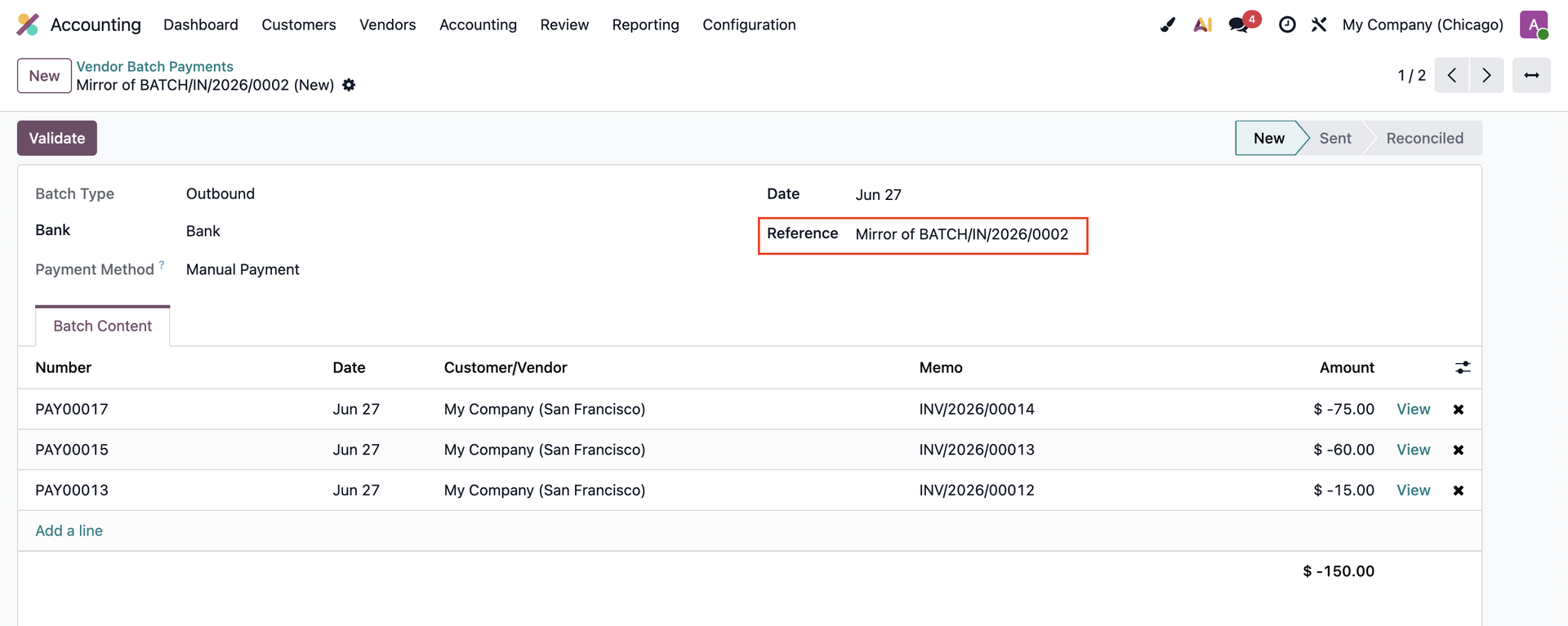
2. On My Company (Chicago), Vendor/ Customer Batch Payments are synced. |
|
|
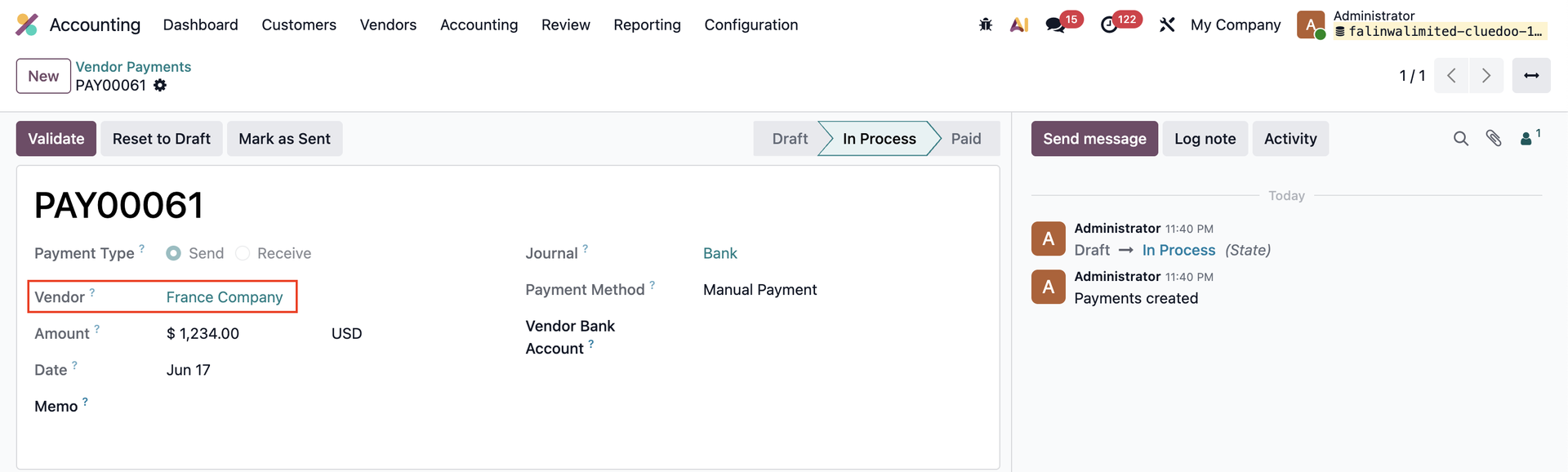
SYNC PAYMENTS
|
|
|
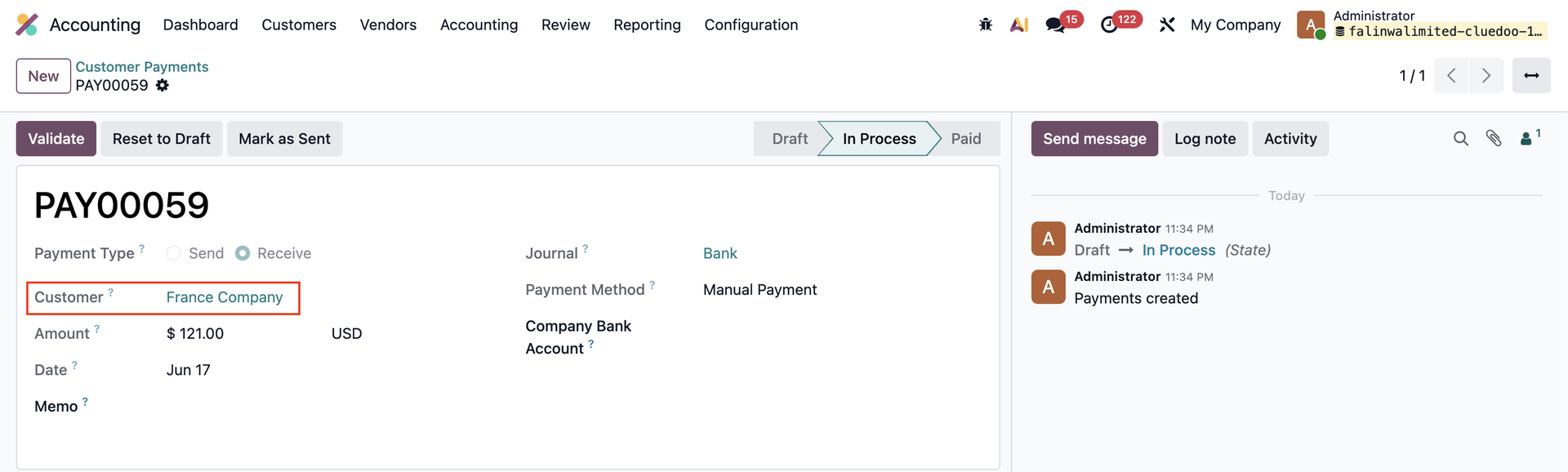
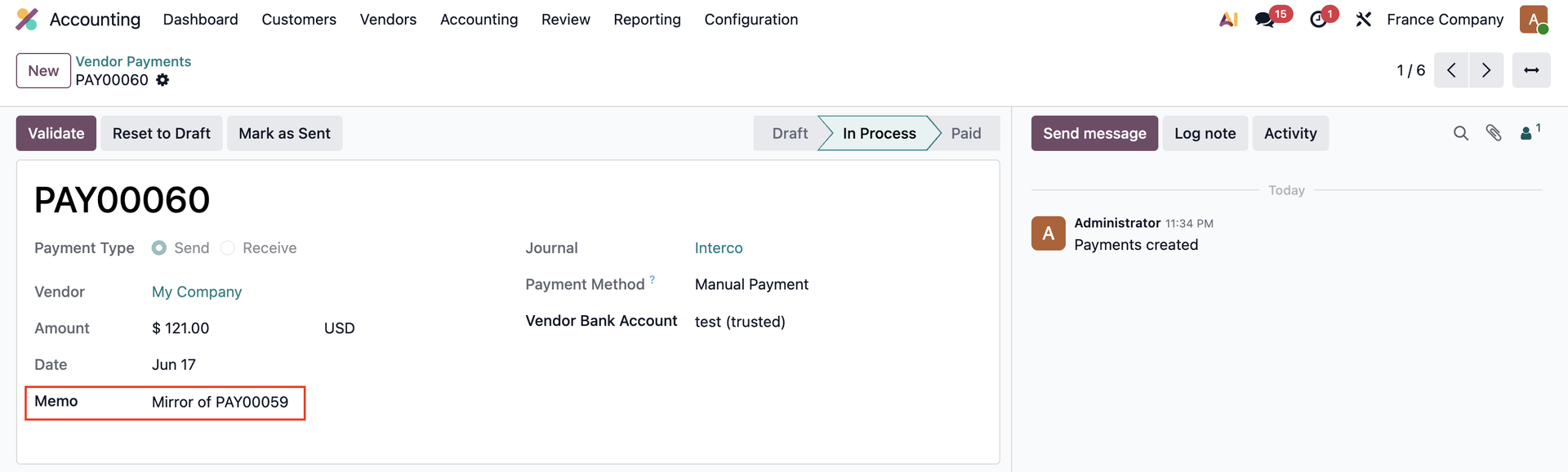
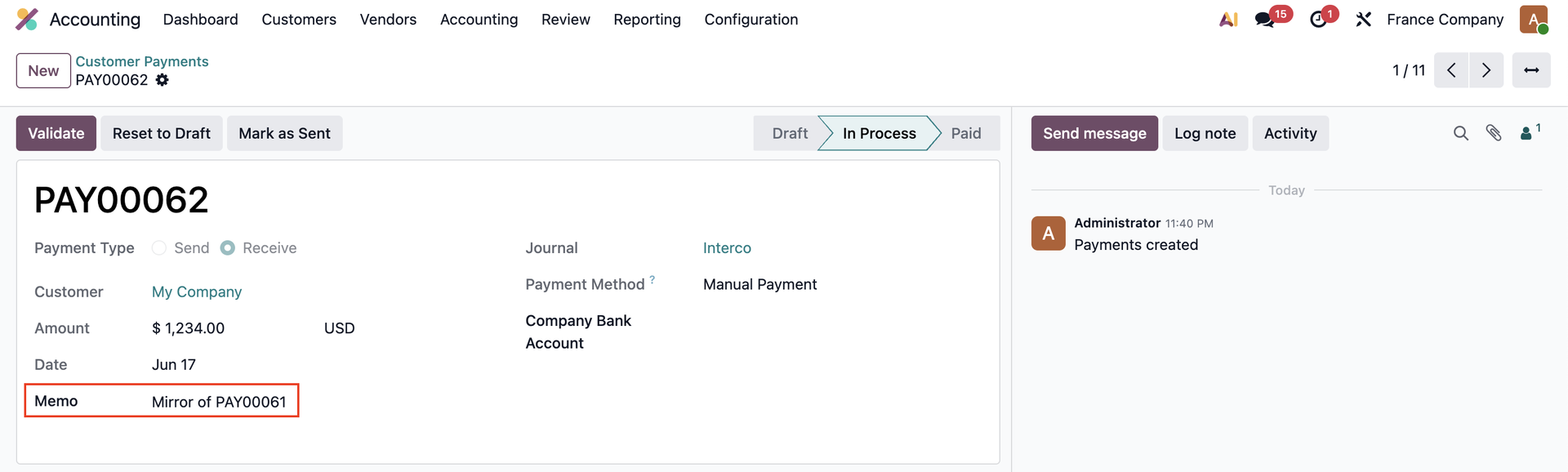
2. Vendor/Customer payments are synced on France company |
|
| Availability |
Odoo Online
Odoo.sh
On Premise
|
| Odoo Apps Dependencies |
•
Invoicing (account)
• Discuss (mail) |
| Lines of code | 225 |
| Technical Name |
cds_intercompany_payment |
| License | OPL-1 |
| Website | https://www.cluedoo.com/shop/lic-clu-set-wfm-0009-intercompany-interbranch-payment-payment-batch-synchronization-7274 |
Odoo Proprietary License v1.0

This software and associated files (the "Software") may only be used (executed,
modified, executed after modifications) if you have purchased a valid license
from the authors, typically via Odoo Apps, or if you have received a written
agreement from the authors of the Software (see the COPYRIGHT file).

You may develop Odoo modules that use the Software as a library (typically
by depending on it, importing it and using its resources), but without copying
any source code or material from the Software. You may distribute those
modules under the license of your choice, provided that this license is
compatible with the terms of the Odoo Proprietary License (For example:
LGPL, MIT, or proprietary licenses similar to this one).

It is forbidden to publish, distribute, sublicense, or sell copies of the Software
or modified copies of the Software.

The above copyright notice and this permission notice must be included in all
copies or substantial portions of the Software.

THE SOFTWARE IS PROVIDED "AS IS", WITHOUT WARRANTY OF ANY KIND, EXPRESS OR
IMPLIED, INCLUDING BUT NOT LIMITED TO THE WARRANTIES OF MERCHANTABILITY,
FITNESS FOR A PARTICULAR PURPOSE AND NONINFRINGEMENT.
IN NO EVENT SHALL THE AUTHORS OR COPYRIGHT HOLDERS BE LIABLE FOR ANY CLAIM,
DAMAGES OR OTHER LIABILITY, WHETHER IN AN ACTION OF CONTRACT, TORT OR OTHERWISE,
ARISING FROM, OUT OF OR IN CONNECTION WITH THE SOFTWARE OR THE USE OR OTHER
DEALINGS IN THE SOFTWARE.
Please log in to comment on this module