

POS No Lot Tracking
by CLuedoo https://www.cluedoo.com/shop/licclusetpos0020-pos-no-lot-tracking-7051$ 538.66
In-App Purchases| Availability |
Odoo Online
Odoo.sh
On Premise
|
| Odoo Apps Dependencies |
•
Point of Sale (point_of_sale)
• Inventory (stock) • Discuss (mail) • Invoicing (account) |
| Community Apps Dependencies | Show |
| Lines of code | 814 |
| Technical Name |
cds_pos_no_tracking_lot |
| License | OPL-1 |
| Website | https://www.cluedoo.com/shop/licclusetpos0020-pos-no-lot-tracking-7051 |
| Availability |
Odoo Online
Odoo.sh
On Premise
|
| Odoo Apps Dependencies |
•
Point of Sale (point_of_sale)
• Inventory (stock) • Discuss (mail) • Invoicing (account) |
| Community Apps Dependencies | Show |
| Lines of code | 814 |
| Technical Name |
cds_pos_no_tracking_lot |
| License | OPL-1 |
| Website | https://www.cluedoo.com/shop/licclusetpos0020-pos-no-lot-tracking-7051 |
ODOO'S FUNCTION
In POS, products tracked by Lot/Serial Number always require scanning before validating the order, regardless of the source or destination location.
CLUEDOO'S FUNCTION
If the source location in the POS operation type is set to “No Tracking” , the system skips the serial/lot scan in POS and allows the stock move to be validated directly.
CONFIGURATION |
|
|
1. Go to Point of Sale > Choose a shop > Click the 3 dots > Edit > More Settings: Configurations > Settings > Choose an Operation Type for this shop |


|
|
2. Check the Source Location and Destination Location in the Operation Type |

|
|
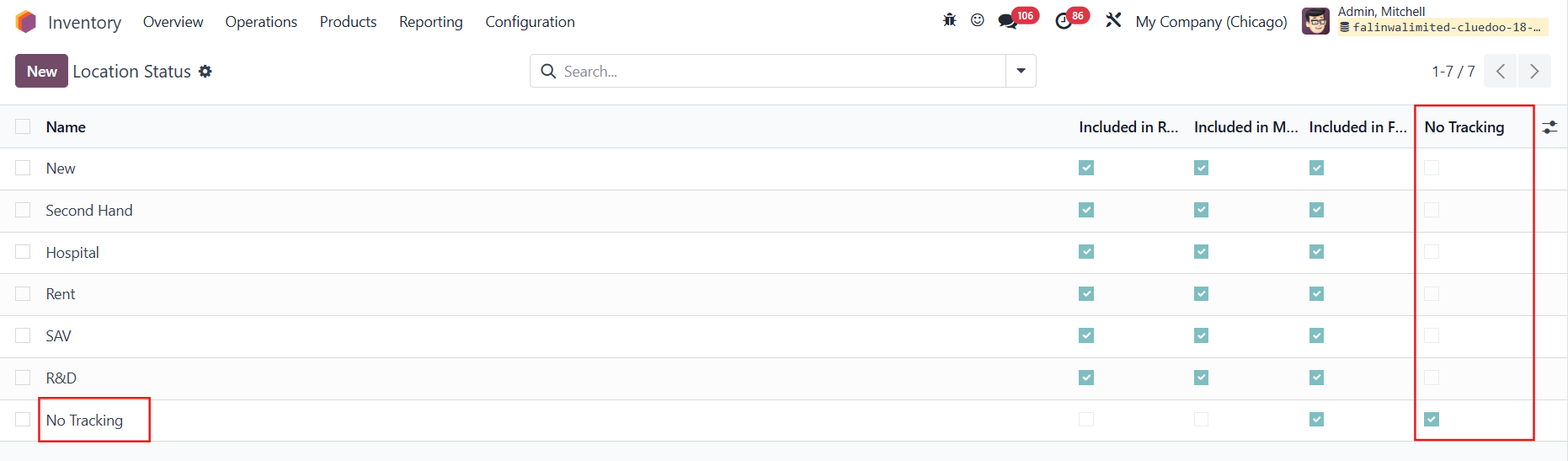
3. Go to Inventory > Configuration > Location Management > Location Status > we have a new column No Tracking for the location statuses
|
|
USAGE
|
|
CASE 1: SOURCE LOCATION + DESTINATION LOCATION = NO TRACKING
|

|
|
2. Create a product tracked by
Lots/Unique Serial Number
|

|
|
3. Access the shop > Add the product to the order > Click Payment
Note:
The quantity will automatically fill to 1 without requiring manual input via the numpad or entering a Lot/SN.
|
|
|
4. Choose a payment method and a customer > Validate > The order has been placed successfully without assigning the L/SN |
|
|
5. Go to the POS order > Pickings > You will see that the picking has been automatically validated |
|
CASE 2: ONLY SOURCE LOCATION = NO TRACKING
You can still place the order without assigning the L/SN but the POS picking is not automatically validated |
|
CASE 3: SOURCE LOCATION + DESTINATION LOCATION = TRACKING (ODS)
You will not be able to proceed the order if no L/SN is assigned to the product |
|


Odoo Proprietary License v1.0

This software and associated files (the "Software") may only be used (executed,
modified, executed after modifications) if you have purchased a valid license
from the authors, typically via Odoo Apps, or if you have received a written
agreement from the authors of the Software (see the COPYRIGHT file).

You may develop Odoo modules that use the Software as a library (typically
by depending on it, importing it and using its resources), but without copying
any source code or material from the Software. You may distribute those
modules under the license of your choice, provided that this license is
compatible with the terms of the Odoo Proprietary License (For example:
LGPL, MIT, or proprietary licenses similar to this one).

It is forbidden to publish, distribute, sublicense, or sell copies of the Software
or modified copies of the Software.

The above copyright notice and this permission notice must be included in all
copies or substantial portions of the Software.

THE SOFTWARE IS PROVIDED "AS IS", WITHOUT WARRANTY OF ANY KIND, EXPRESS OR
IMPLIED, INCLUDING BUT NOT LIMITED TO THE WARRANTIES OF MERCHANTABILITY,
FITNESS FOR A PARTICULAR PURPOSE AND NONINFRINGEMENT.
IN NO EVENT SHALL THE AUTHORS OR COPYRIGHT HOLDERS BE LIABLE FOR ANY CLAIM,
DAMAGES OR OTHER LIABILITY, WHETHER IN AN ACTION OF CONTRACT, TORT OR OTHERWISE,
ARISING FROM, OUT OF OR IN CONNECTION WITH THE SOFTWARE OR THE USE OR OTHER
DEALINGS IN THE SOFTWARE.
Please log in to comment on this module