

Inventory Management in Product Category and Product
by CLuedoo https://www.cluedoo.com/shop/lic-clu-set-invc-0051-inventory-management-in-product-category-and-product-6800$ 100.95
ODOO'S FUNCTION
Odoo supports inventory adjustment , but it does not provide inventory management to automatically calculate the "Next Inventory Date" or update related fields such as Scheduled Date and User for product categories and products.
CLUEDOO'S FUNCTION
CLuedoo defines Inventory Policy by calculating the Next Inventory Date (Initial Inventory Date + Inventory Period) and automatically updating Scheduled Date and Responsible User . This reduces manual effort and ensures consistency across product categories . Users can also manually adjust dates in Product Categories and Product , with the changes reflected in Inventory Adjustment .
|
A. Change inventory date manually
|
|
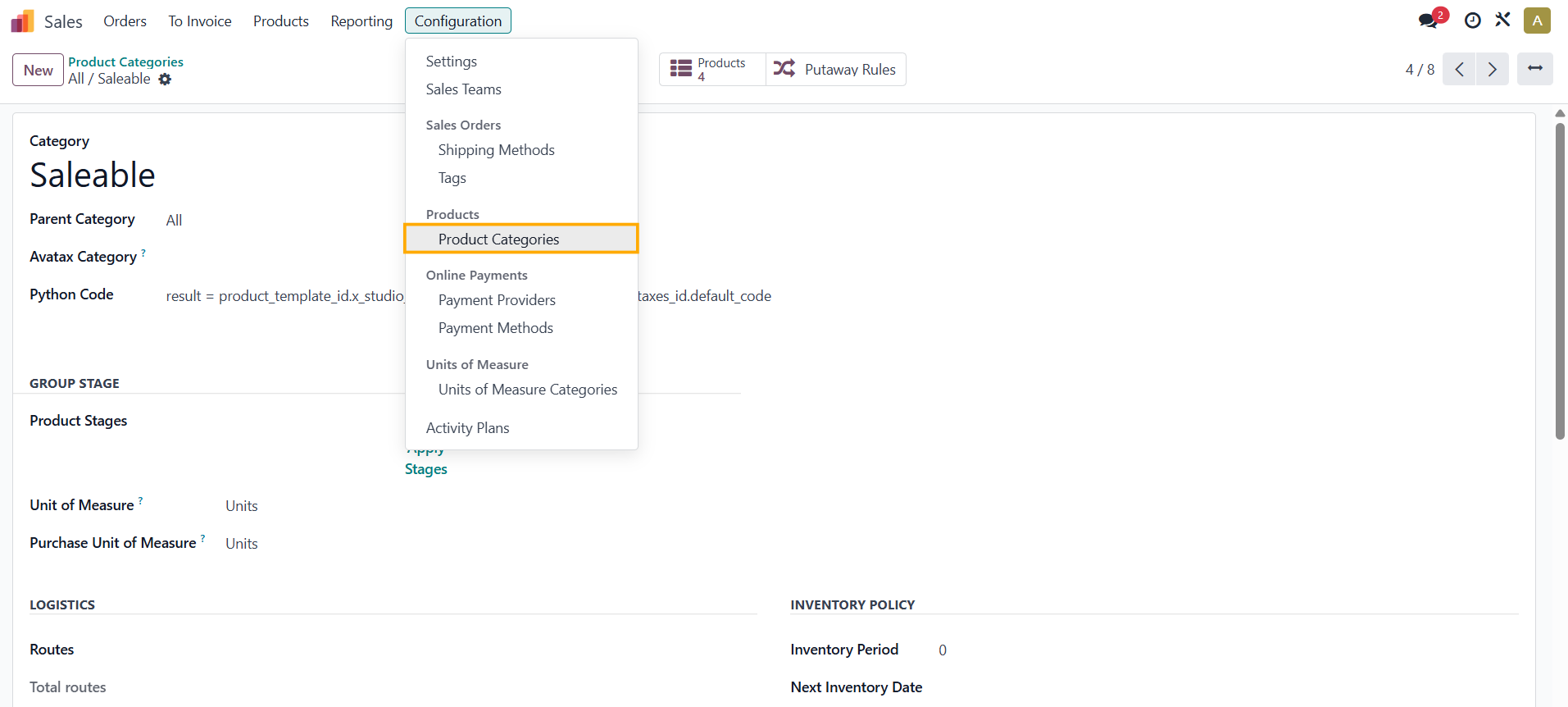
1.
Go to
Sales
>
Configuration
>
Products
>
Product Categories.
|
|
2.
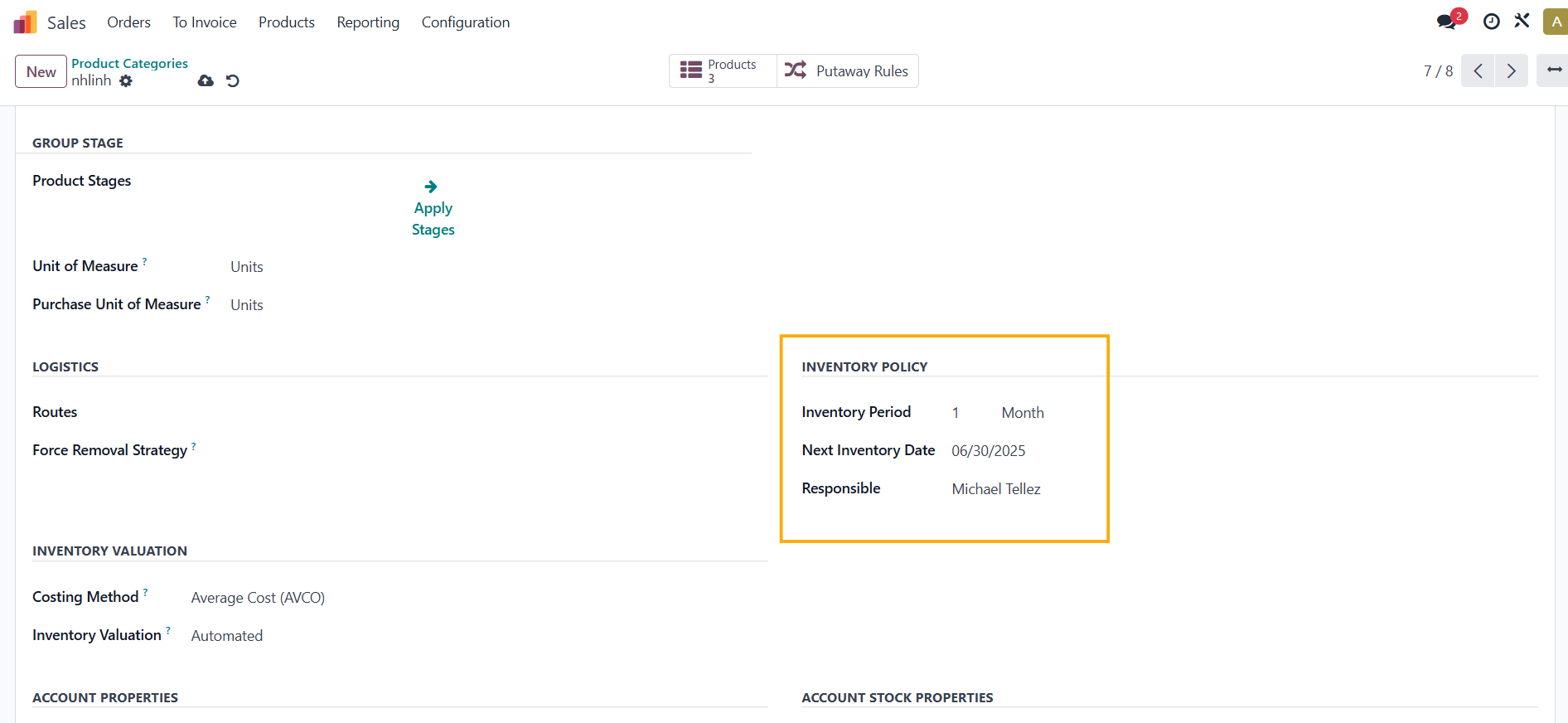
Choose a
Product Category
>
Inventory Policy
> Fill in the
Inventory Period, Next Inventory Date,
and the
Responsible
field.
Please do not set the Next Inventory Date=today as it will not work.
|
|
3.
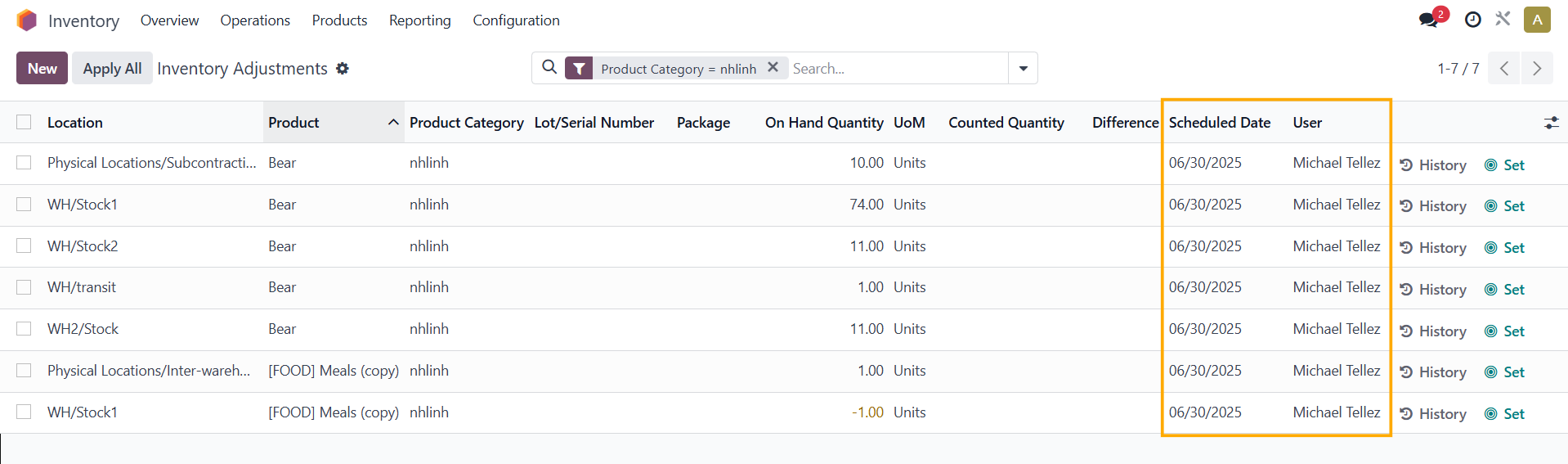
Go to
Inventory
>
Operations
>
Physical Inventory
and then filter the Product Category.
→ The
Scheduled Date
and
User
fields will be
auto-filled with the same contents that you set in the Product Category.
|
|
|
B.
Change inventory date by running scheduled actions
|
|
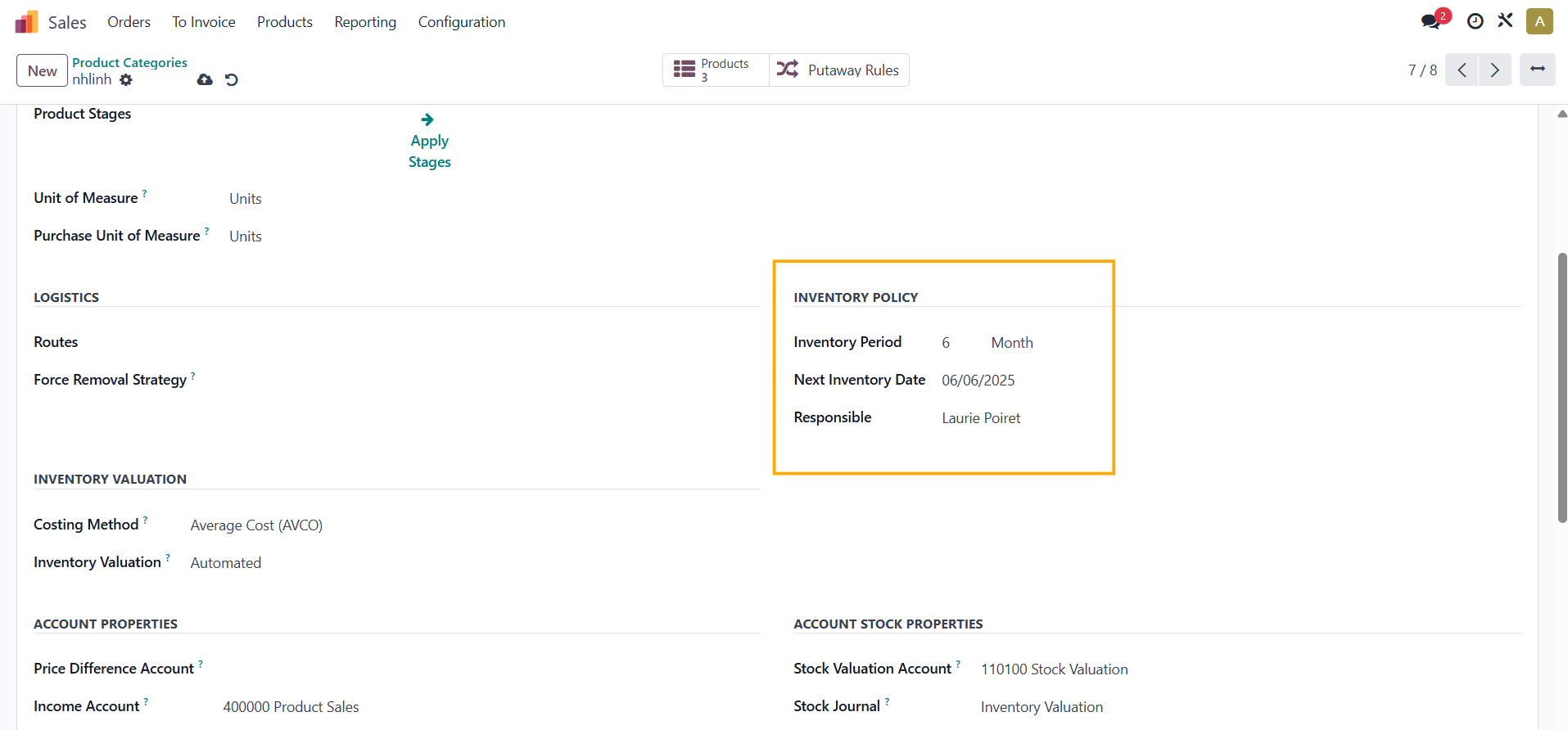
1.
|
|
2.
Go to
Settings
>
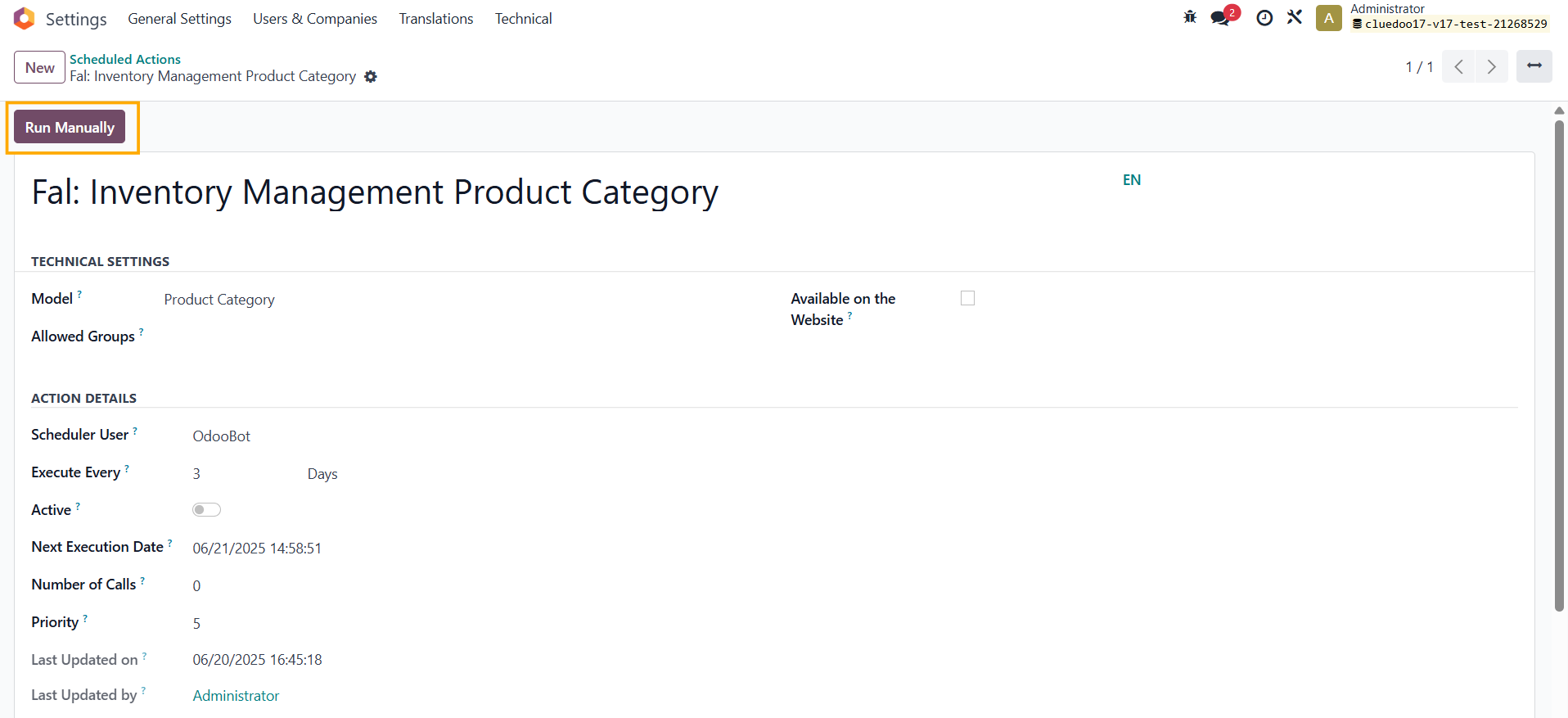
Scheduled Actions
> Choose
Fal: Inventory Management Product Category
>
Click
Run Manually.
|
|
3.
The
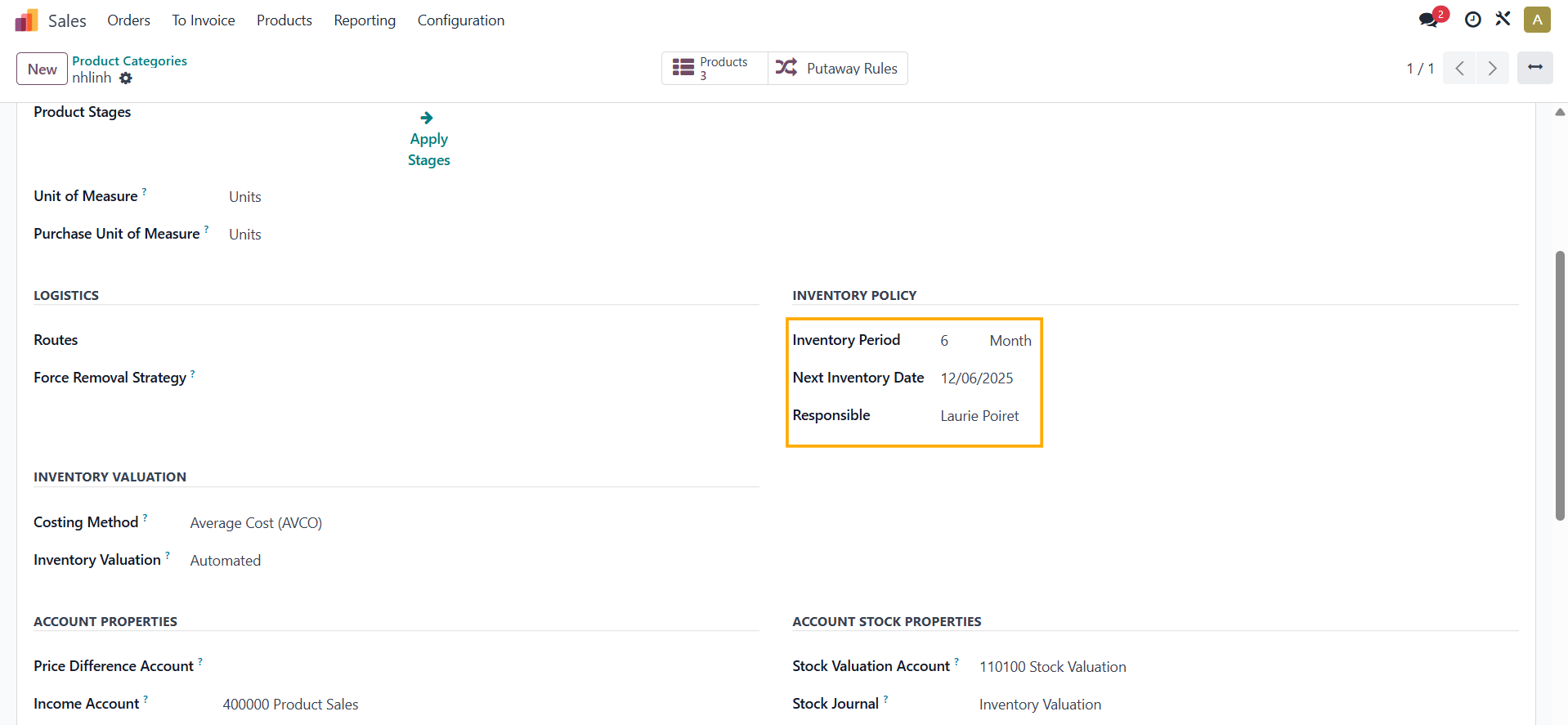
"Next Inventory Date"
is automatically calculated as the
first Inventory Date plus the Inventory Period.
|
|
4.
The
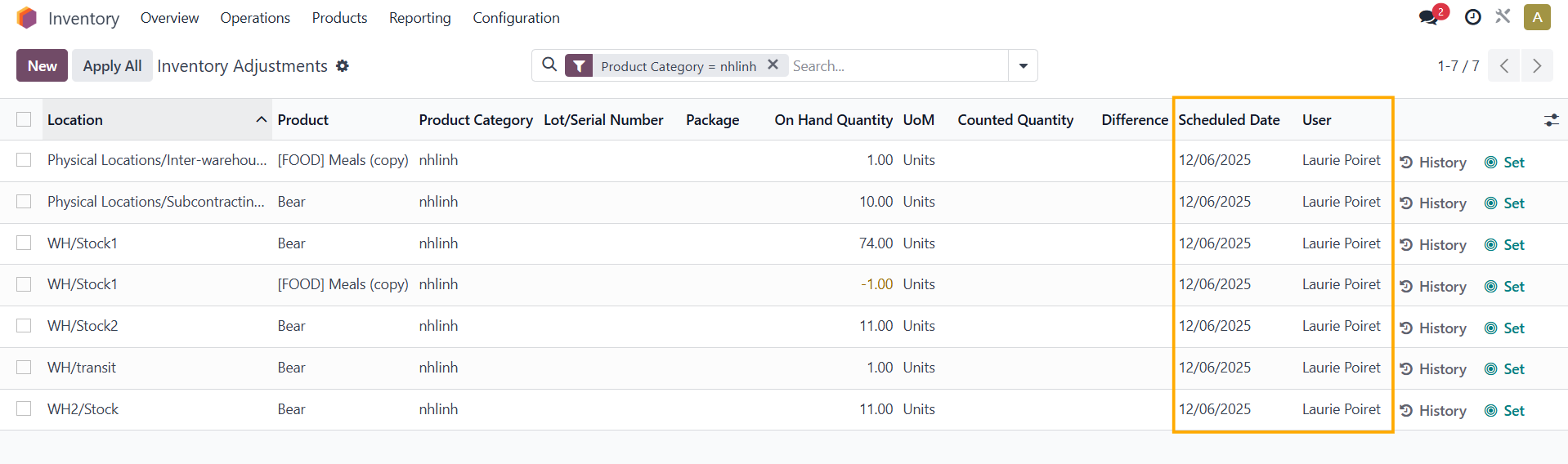
Scheduled Date
and
User
are automatically updated as well.
|
|
|
C
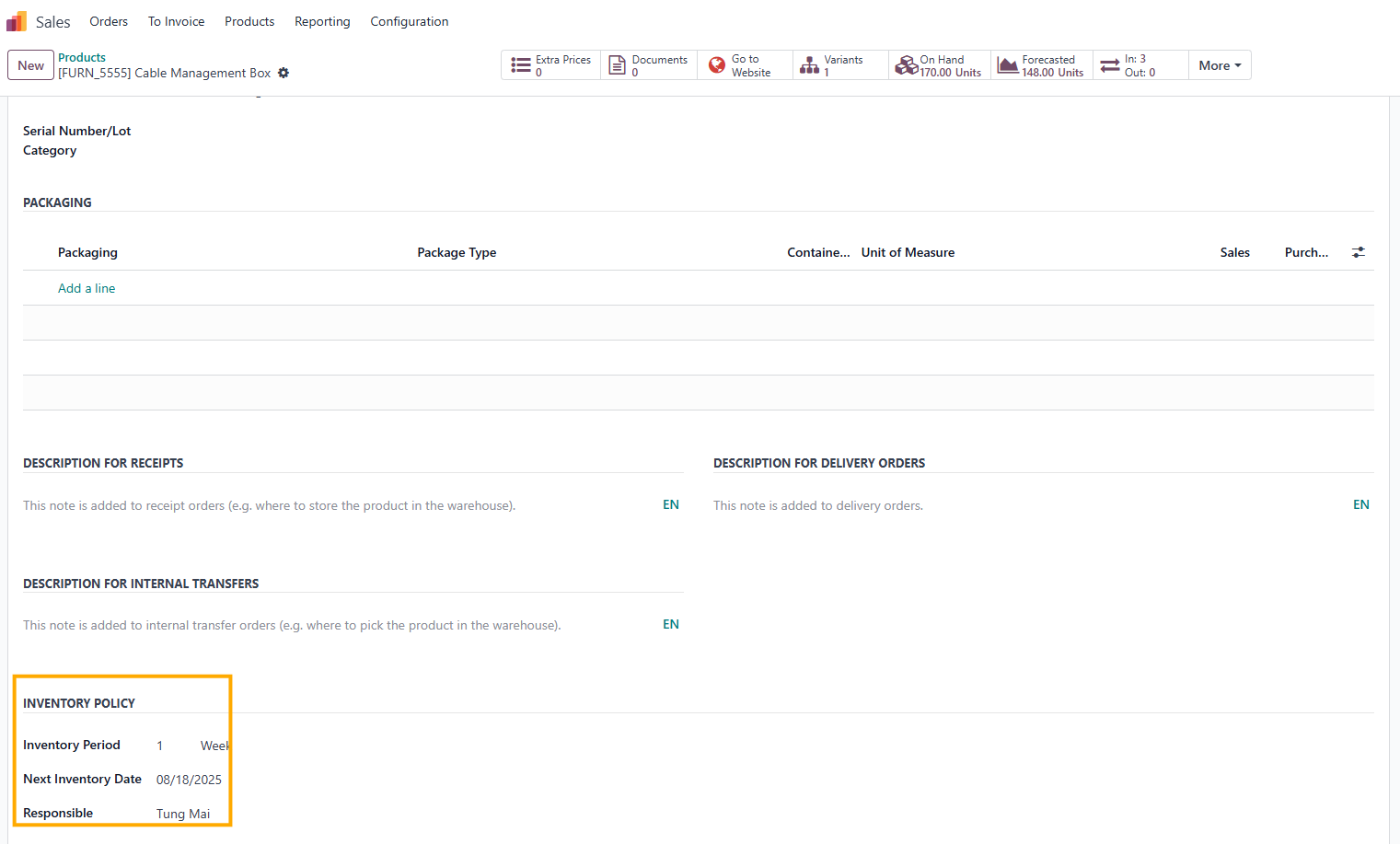
. Define the Inventory policy in Product
|
|
1.
|
|
|
|
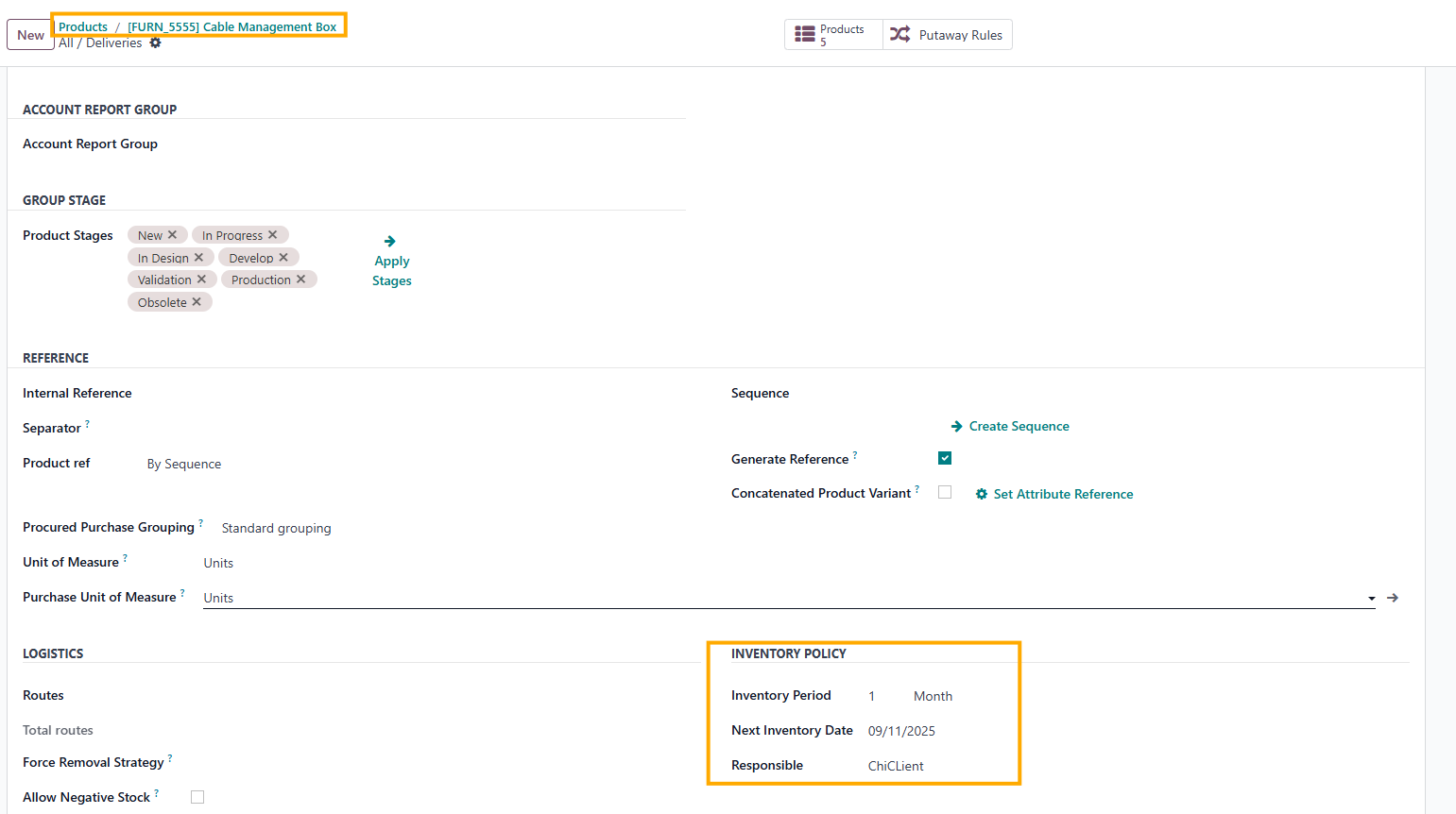
|
|
|

|
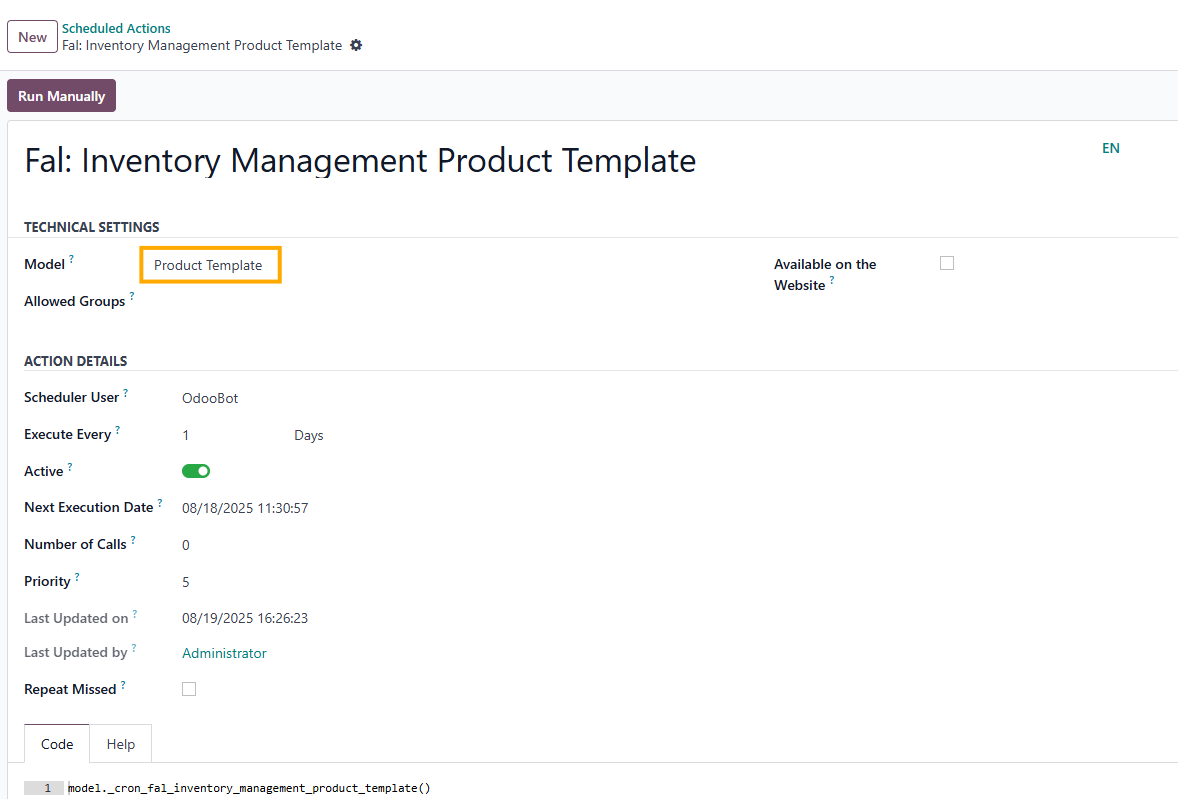
2.You can also use Scheduled Action to change the inventory date for the Product Template, the same as for the Product Category. |
|
STORY BEHIND THE FEATURES
ODOO BEHAVIOR
CLUEDOO BEHAVIOR
CLuedoo defines Inventory Policy by calculating the Next Inventory Date (Initial Inventory Date + Inventory Period) and auto-updating Scheduled Date and Responsible User , reducing manual effort and ensuring consistency across product categories. Users can also manually adjust dates in Product Categories and Product , with changes reflected in Inventory Adjustment.
CLUEDOO RECOMMENDATION
Install on 100% of your database.
OUR FEATURES AS SOLUTIONS
Define the Inventory policy = Frequency + Next Date + Responsible
HOW TO USE THIS MODULE?
|
A. Change inventory date manually
1.
Go to
Sales
>
Configuration
>
Products
>
Product Categories
|

|
|
2.
Choose a
Product Category
>
Inventory Policy
> Fill in the
Inventory Period, Next Inventory Date,
and the
Responsible
field.
Please do not set the Next Inventory Date=today as it will not work |

|
|
3.
Go to
Inventory
>
Operations
>
Physical Inventory
and then filter the Product Category
→ The
Scheduled Date
and
User
fields will be
auto-filled with the same contents that you set in the Product Category
|

|
|
B.
Change inventory date by running scheduled actions
1.
Go to
Product Categories
and then set
Inventory Policy
|

|
|
2.
Go to
Settings
>
Scheduled Actions
> Choose
Fal: Inventory Management Product Category
>
Click
Run Manually
|

|
|
3.
The
"Next Inventory Date"
is automatically calculated as the
first Inventory Date plus the Inventory Period.
|

|
|
4.
The
Scheduled Date
and
User
are automatically updated as well.
|

|
|
C
. Define the Inventory policy in Product
1.
You can do the same in the
Product
form.
Note:
|


 the module
|
|
2.
You can also use
Scheduled Action
to change the inventory date for the
Product Template,
the same as for the Product Category
|

|
| Availability |
Odoo Online
Odoo.sh
On Premise
|
| Odoo Apps Dependencies |
•
Inventory (stock)
• Invoicing (account) • Discuss (mail) |
| Lines of code | 244 |
| Technical Name |
fal_inventory_management_product_category |
| License | LGPL-3 |
| Website | https://www.cluedoo.com/shop/lic-clu-set-invc-0051-inventory-management-in-product-category-and-product-6800 |
Please log in to comment on this module